


Ultimate 2025-2026 reMarkable Paper Pro Planner
Looking to take control of your daily planning? Look no further!
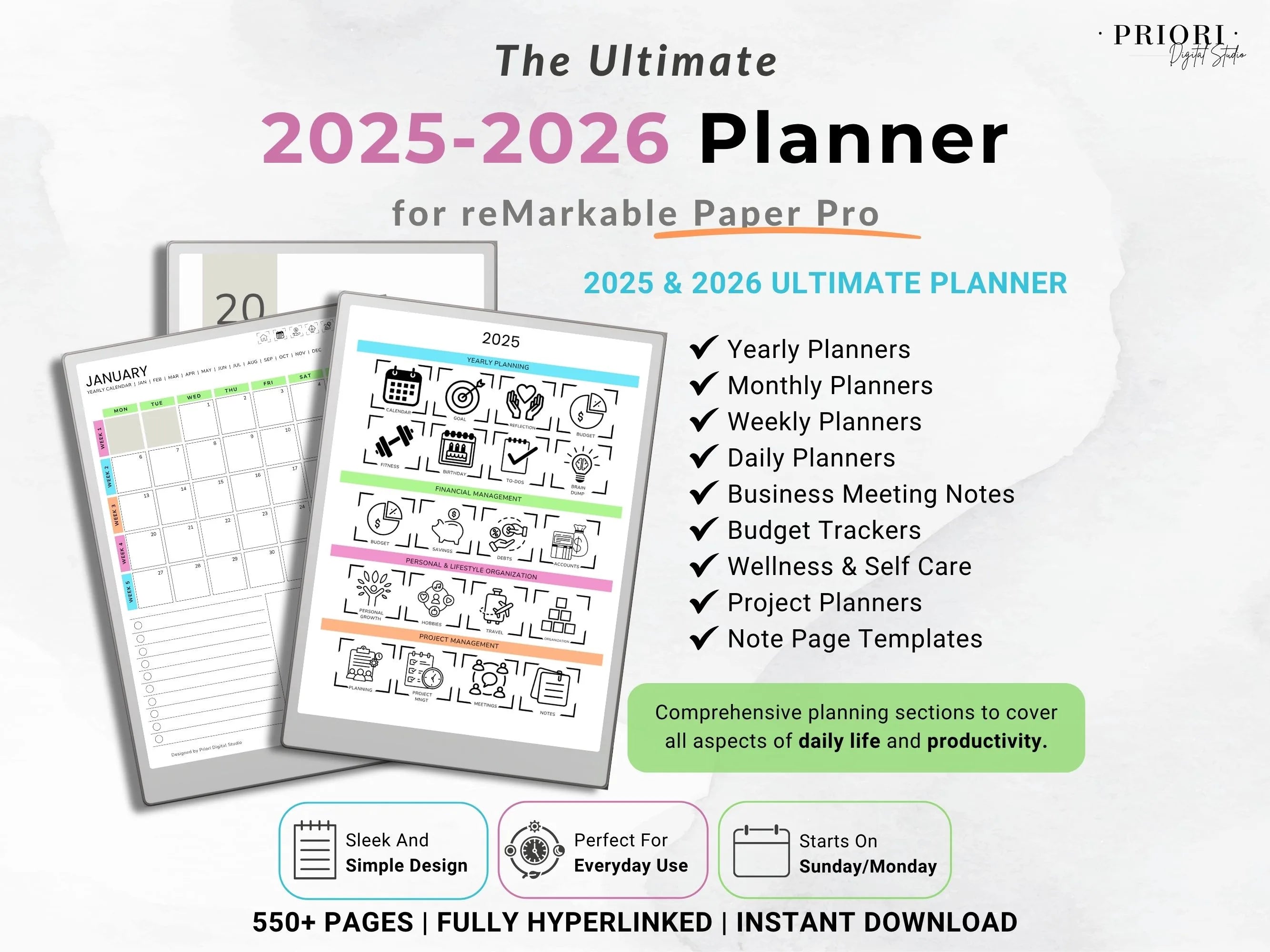
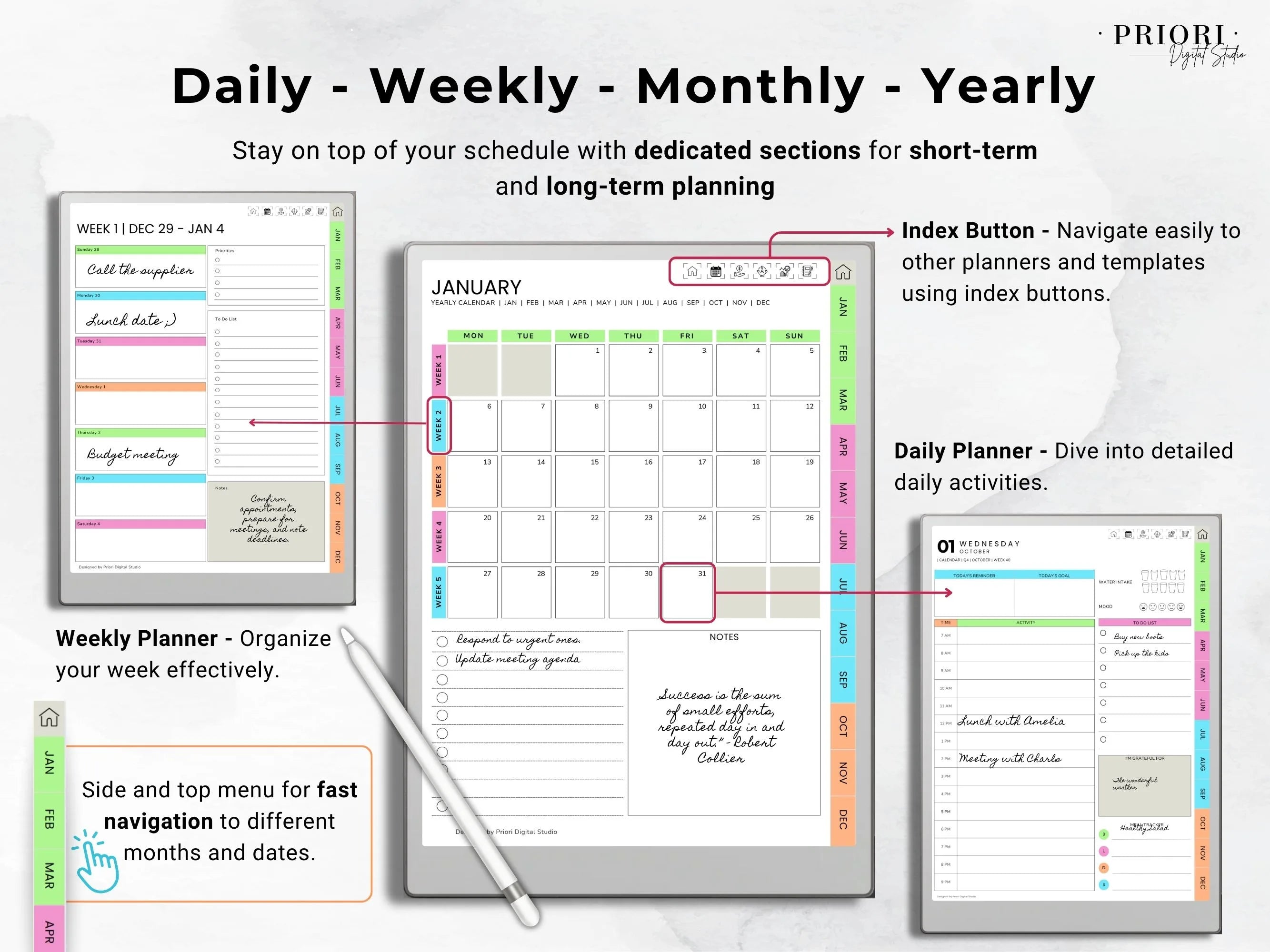
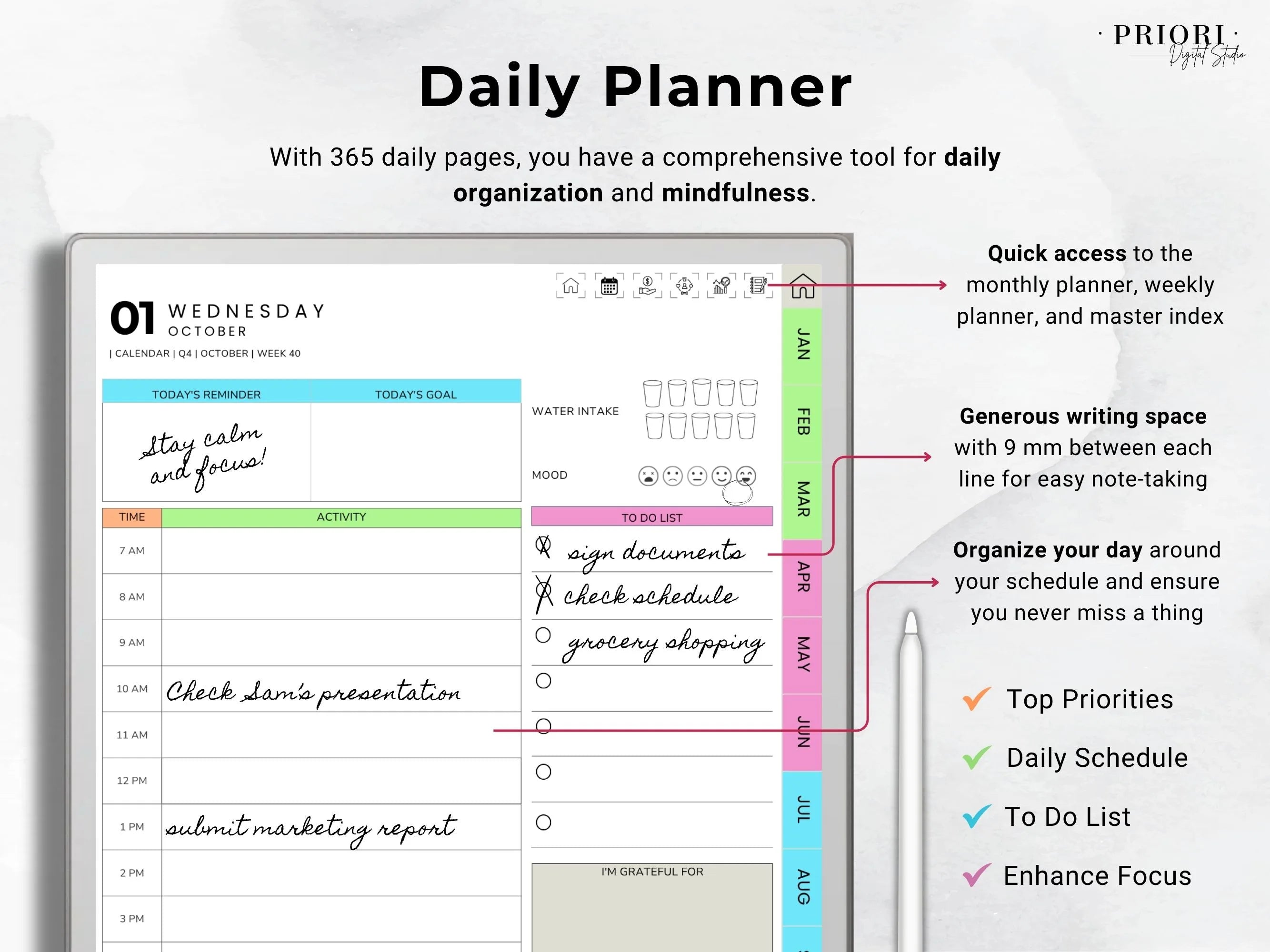
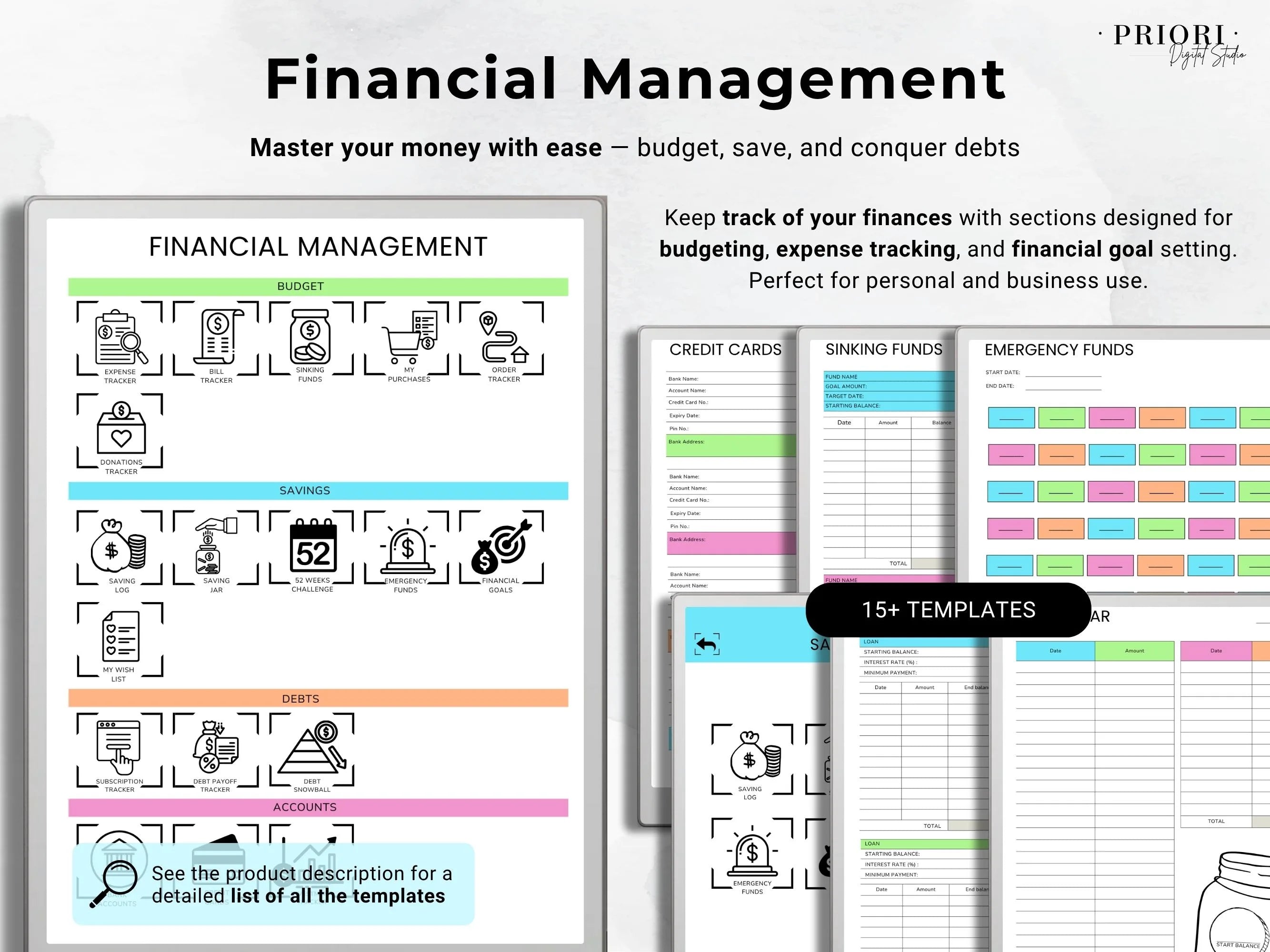
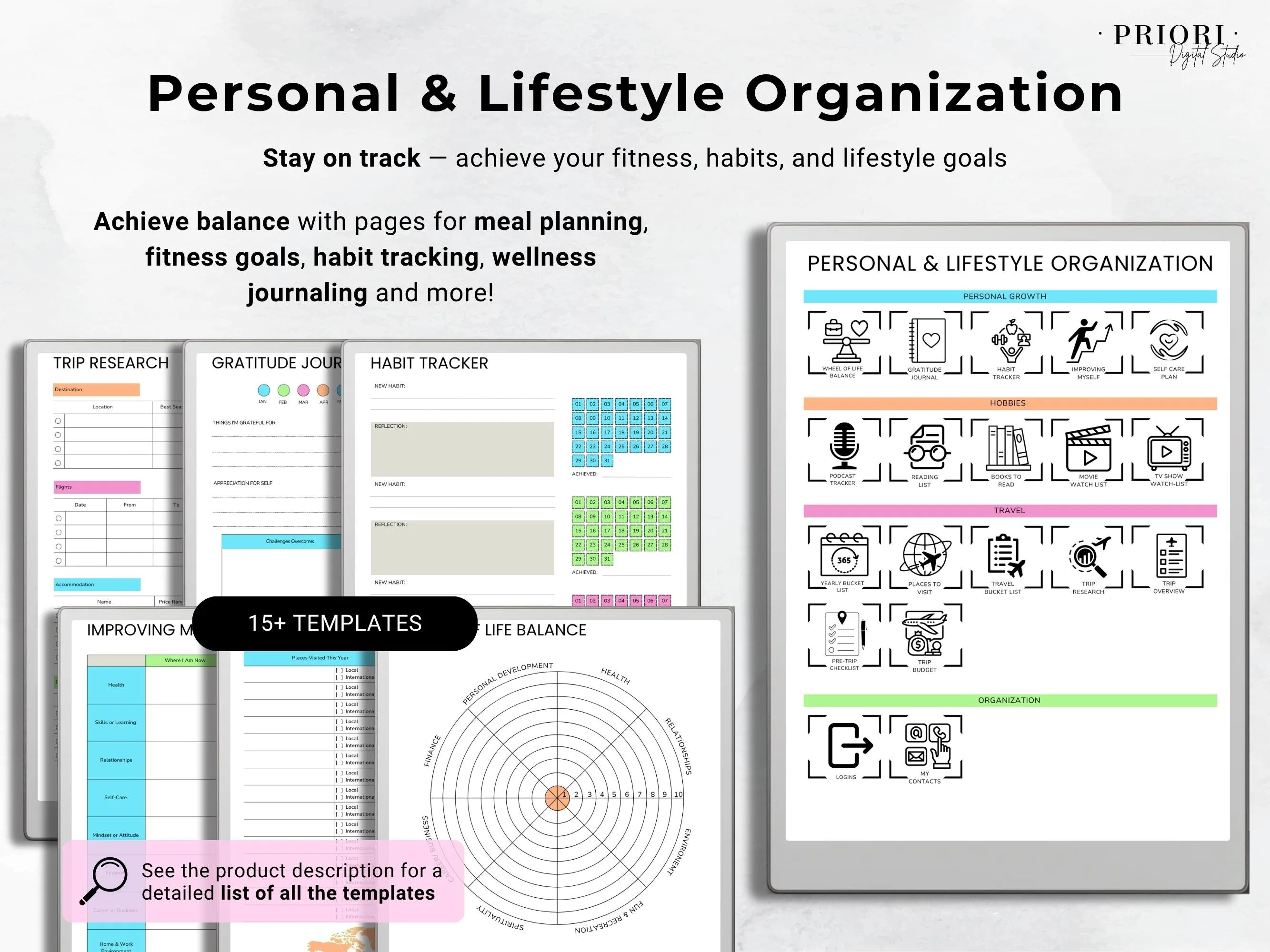
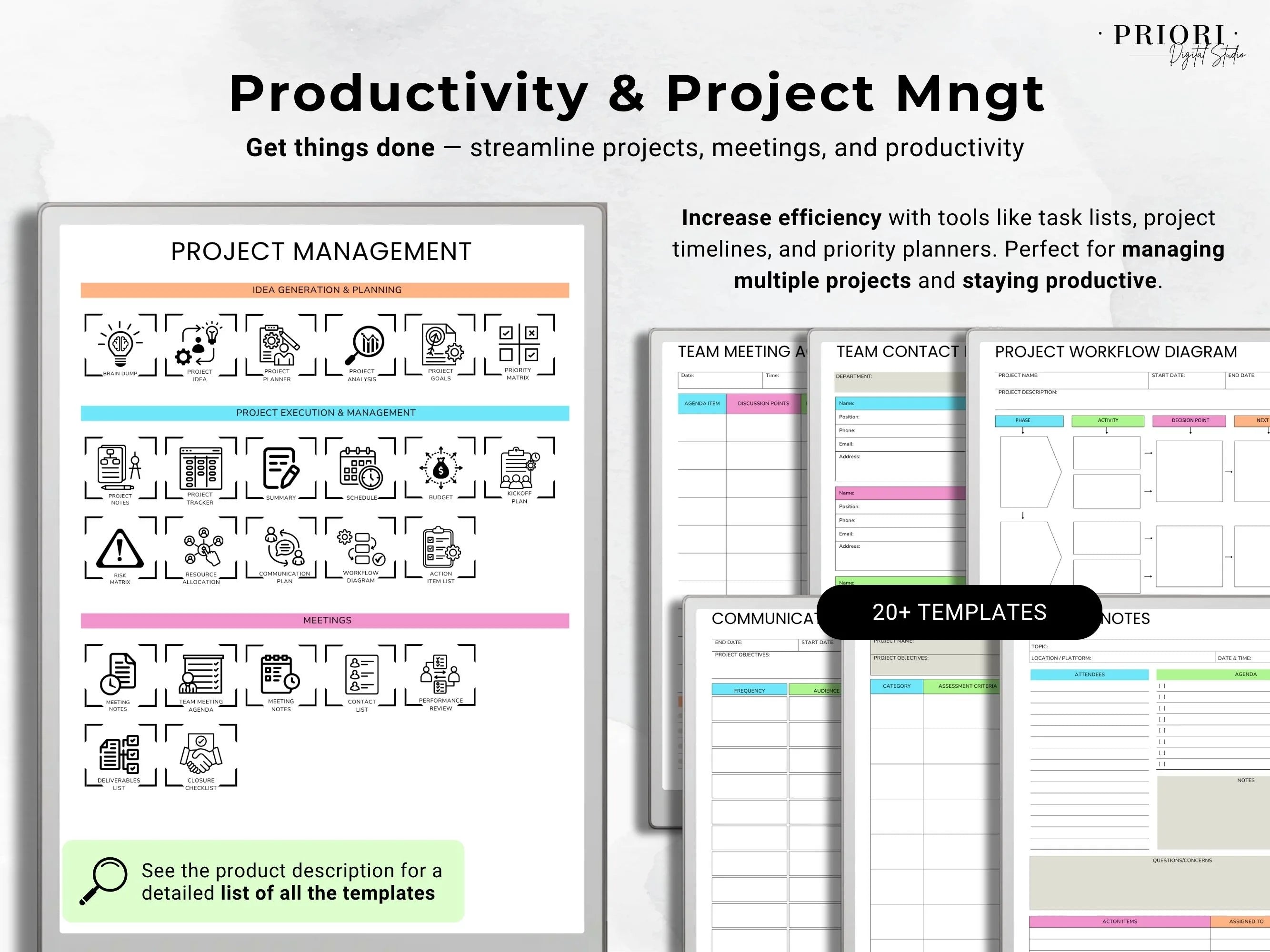
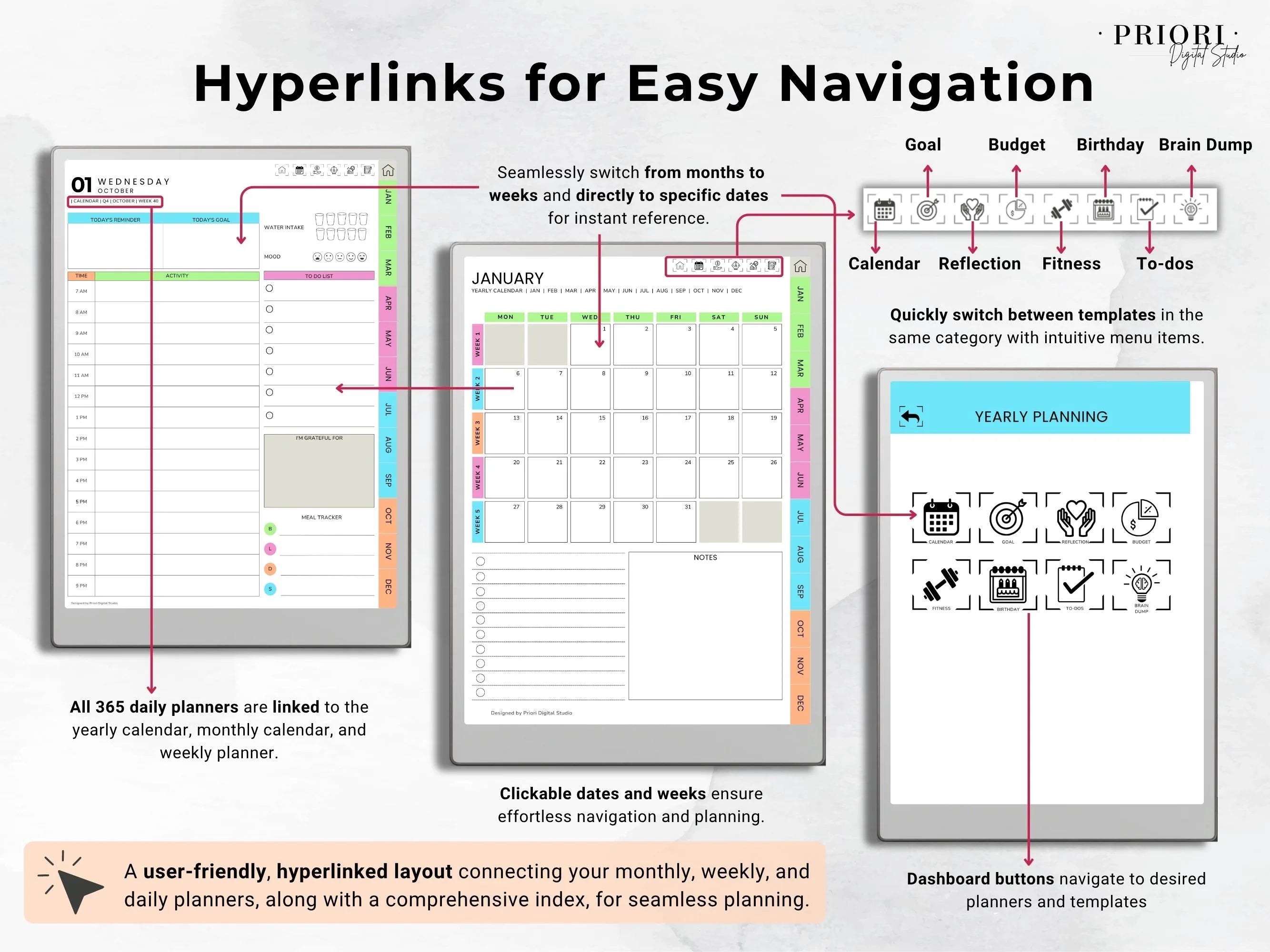
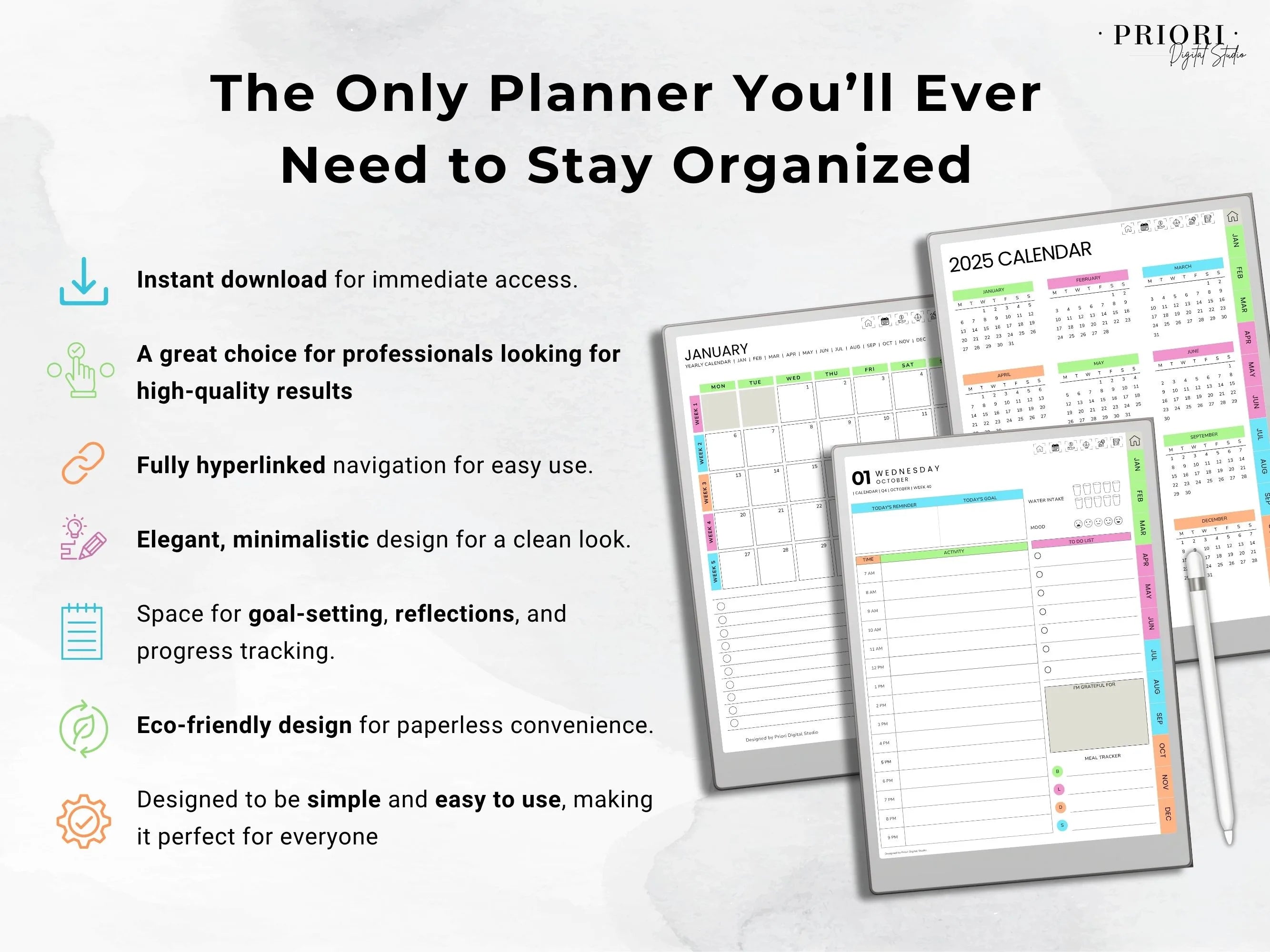
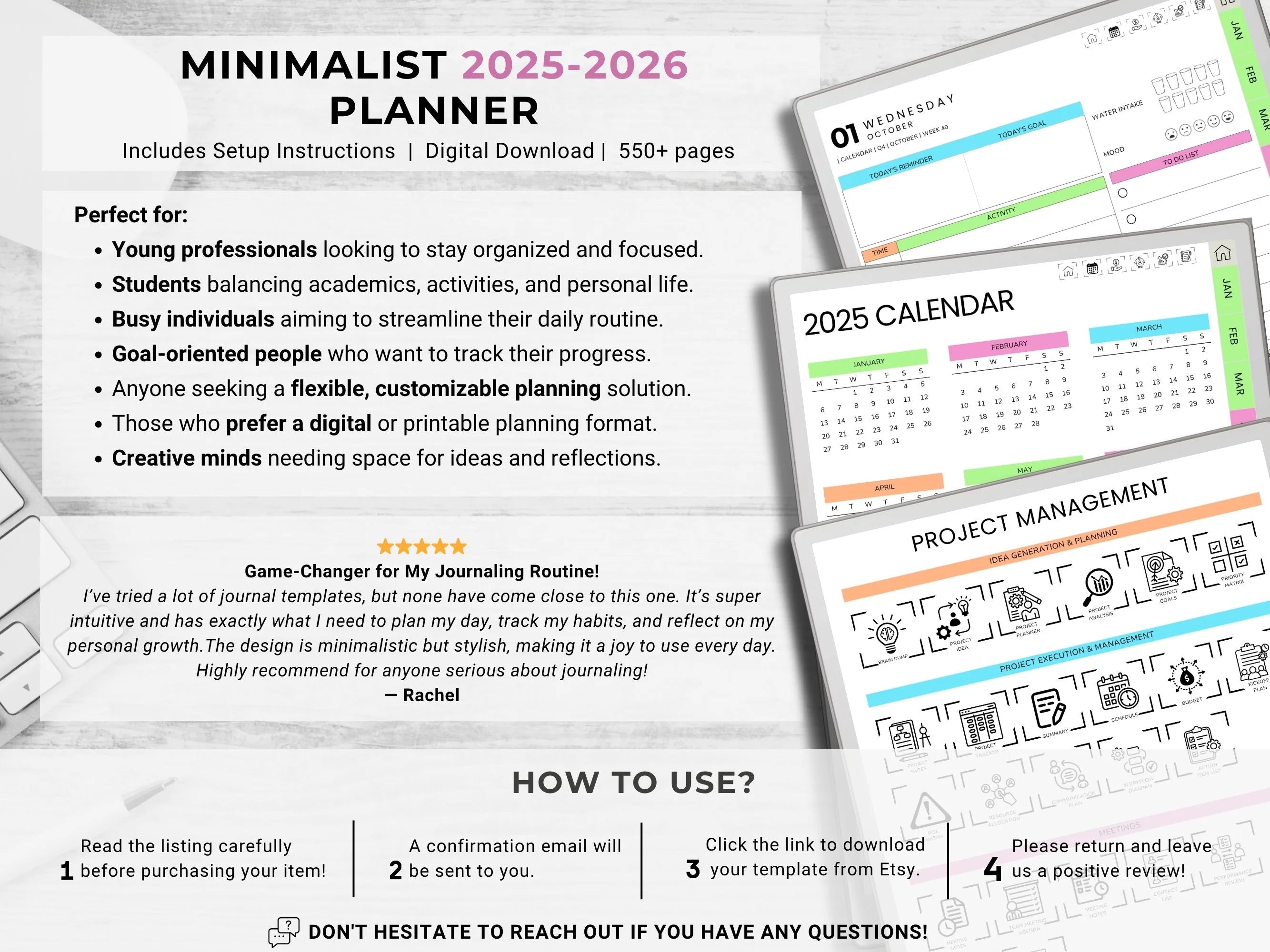
Our Ultimate 2025-2026 Planner specifically designed for reMarkable Paper Pro is the perfect tool for professionals and individuals aiming to effortlessly track their daily planning. Goals, reflection of the year, budget, personal improvement, meal planning, weekly planning and even more are available in this template.
Pairs well with
Available immediately after purchase
No Subscription Required
Trusted by Thousands
Secure Payment
Ultimate 2025-2026 reMarkable Paper Pro Planner
Product details
Overview
Looking to take control of your daily planning? Look no further!
Our Ultimate 2025-2026 Planner specifically designed for reMarkable Paper Pro is the perfect tool for professionals and individuals aiming to effortlessly track their daily planning. Goals, reflection of the year, budget, personal improvement, meal planning, weekly planning and even more are available in this template.
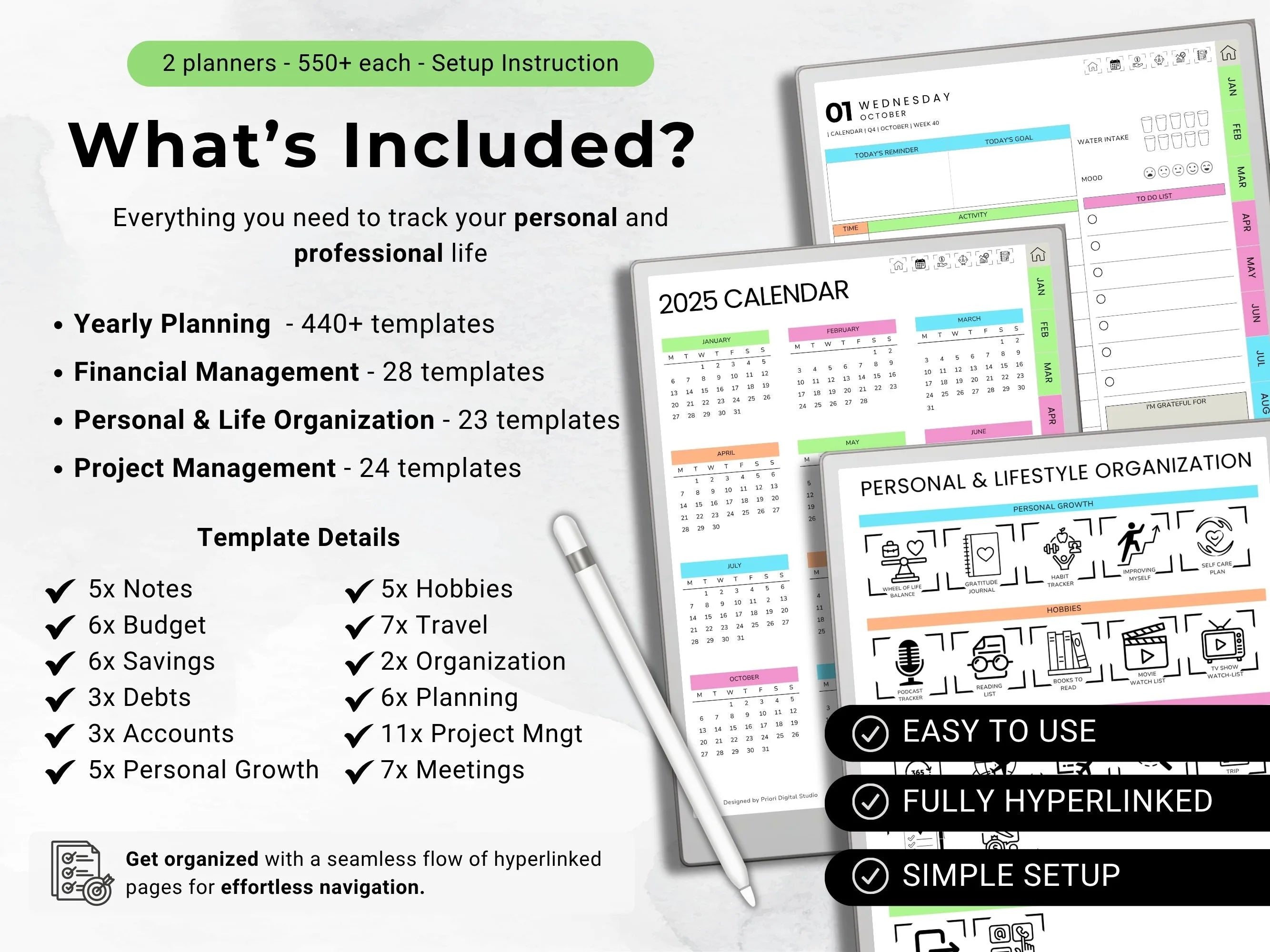
What’s Included
reMarkable FAQ
Welcome to our FAQ, we are so happy to have you here and as a client.
We have tried to answer the most common questions.
How to Access Your Template ?
To access the digital planner you purchased:
- Click the “Access Templates” button below (or the link we provided in your order confirmation).
- This will open our shared Google Drive folder.
- Browse and select the planner you want to use.
- Click Download. Your file will be saved in your computer’s Downloads folder as a PDF.
How to Upload Your Template to Your reMarkable ?
Option 1: Using the reMarkable Desktop App (Wi-Fi required)
- Open the reMarkable desktop app on your computer.
- Simply drag and drop the PDF file into the app window.
- The file will sync automatically to your reMarkable device if connected to WiFi.
Option 2: Using my.remarkable.com (Wi-Fi required)
- Go to my.remarkable.com and log into your account.
- Click on “Import your files.”
- Drag and drop your PDF or click “Browse files” to select your planner.
- Your file will appear under “My Files” on your reMarkable.
Option 3: Using Google Drive, Dropbox, or OneDrive (Wi-Fi required) Set up the integration:
- Log in to my.remarkable.com.
- Open the menu and click “Integrations.”
- Accept the terms and click “Add” next to your preferred cloud service.
- Sign in and connect your cloud account.
- Once connected, your Drive or Dropbox folders will appear in the My Files section of your device.
You can add up to 5 cloud accounts and manage them anytime in the Integrations tab.