


Ultimate Goodnotes Planner Horizontal
Looking to take control of your daily planning? Look no further!
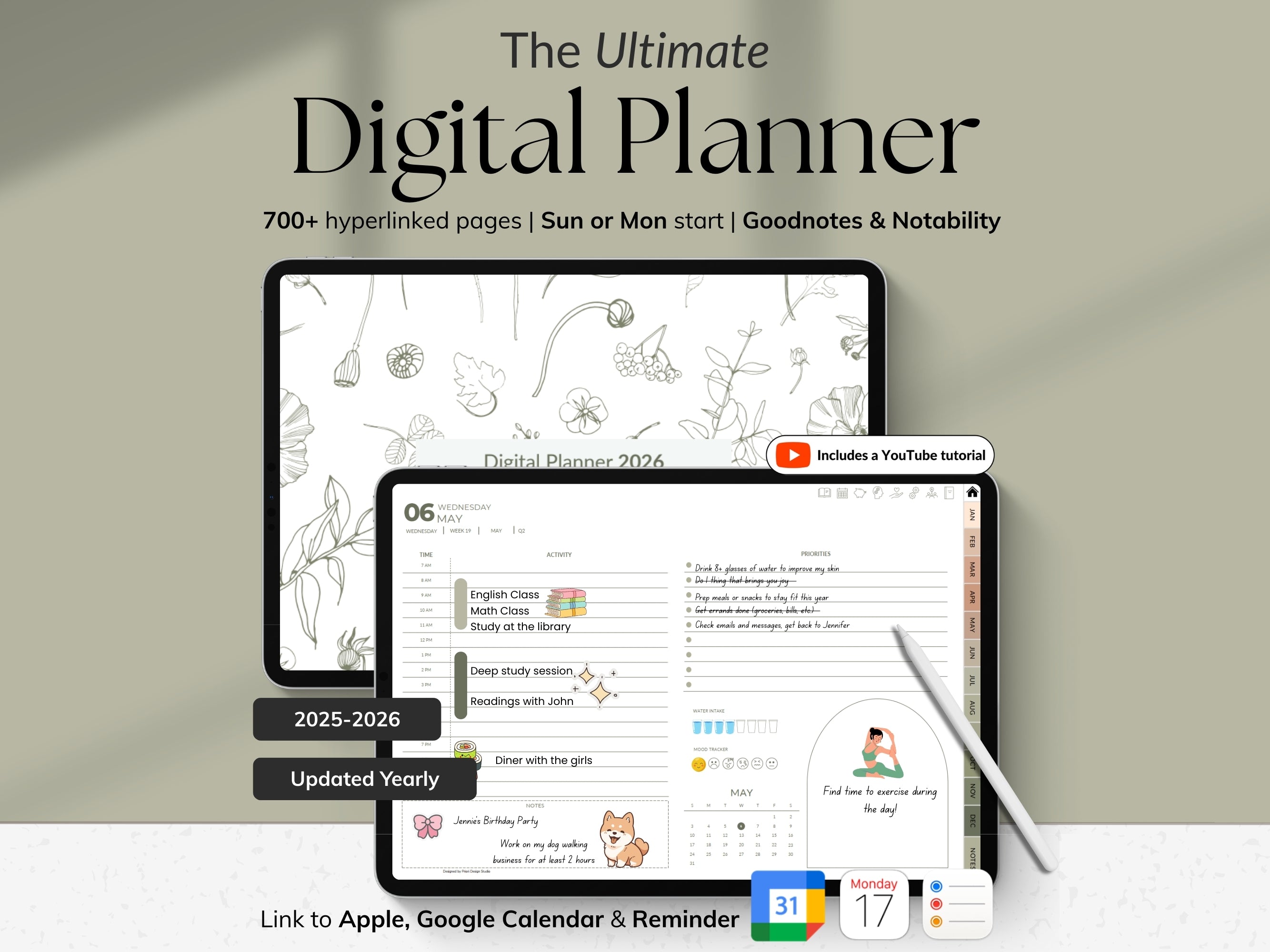
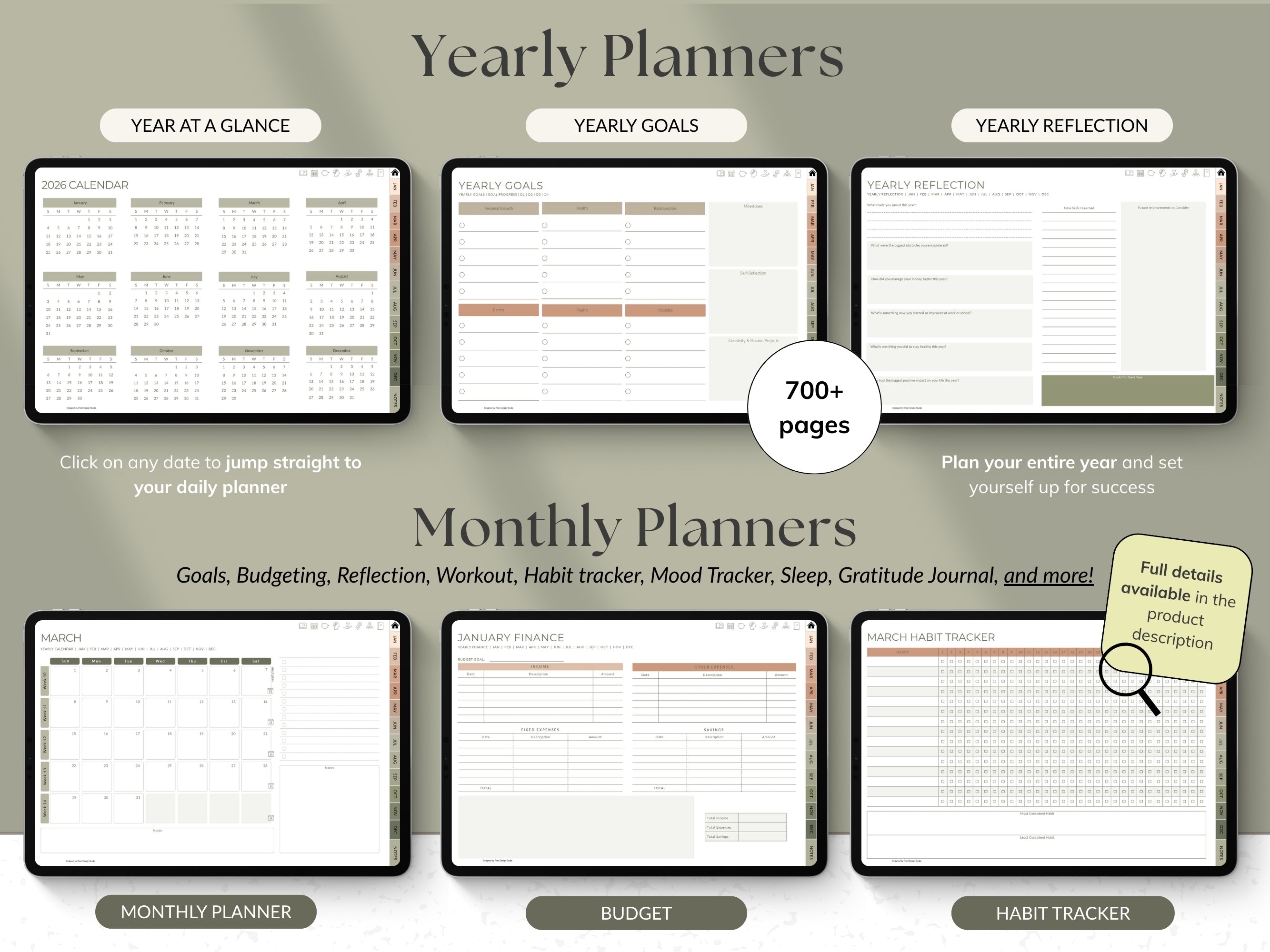
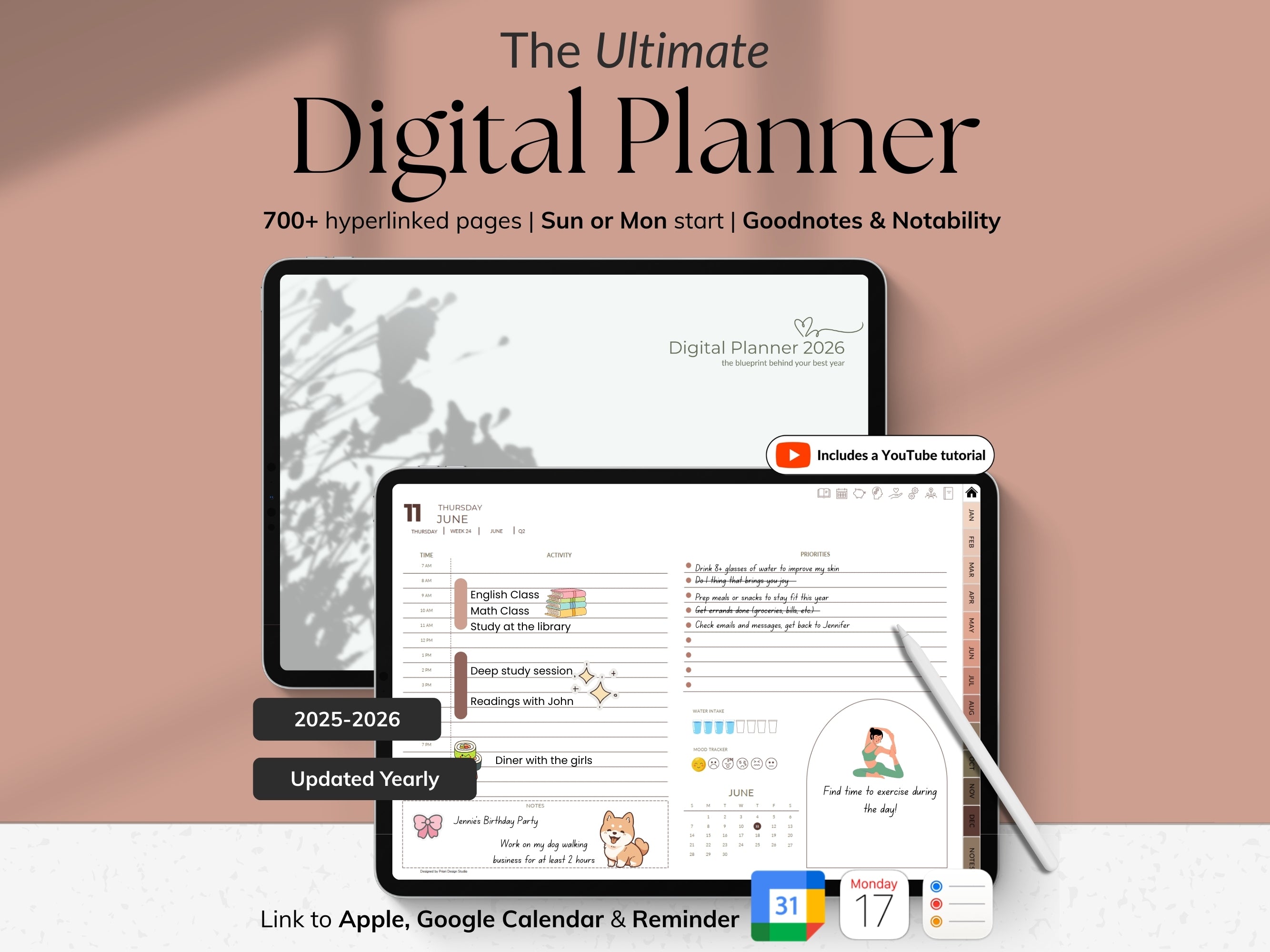
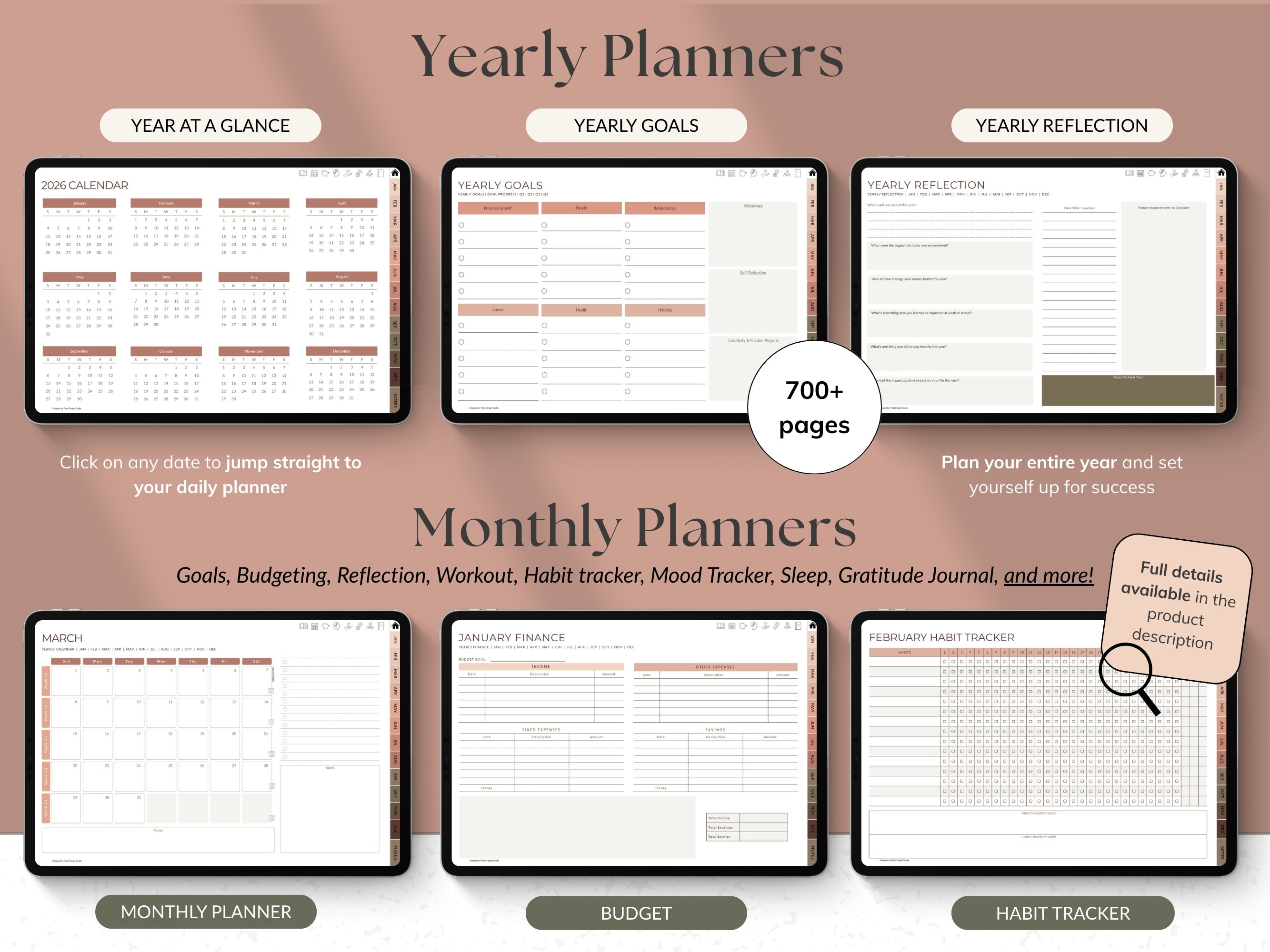
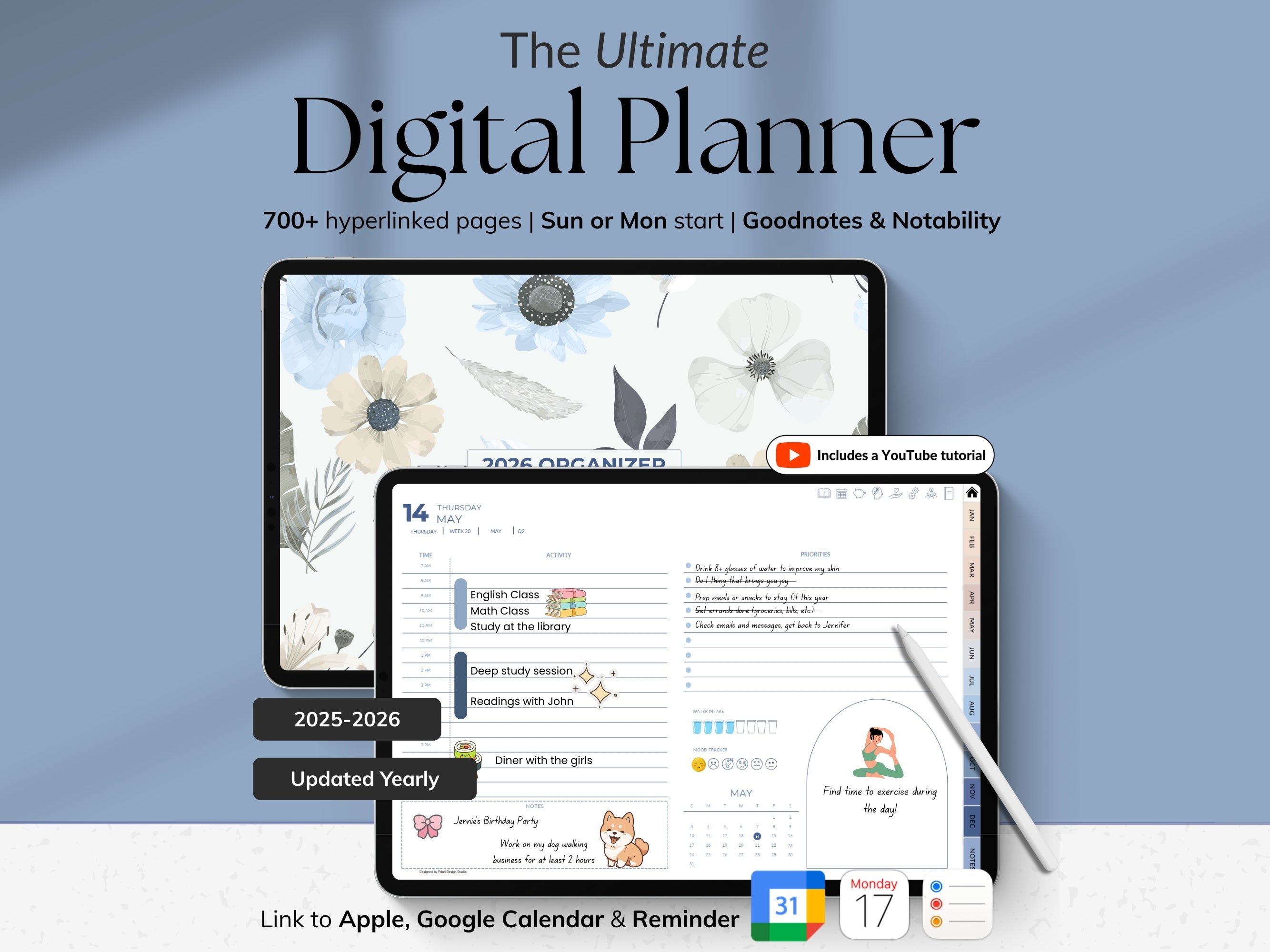
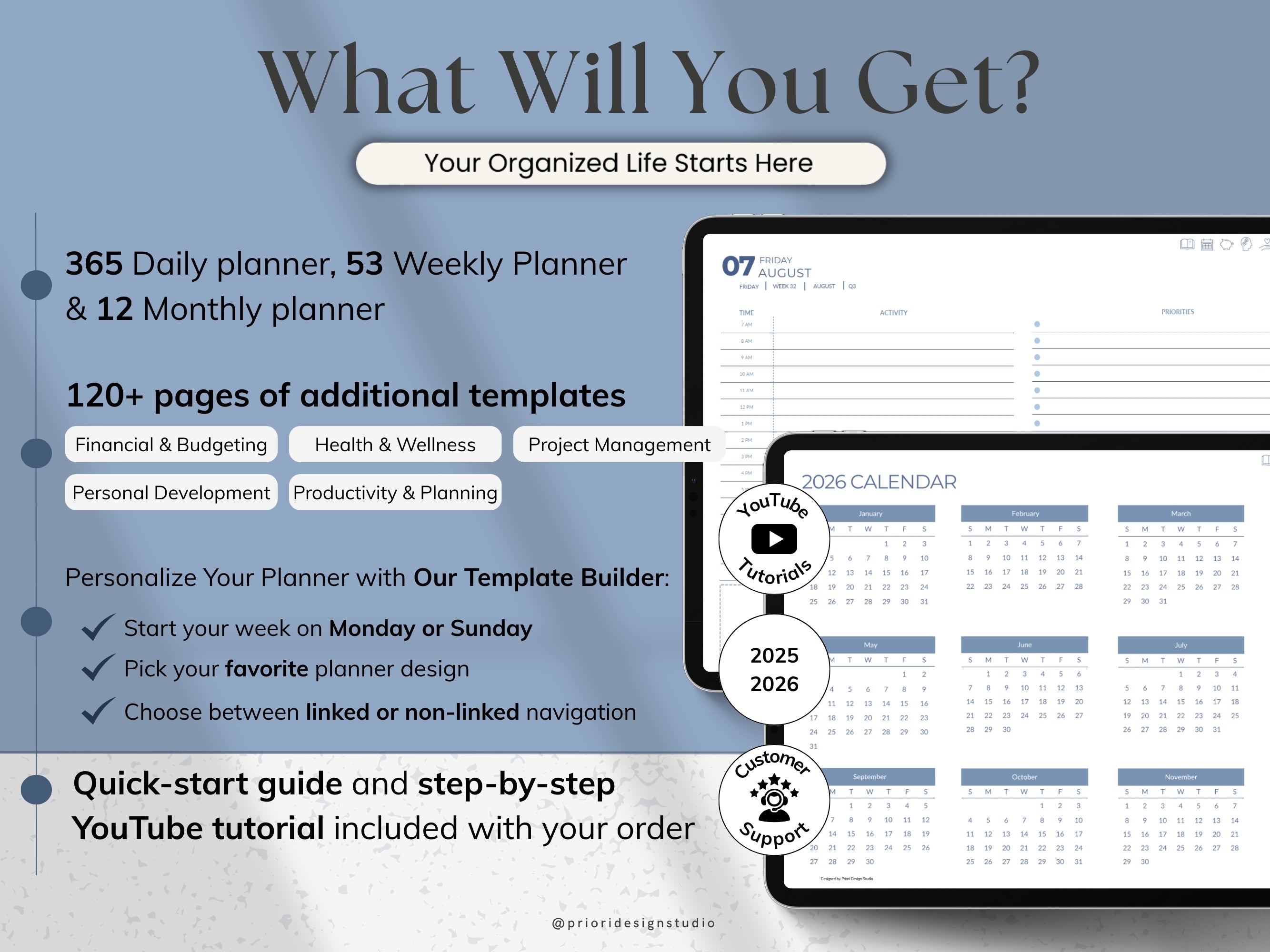
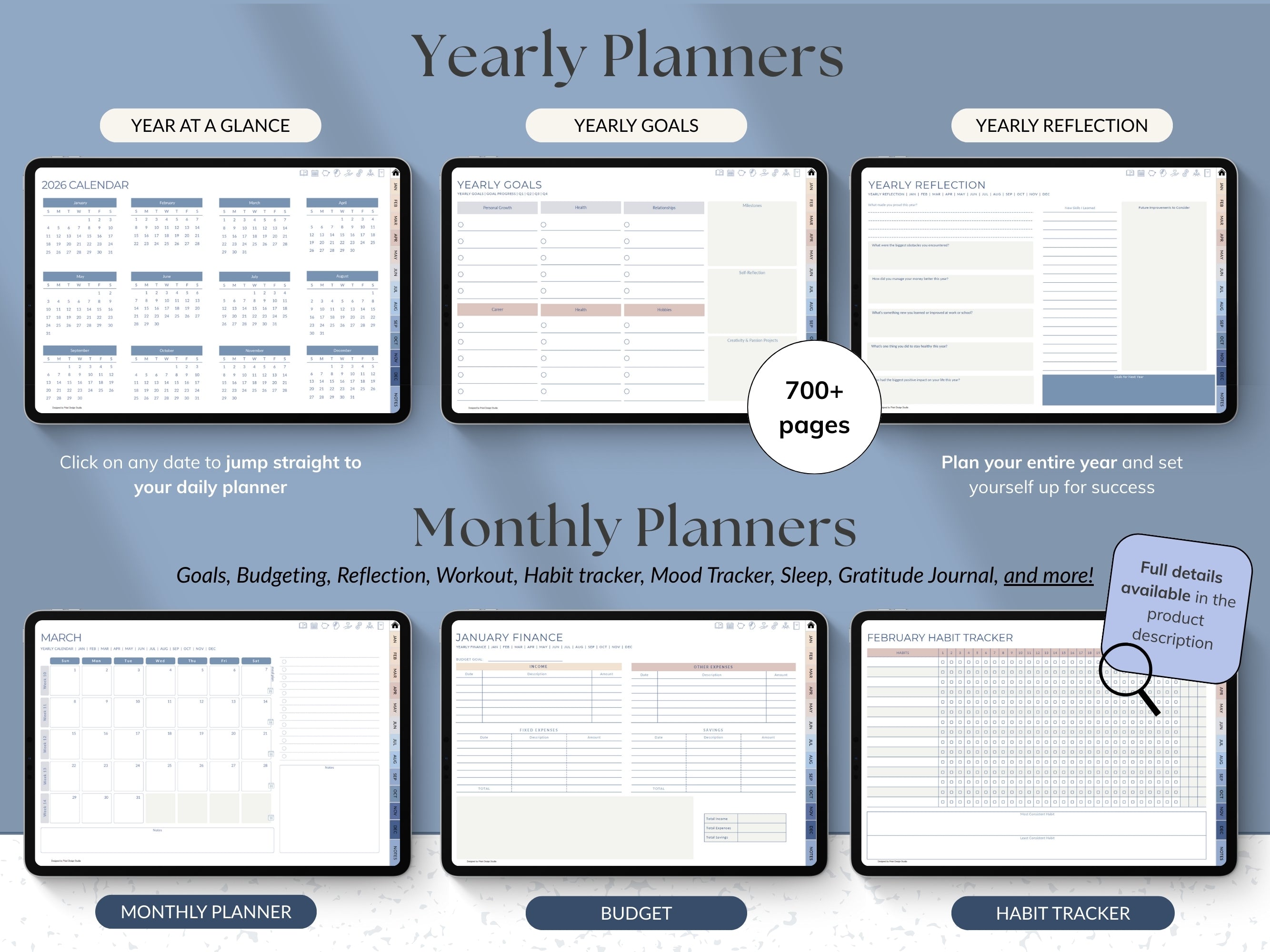
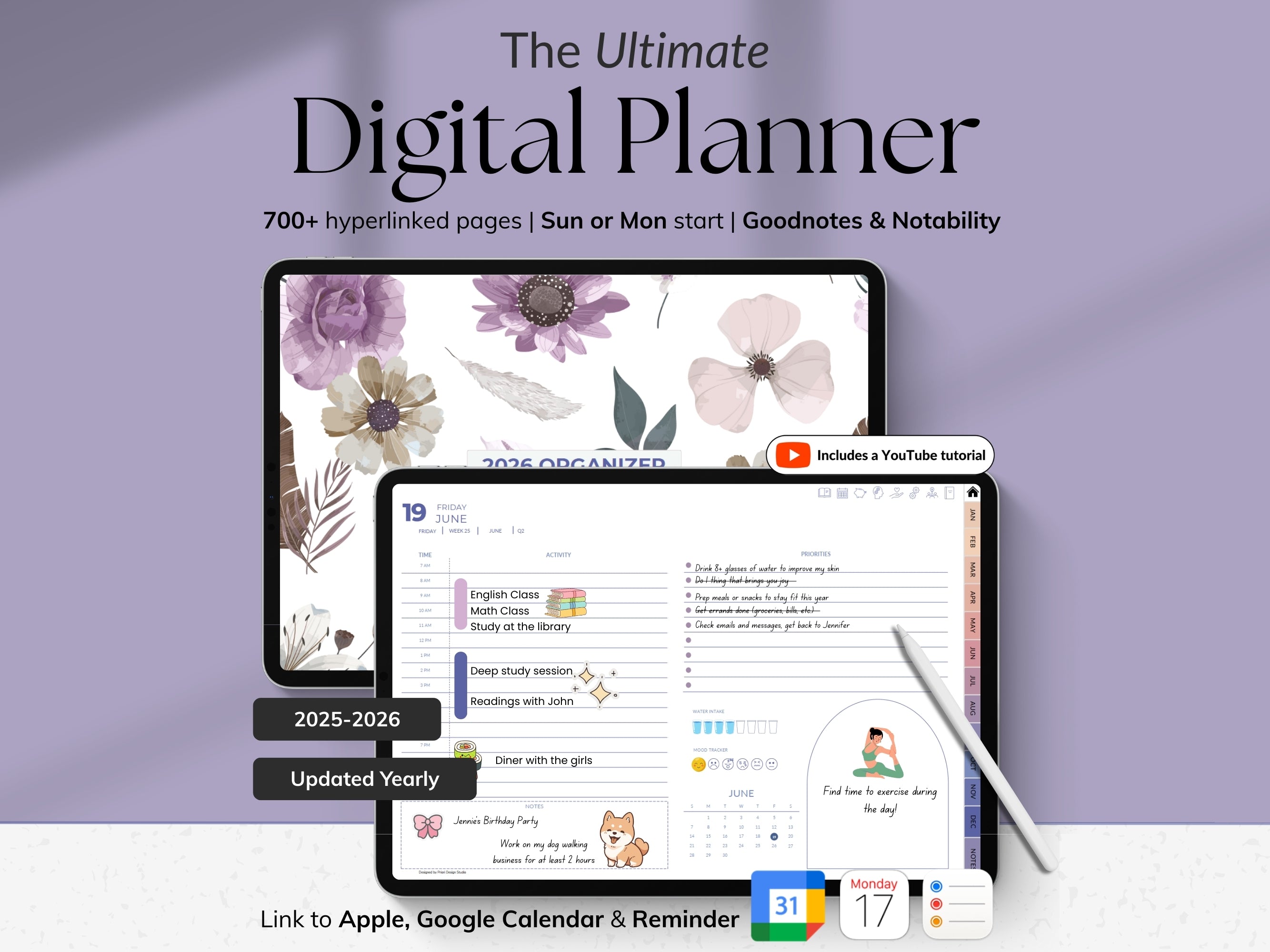
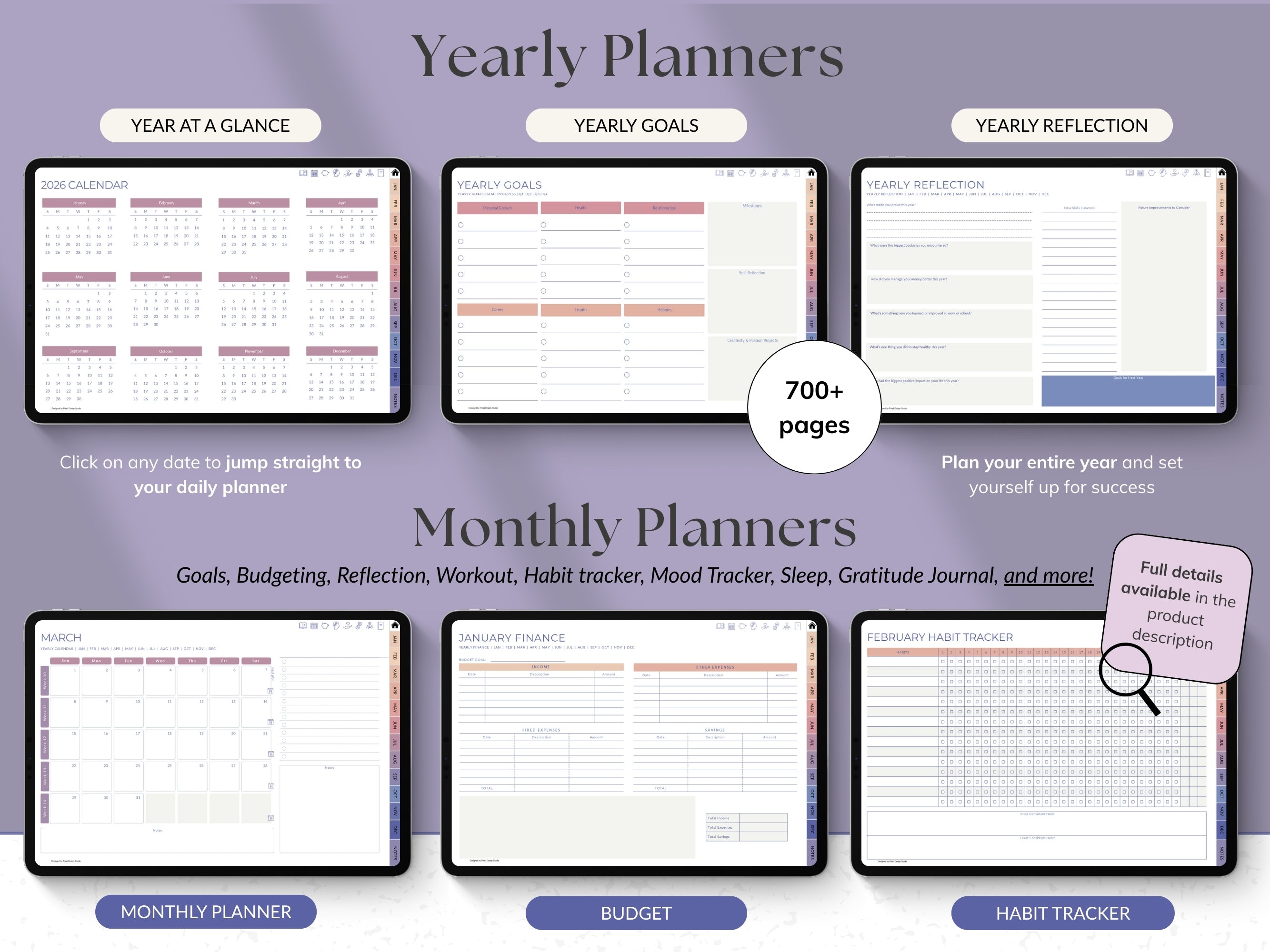
Our Ultimate Planner is the perfect tool for anyone who wants to stay organized, motivated, and on top of their goals. Designed for Goodnotes and Notability (iPad/Tablet use), this planner helps you manage your daily schedule, long-term goals, yearly reflections, budgeting, personal growth, meal planning, weekly planning, and so much more—all in one place.
Pairs well with
Available immediately after purchase
No Subscription Required
Trusted by Thousands
Ultimate Goodnotes Planner Horizontal
Product details
Overview
Looking to take control of your daily planning? Look no further!
Our Ultimate Planner is the perfect tool for anyone who wants to stay organized, motivated, and on top of their goals. Designed for Goodnotes and Notability (iPad/Tablet use), this planner helps you manage your daily schedule, long-term goals, yearly reflections, budgeting, personal growth, meal planning, weekly planning, and so much more—all in one place.
What’s Included
Disclaimer
Copyright notice

Goodnotes Guide
To help you get started smoothly, we’'e prepared this GoodNotes guide so you can enjoy your new digital product right away.

Notability Guide
We've created this Notability guide to help you make the most of your new digital product with ease

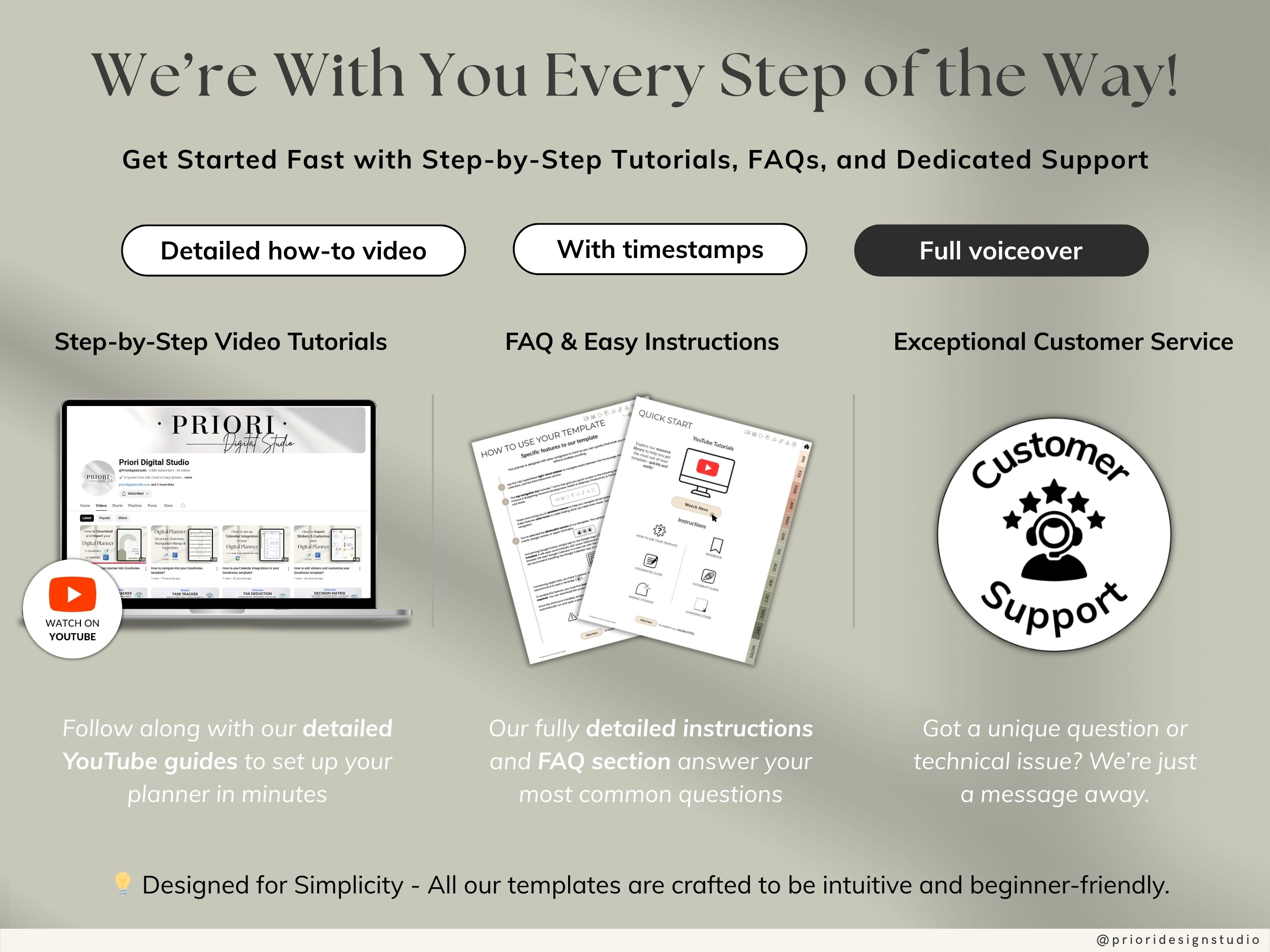
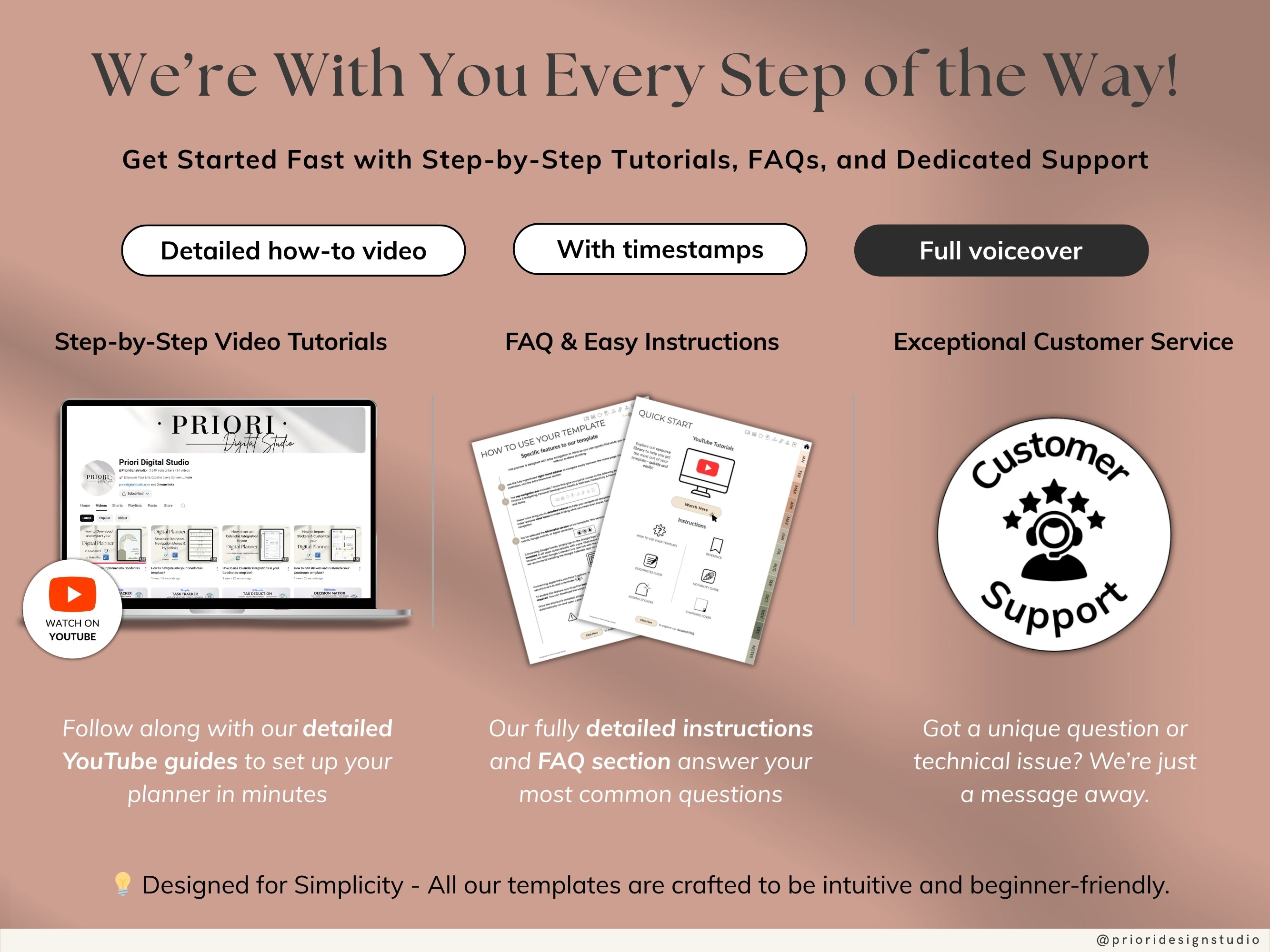
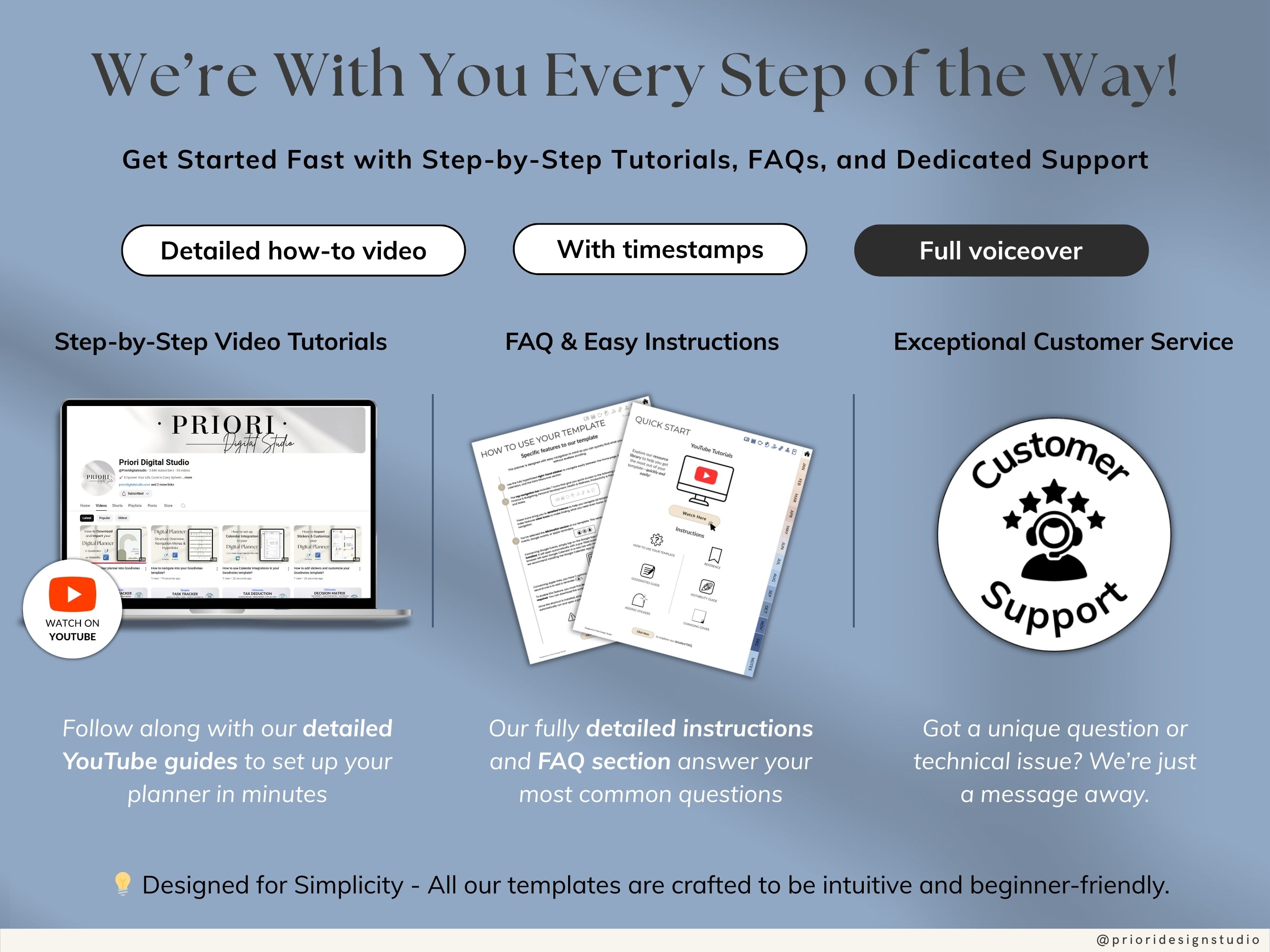
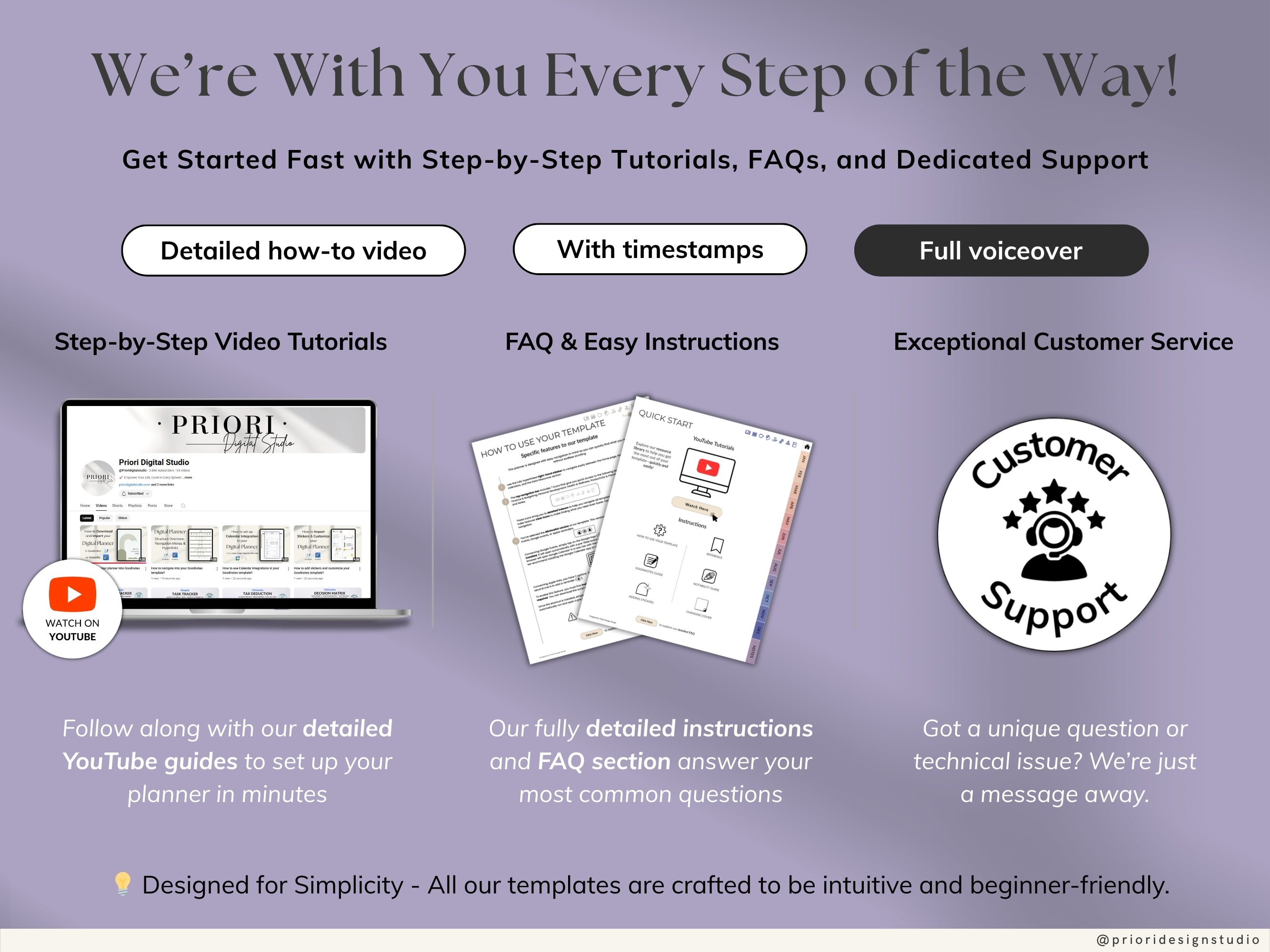
Step-by-Step Video Tutorials
Follow along with our detailed YouTube guides to set up your planner in minutes
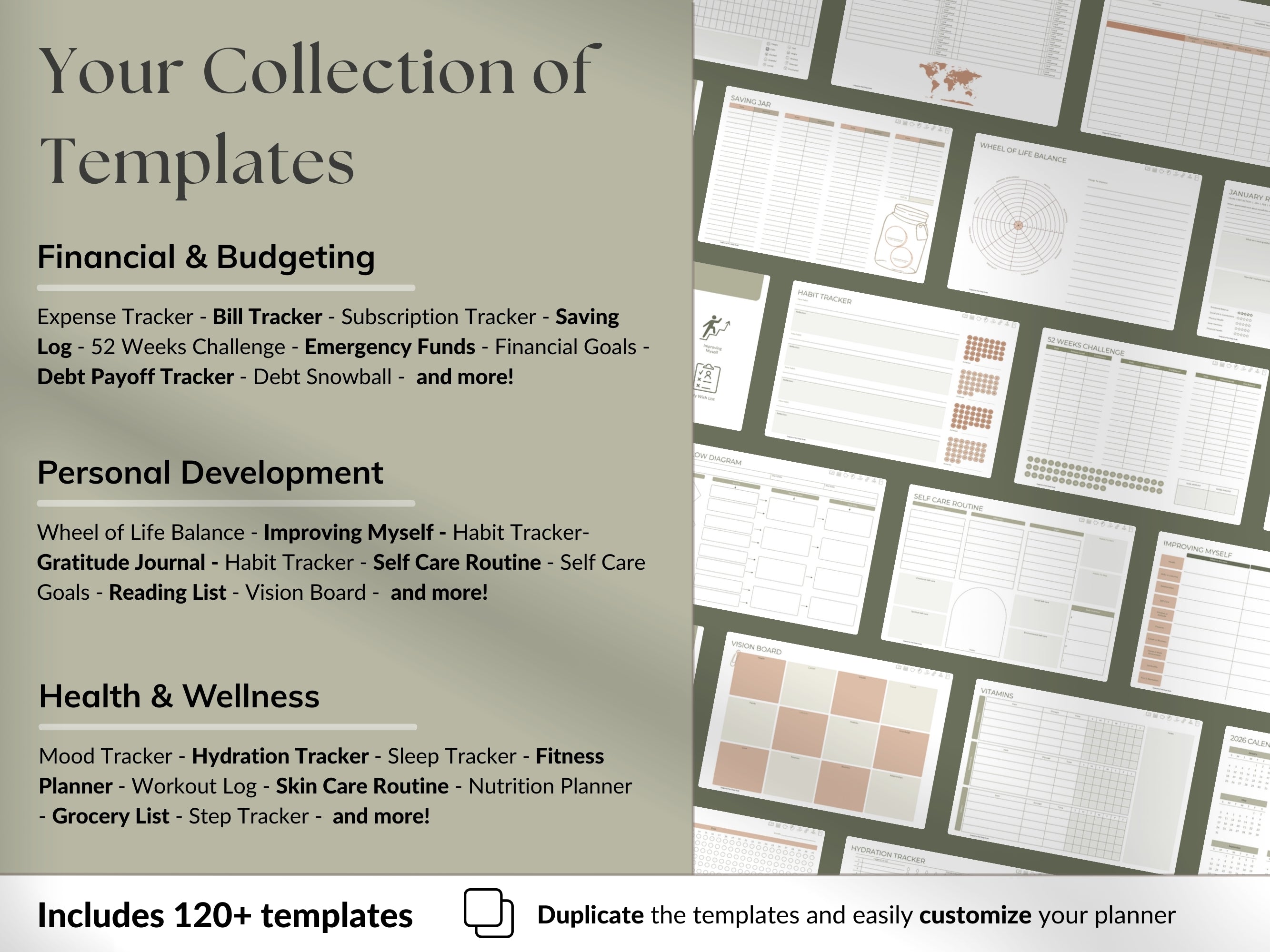
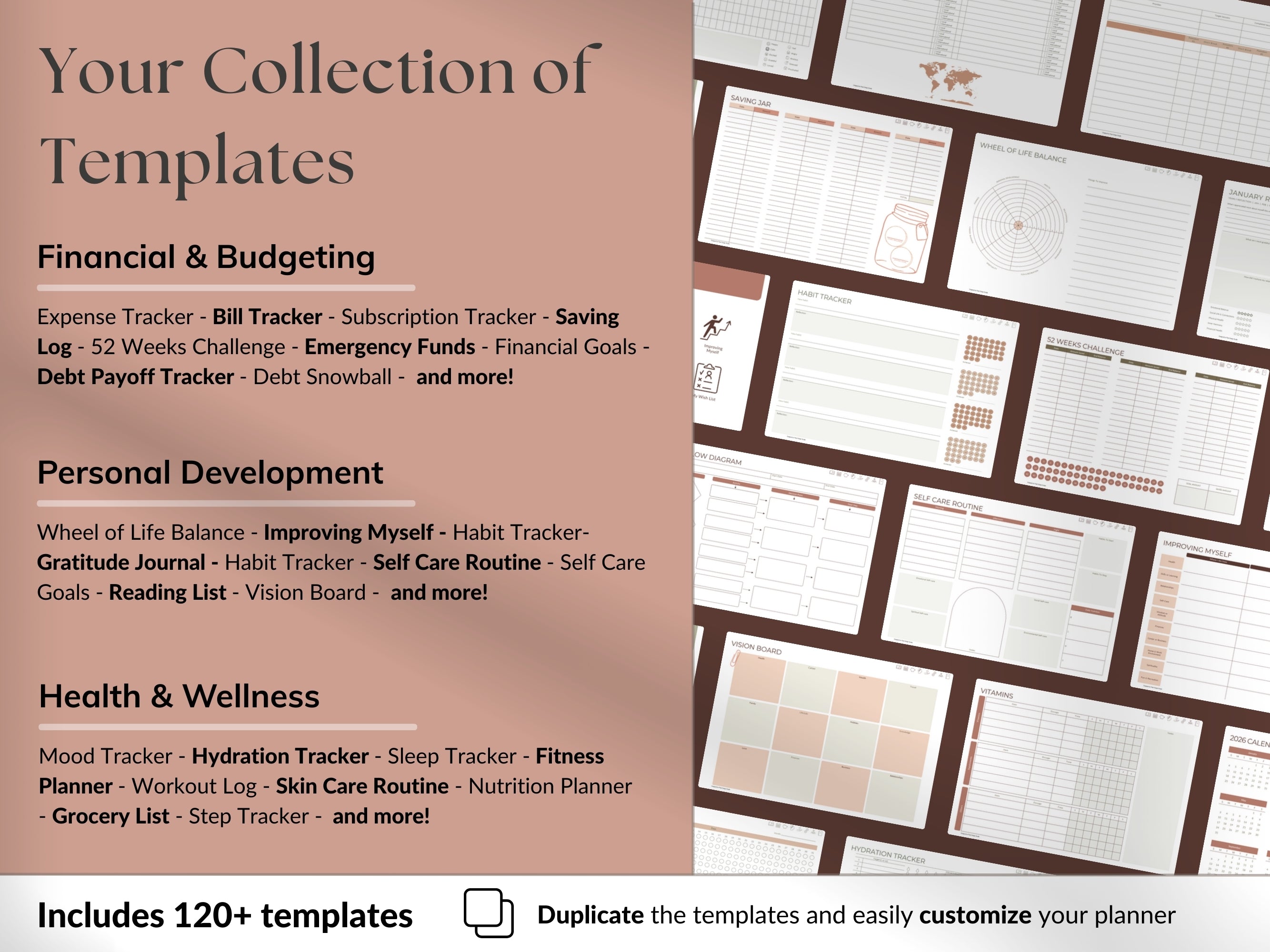
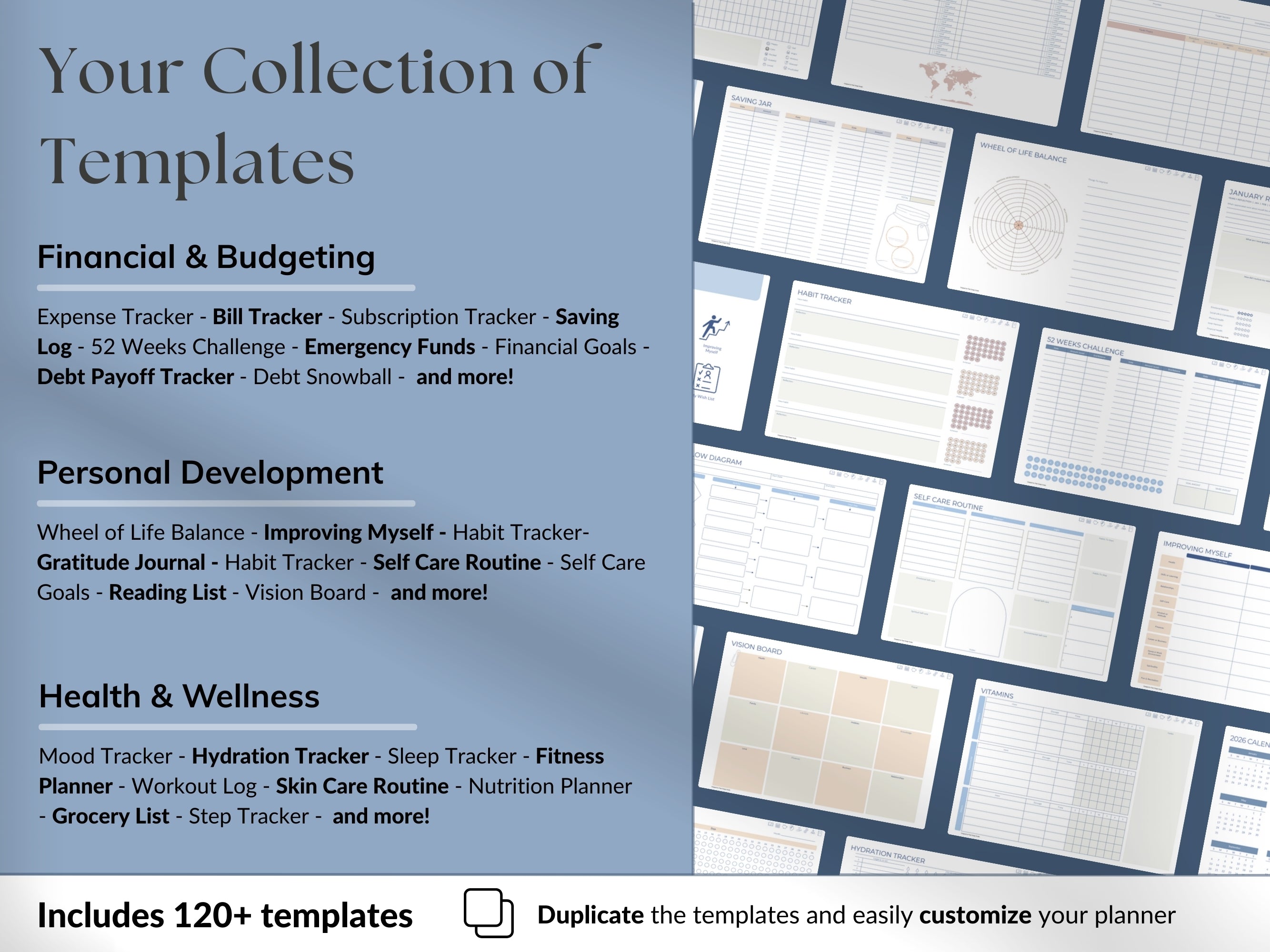
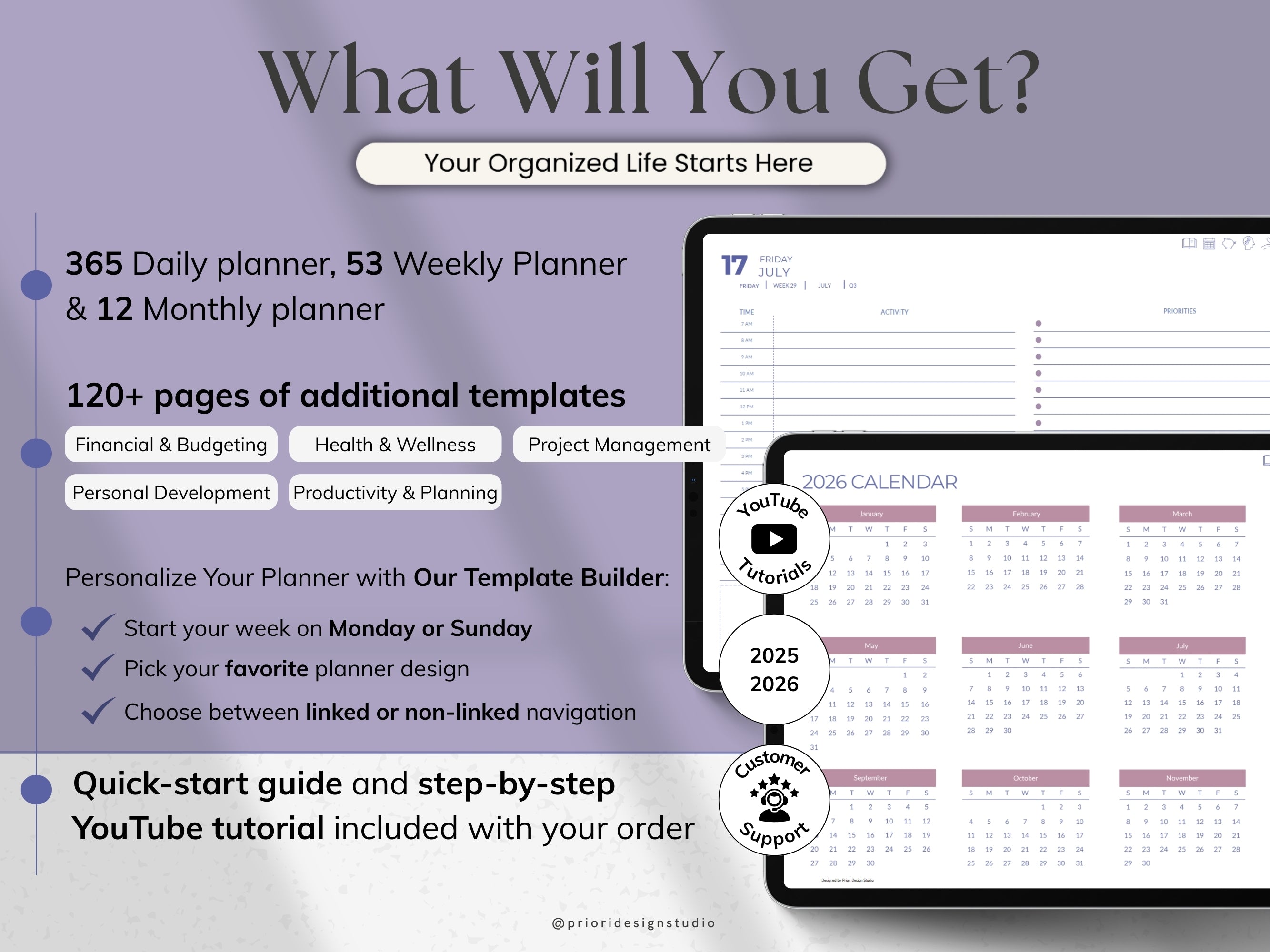
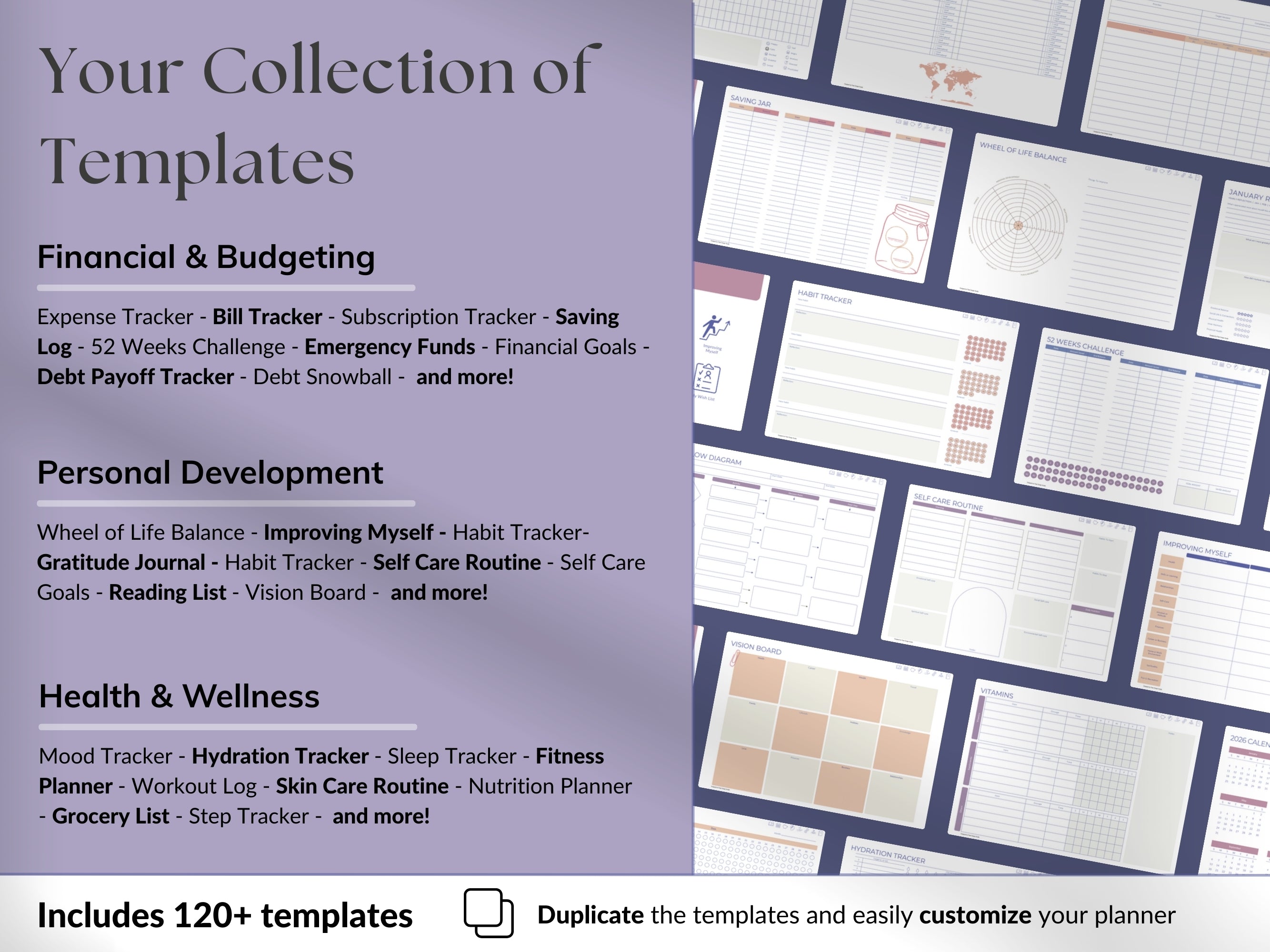
Your Collection of Templates
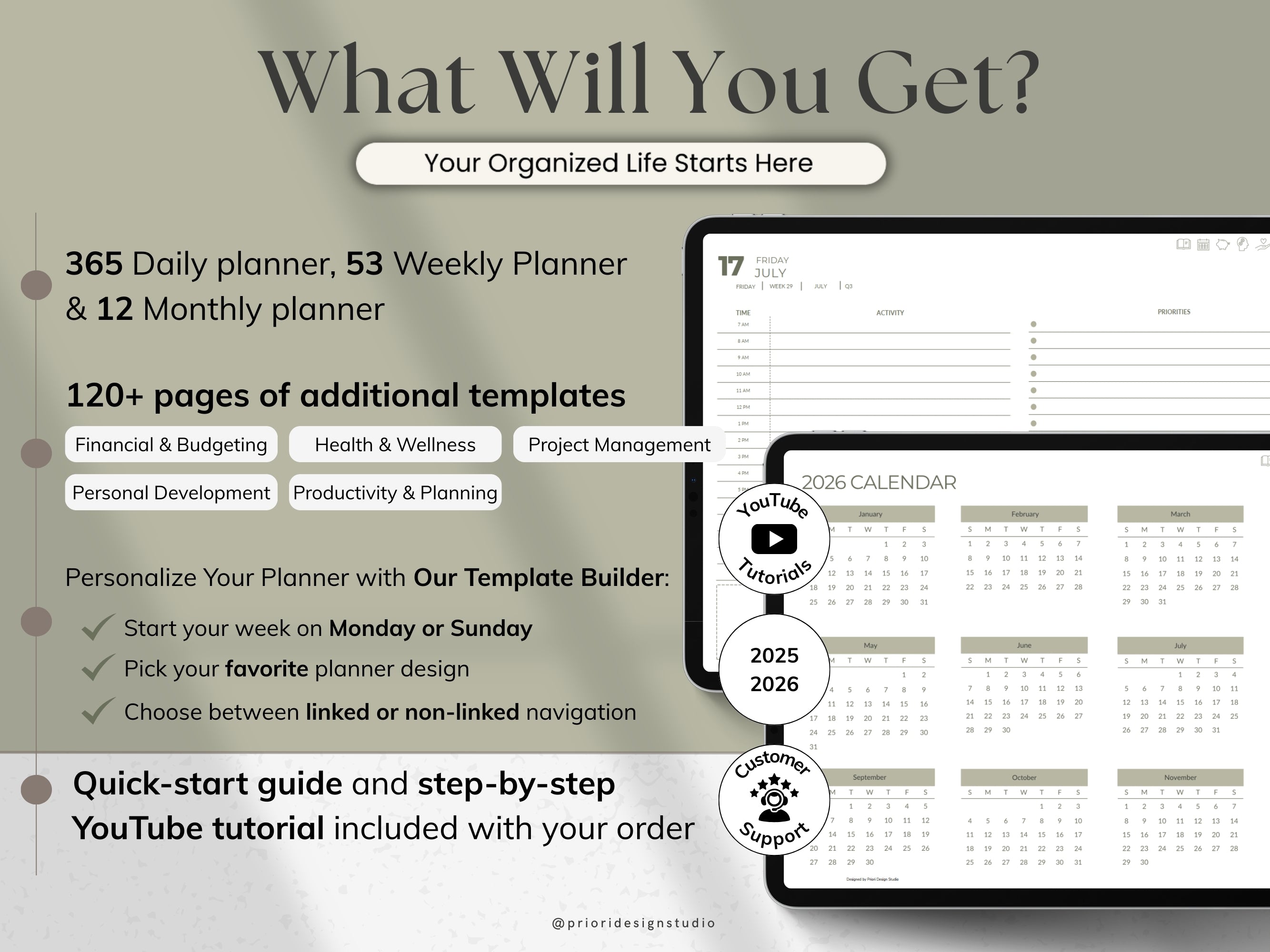
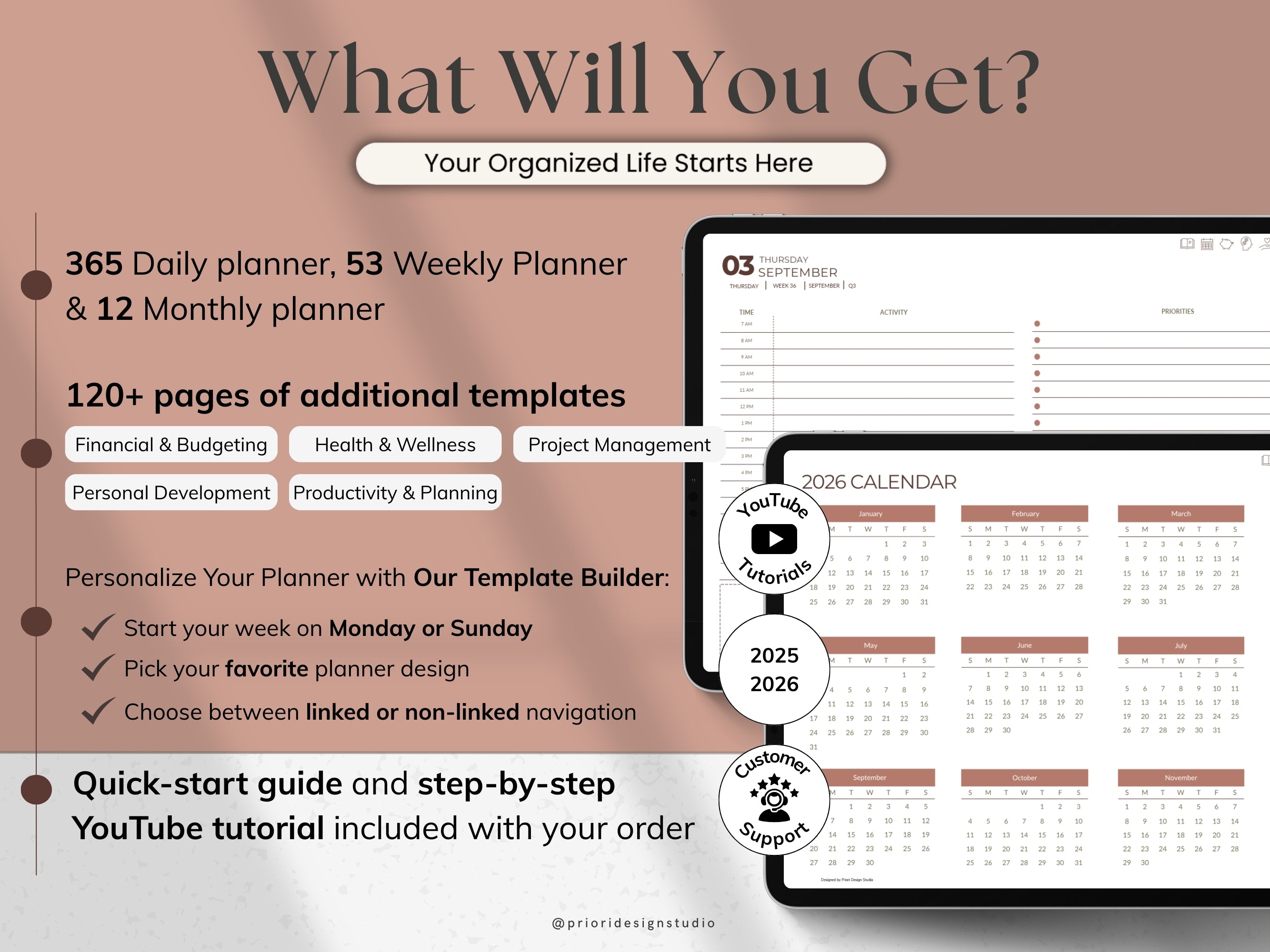
Financial & Budgeting
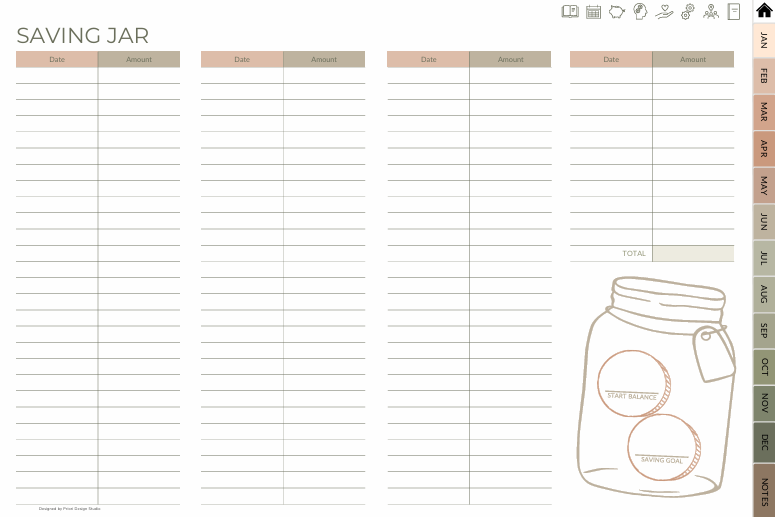
Expense Tracker - Bill Tracker - Subscription Tracker - Saving Log - 52 Weeks Challenge - Emergency Funds - Financial Goals - DebtPayoff Tracker - Debt Snowball -and more!
Personal Development
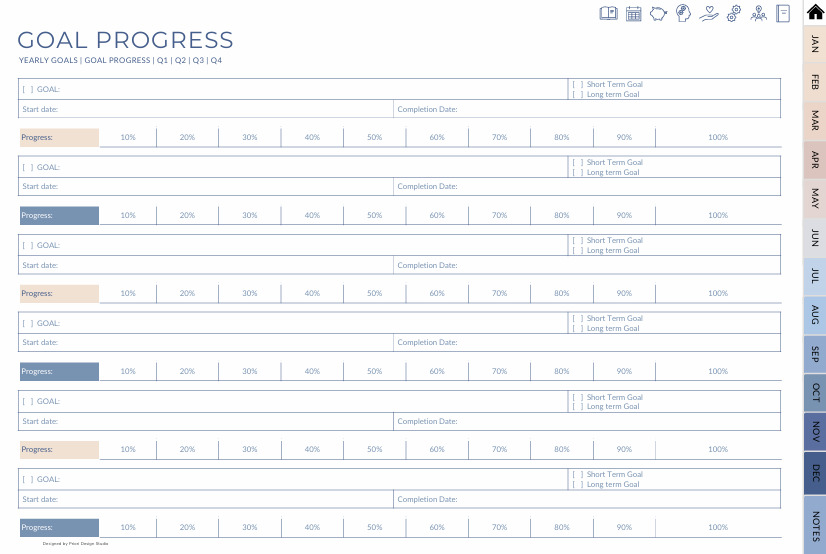
Wheel of Life Balance - Improving Myself - Habit Tracker- Gratitude Journal - Habit Tracker - Self Care Routine - Self Care Goals - Reading List - Vision Board -and more!
Health & Wellness
Mood Tracker - Hydration Tracker - Sleep Tracker - Fitness Planner - Workout Log - Skin Care Routine - Nutrition Planner - Grocery List - Step Tracker -and more!
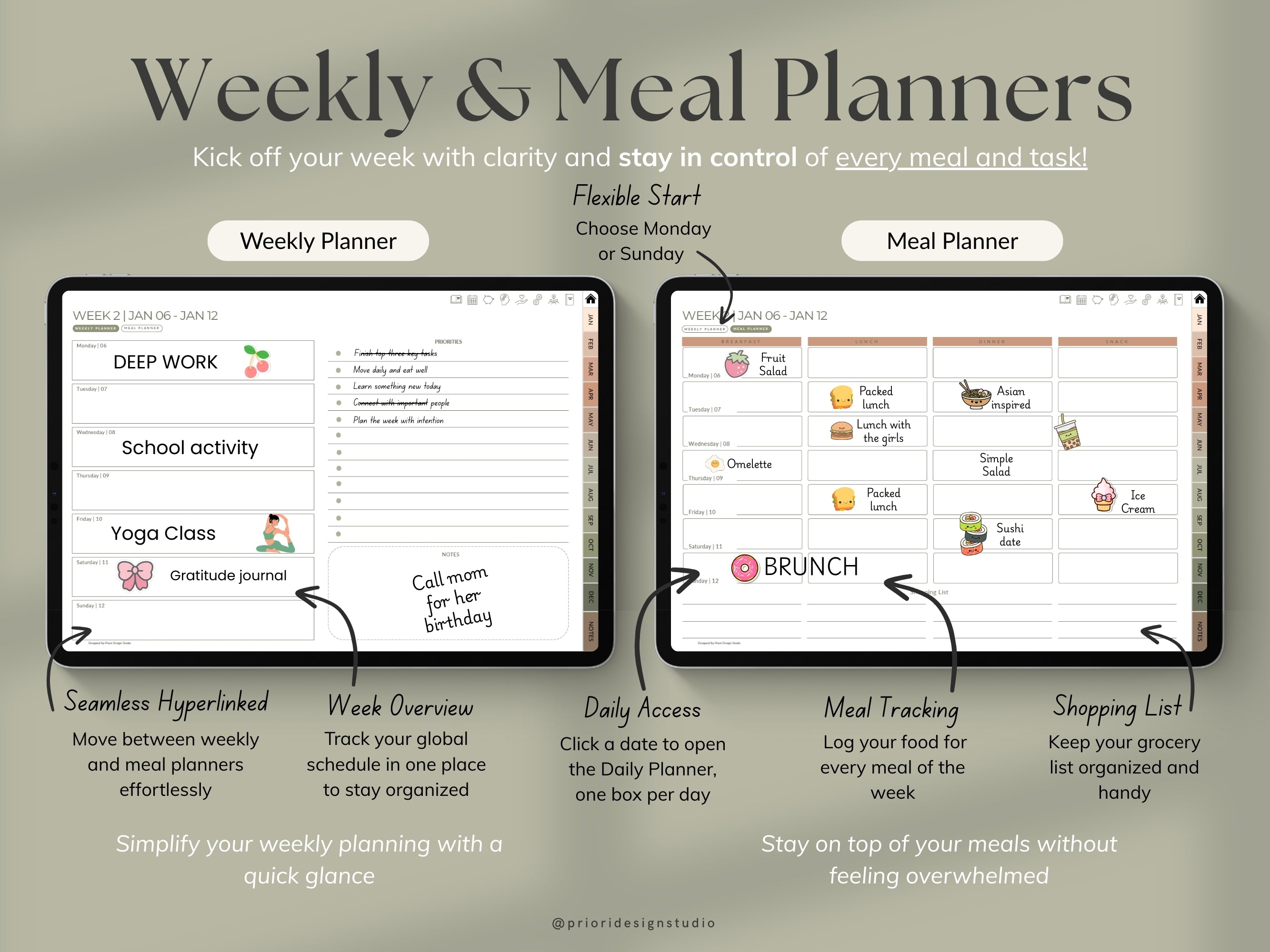
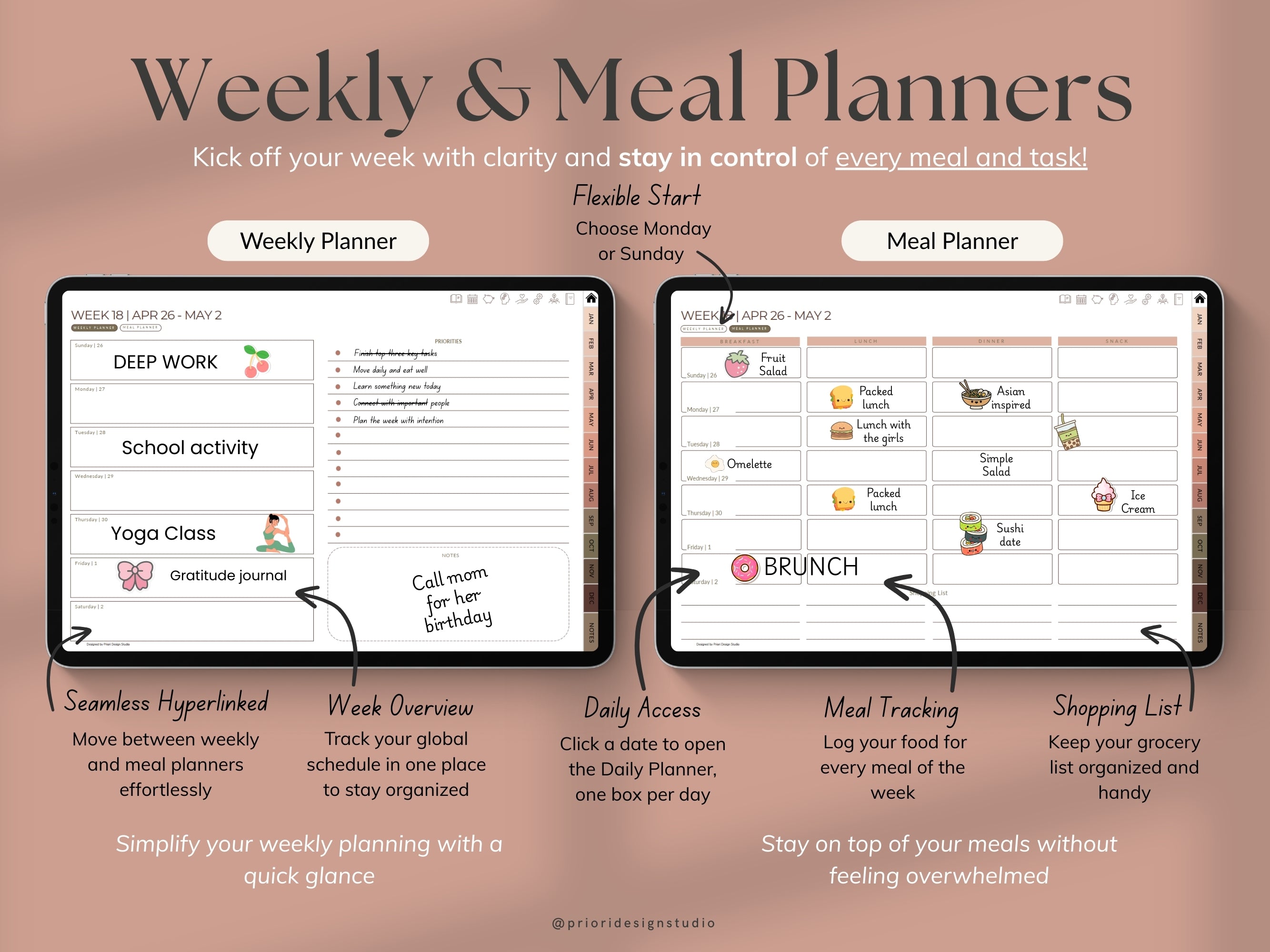
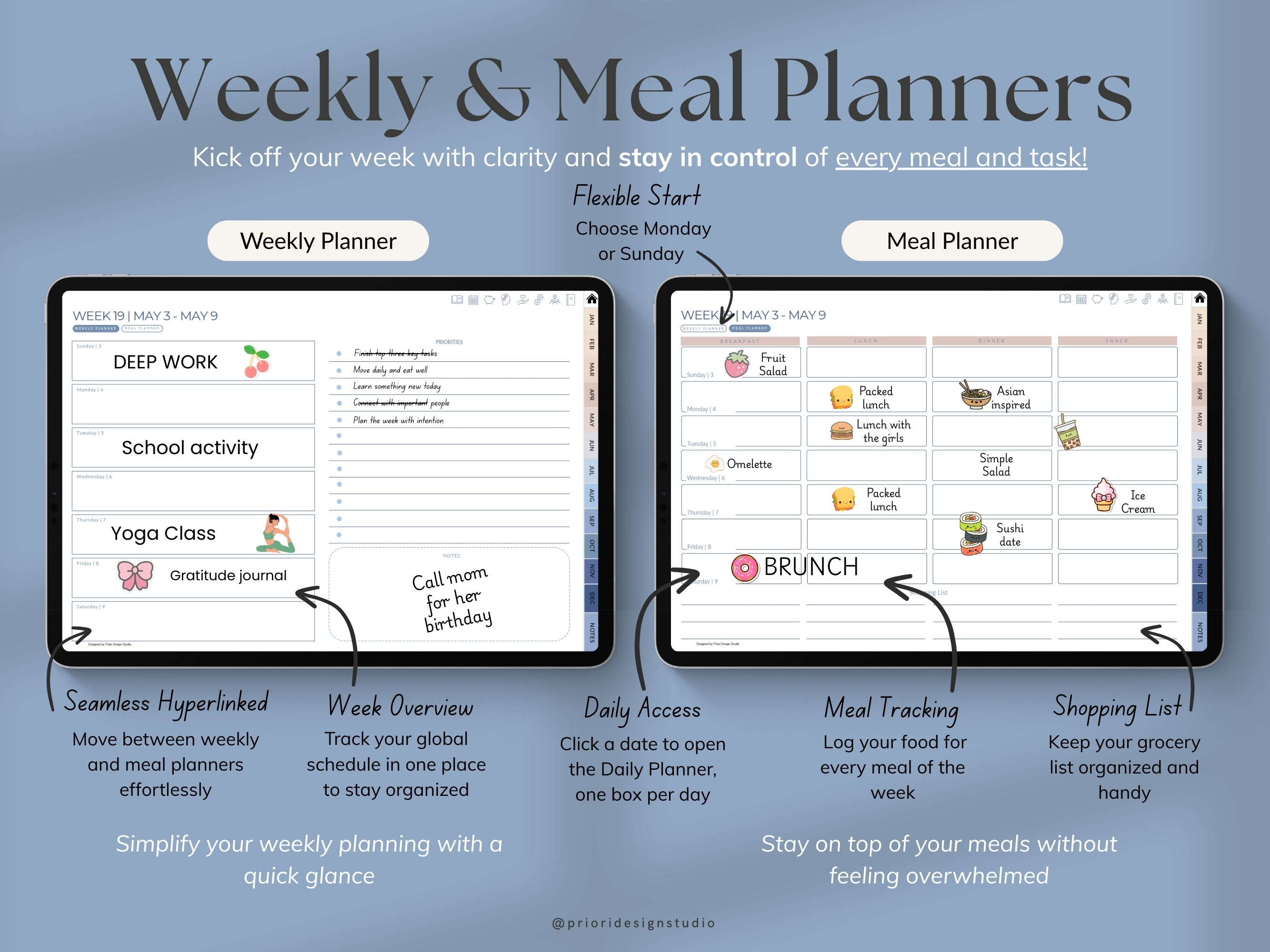
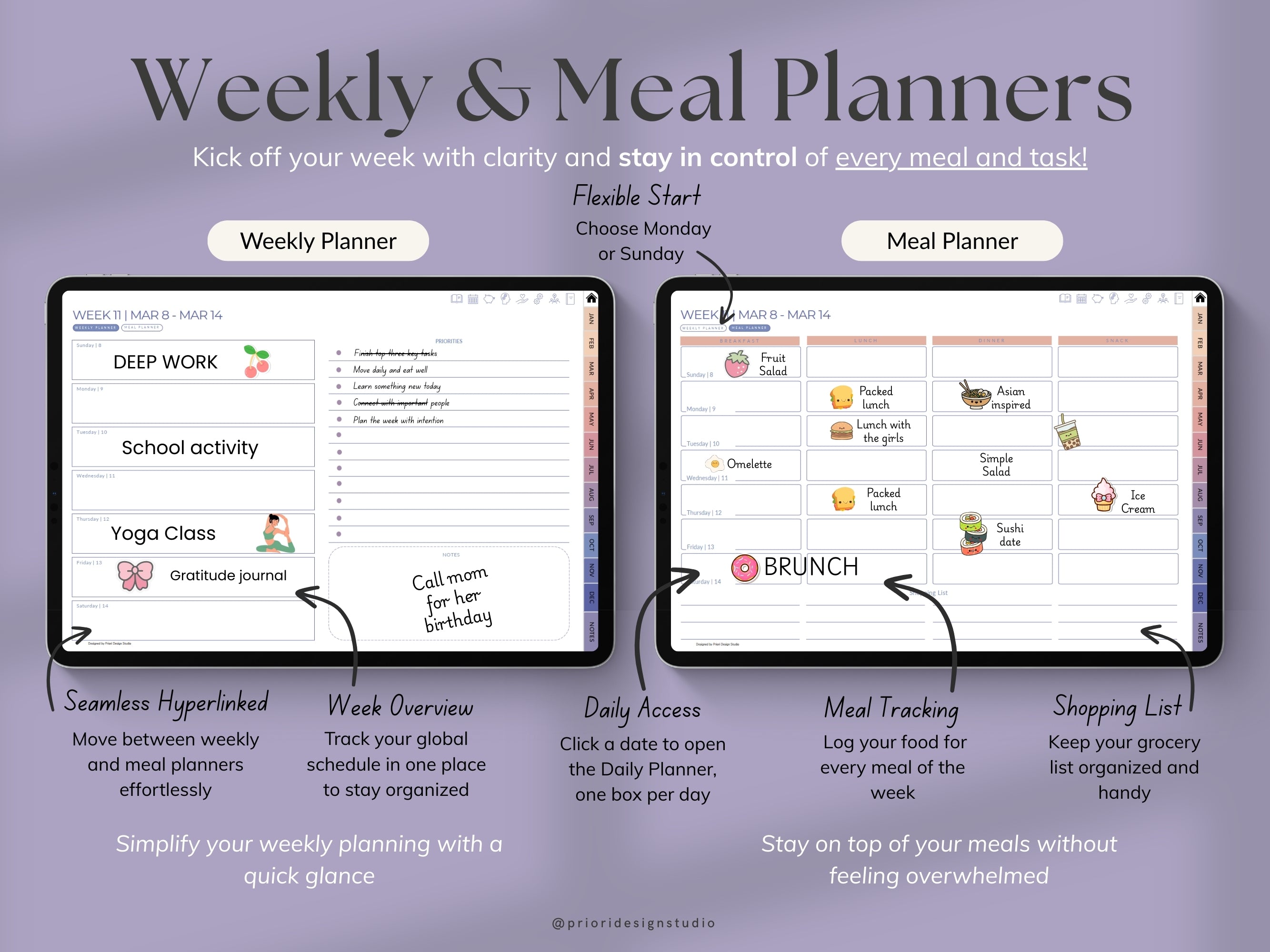
Weekly & Meal Planners
Kick off your week with clarity and stay in control of every meal and task!
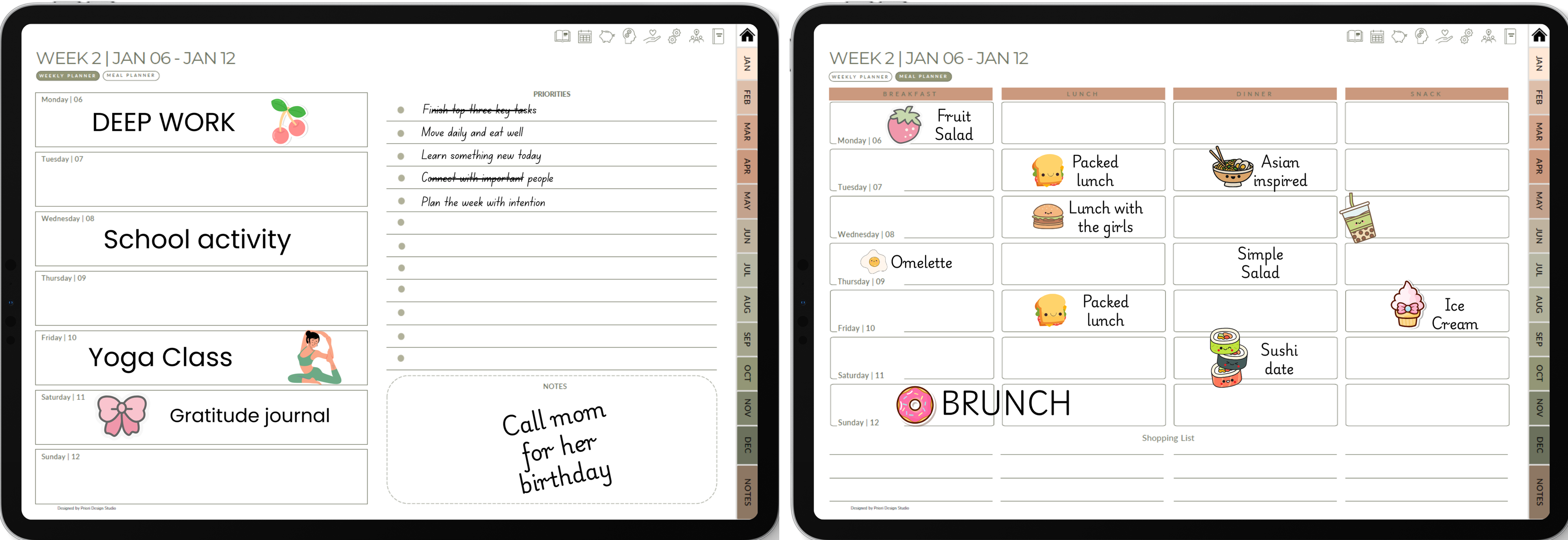
Move between weekly and meal planners effortlessly
Track your global schedule in one place to stay organized
Click a date to open the Daily Planner, one box per day
Choose Monday or Sunday
Log your food for every meal of the week
Keep your grocery list organized and handy
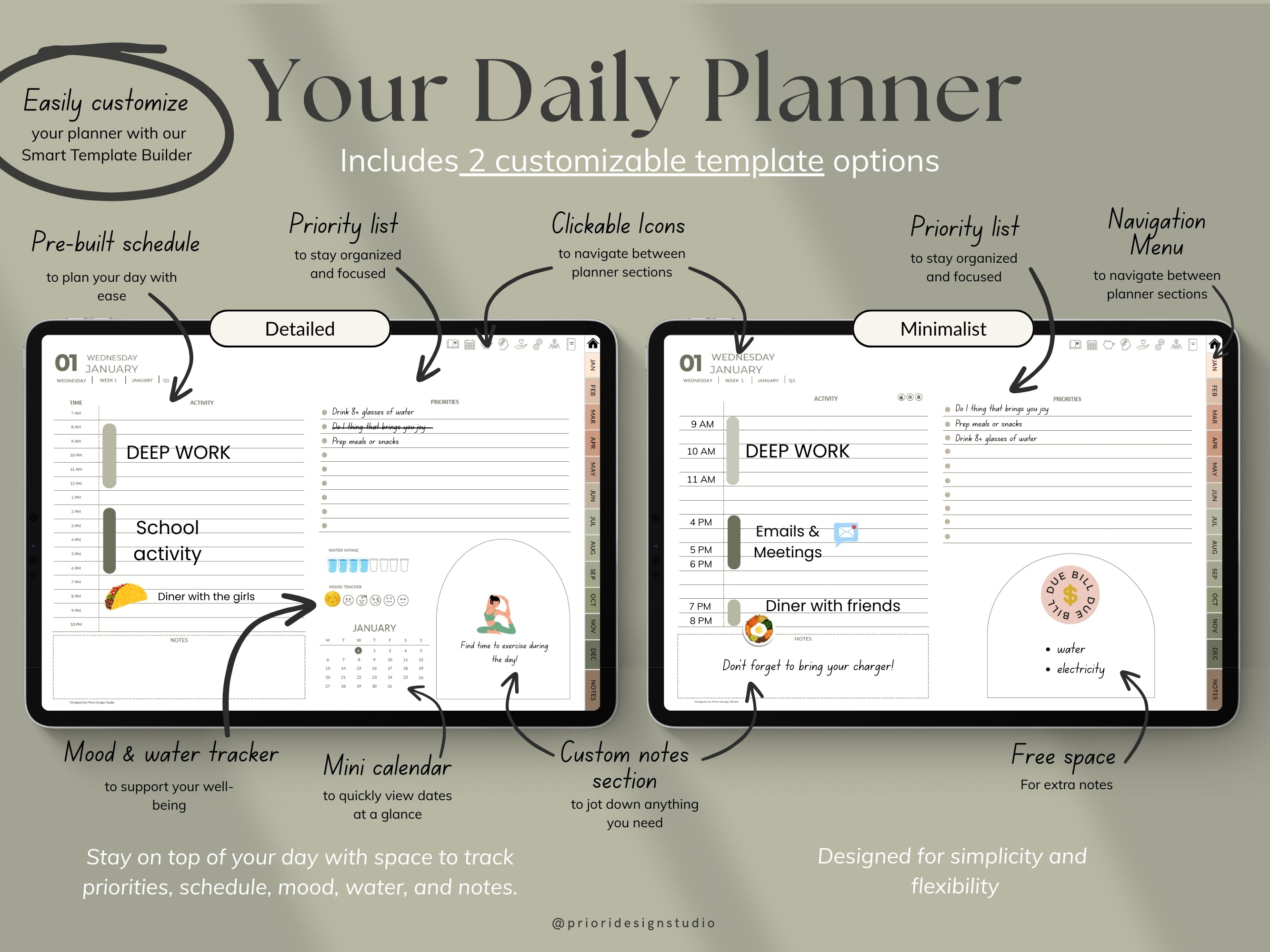
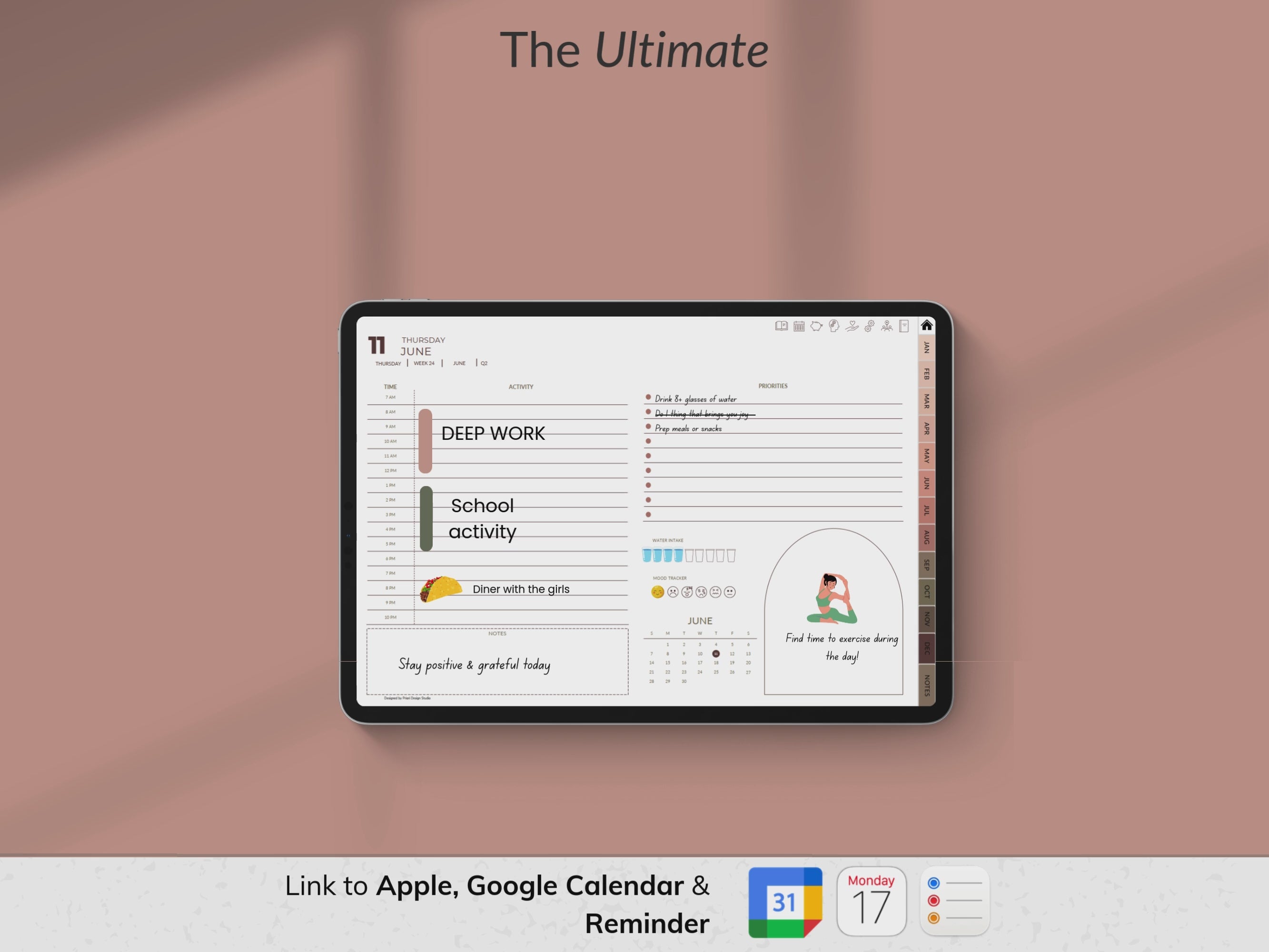
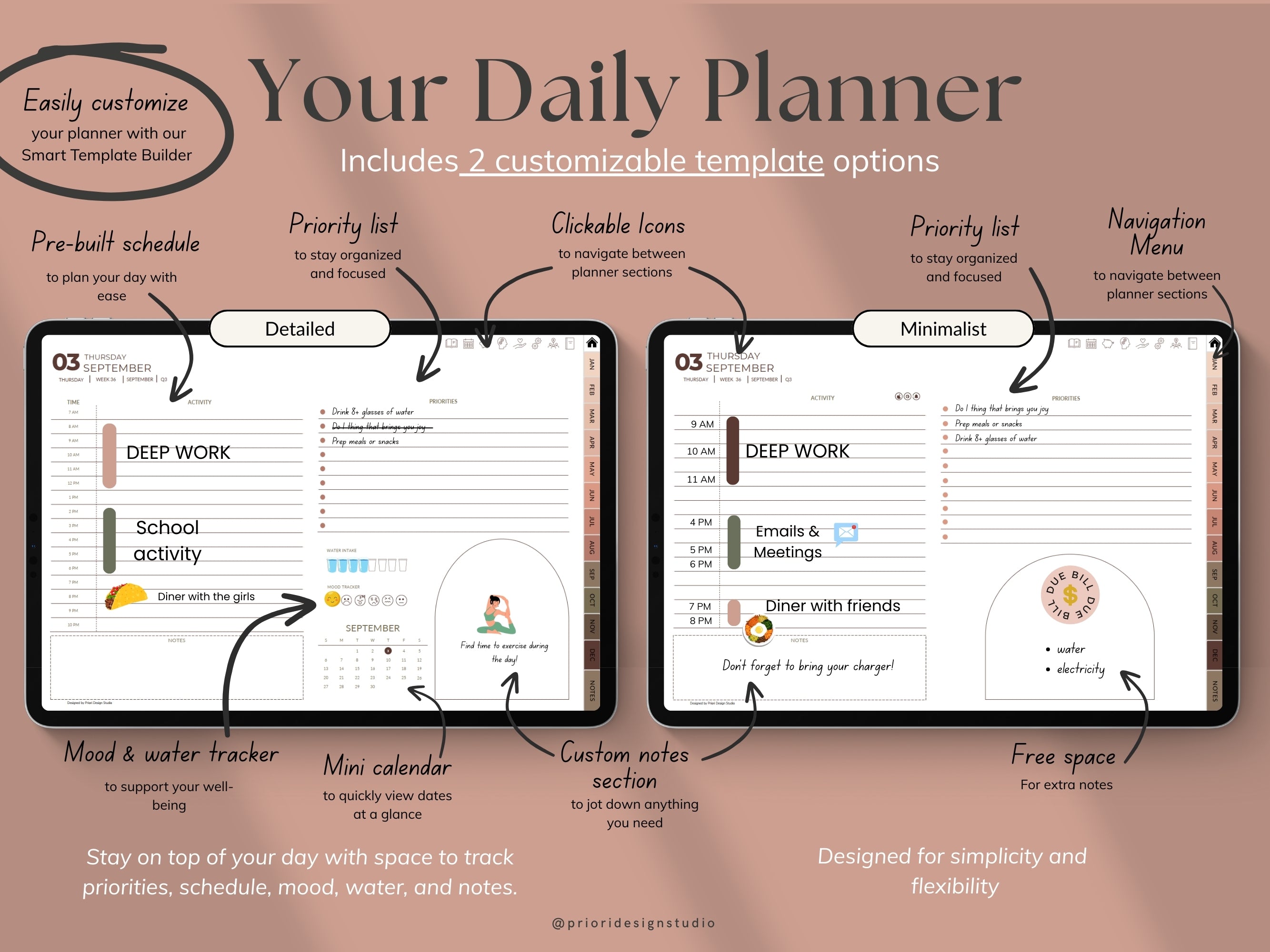
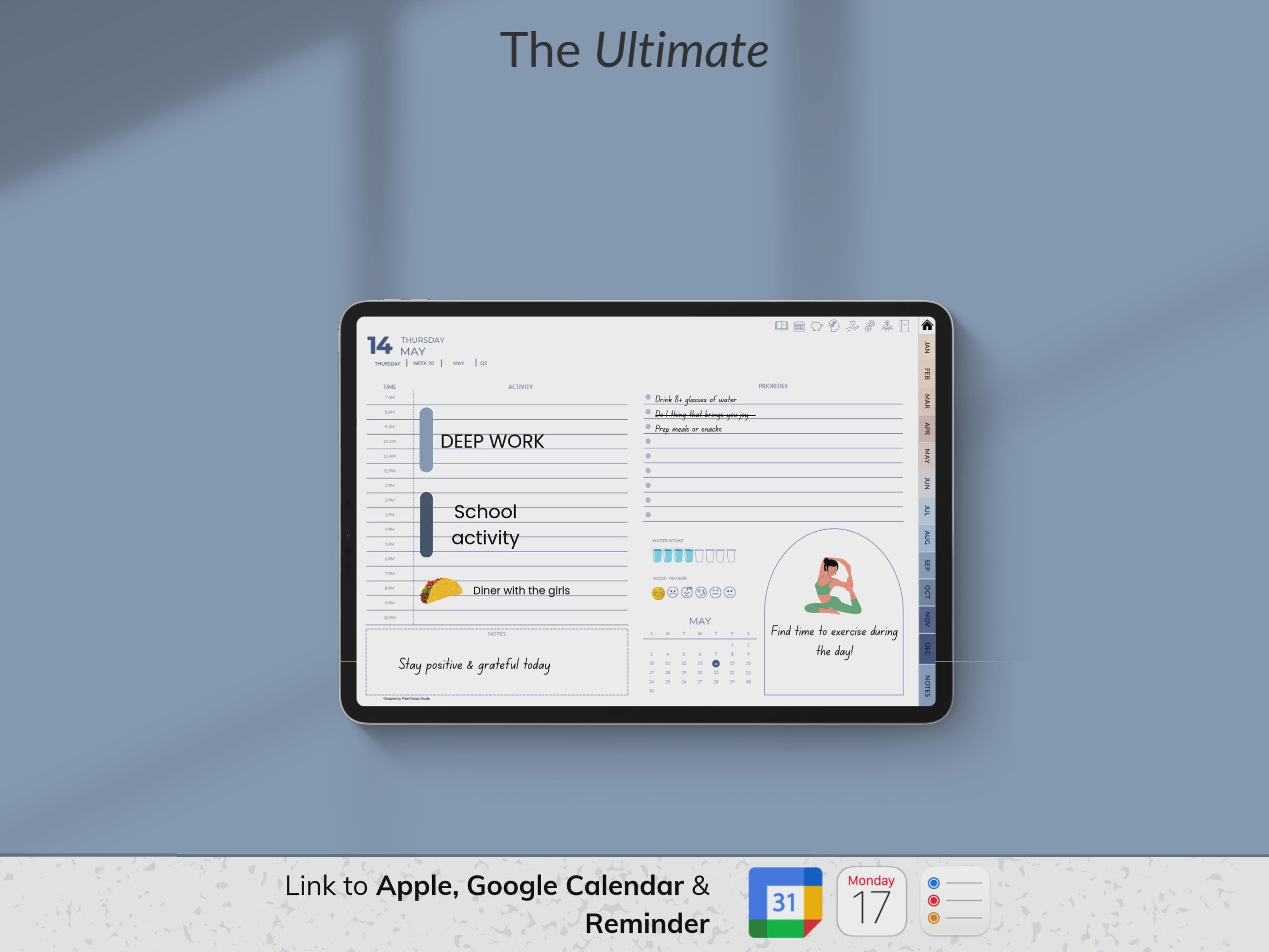
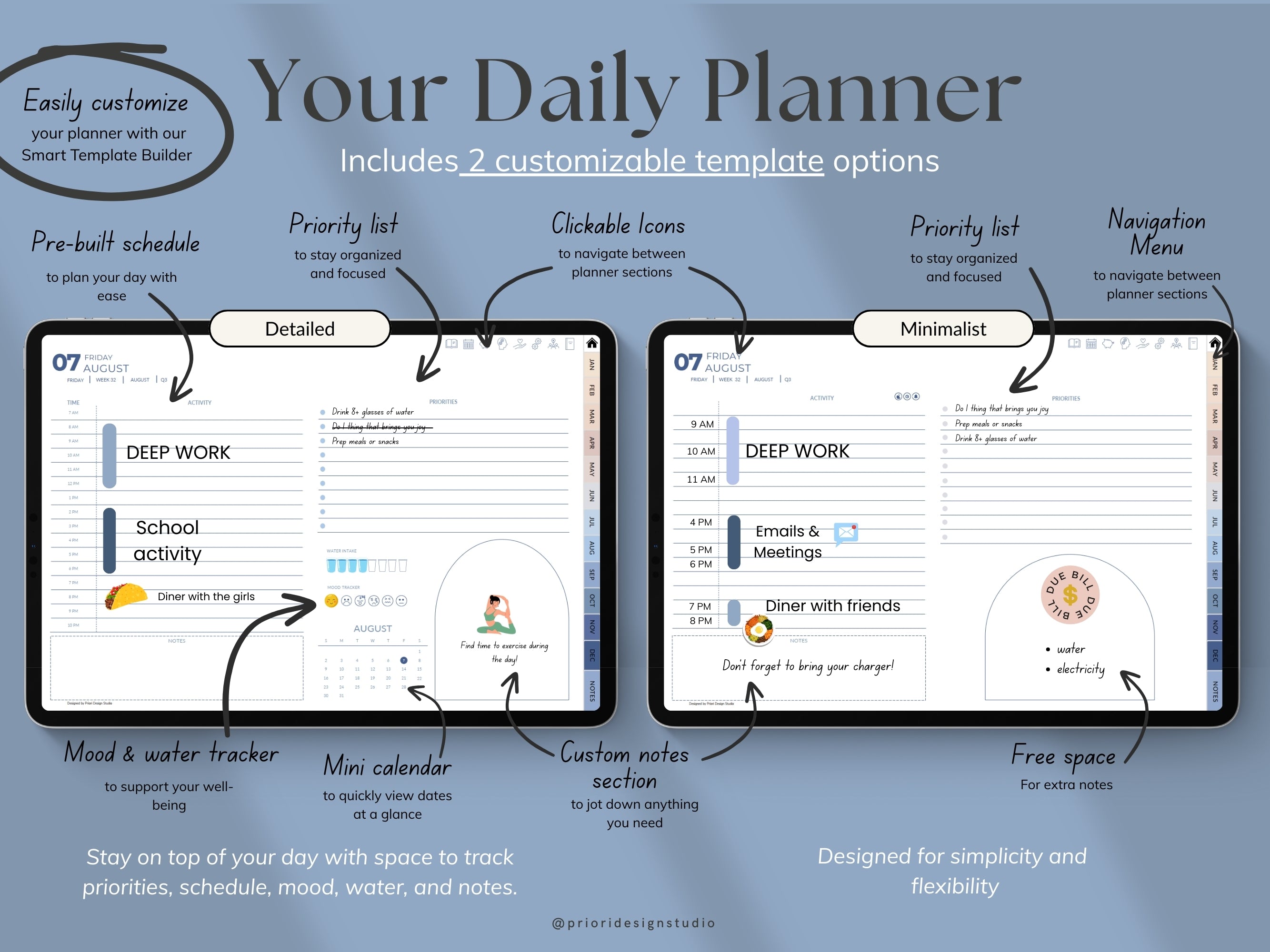
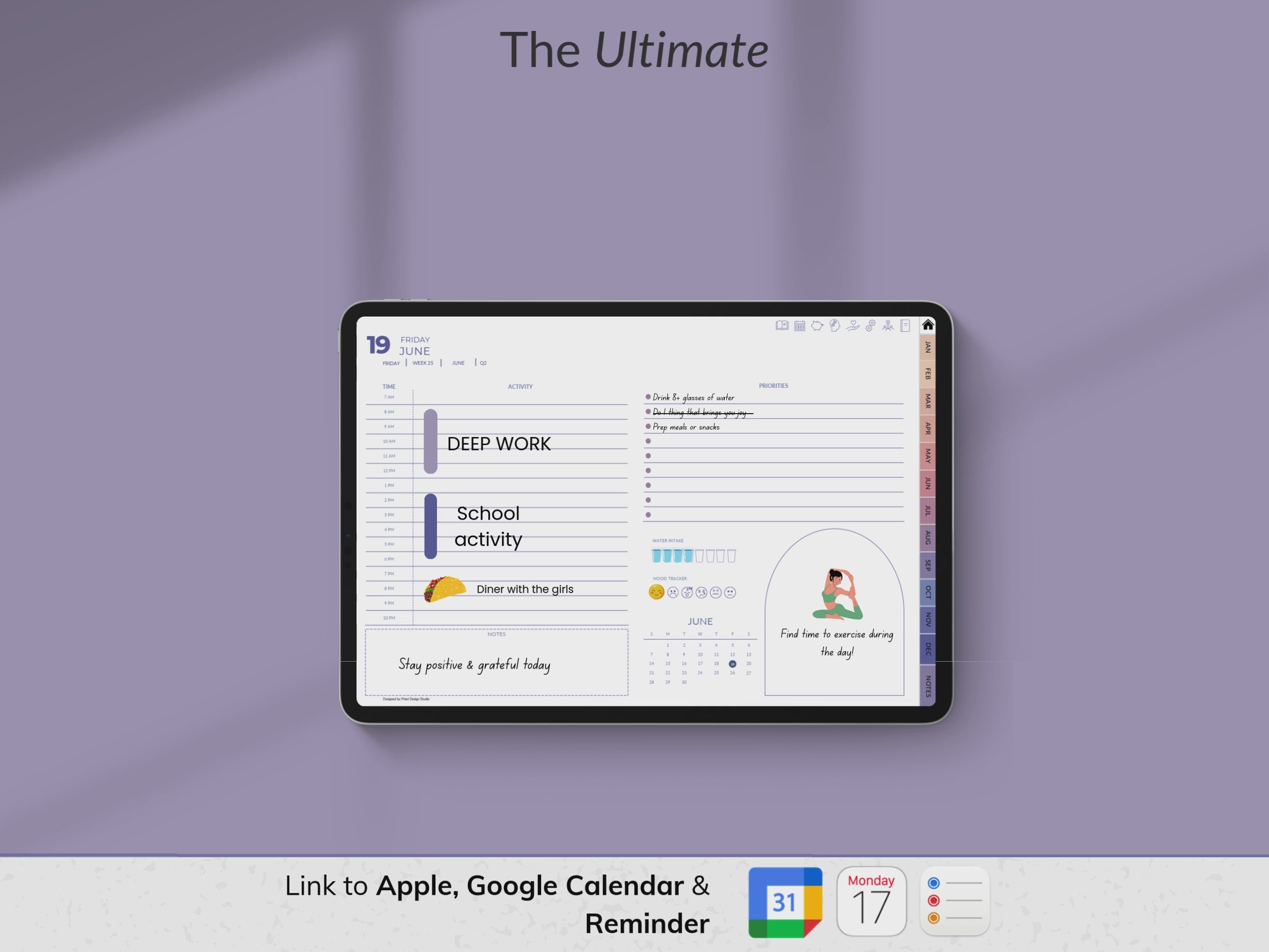
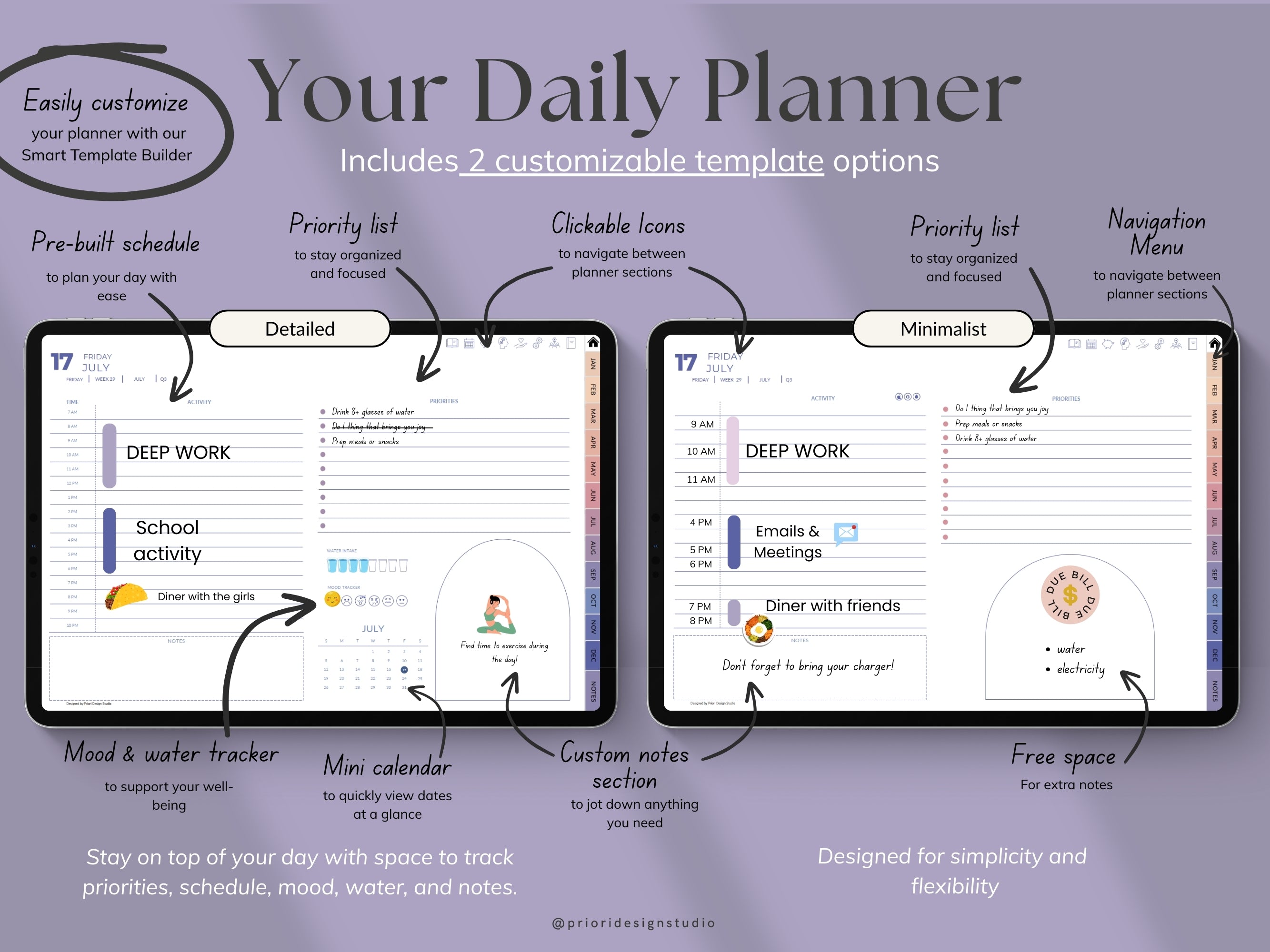
Your Daily Planner
Includes 2 customizable template options
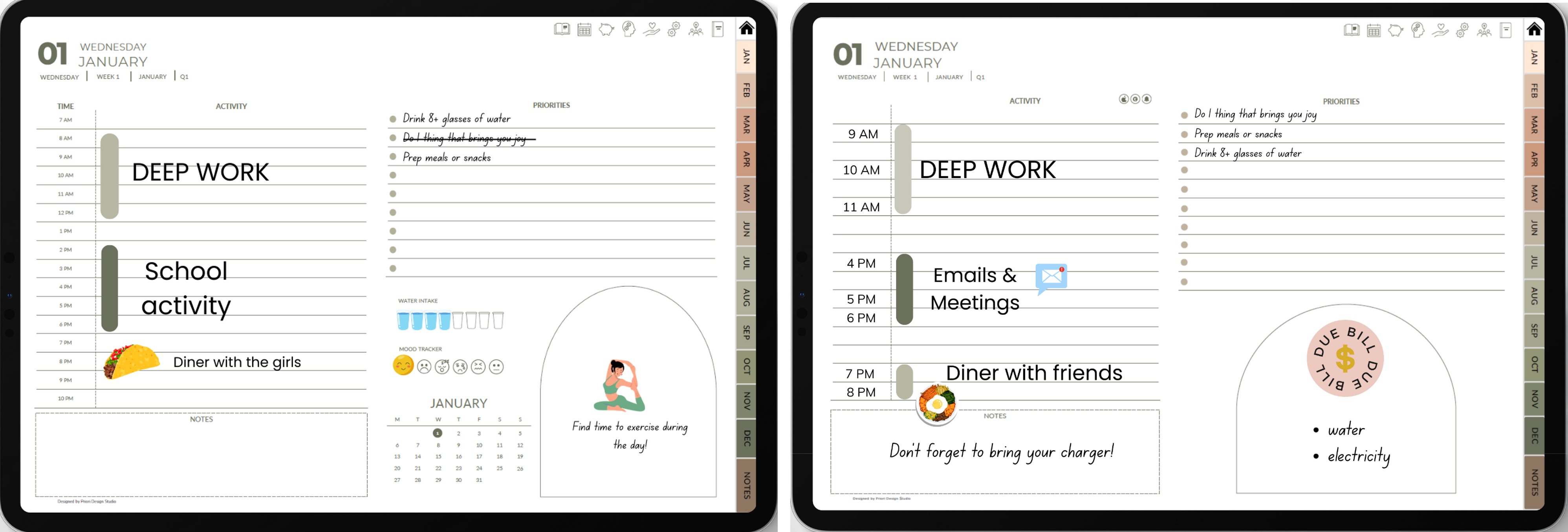
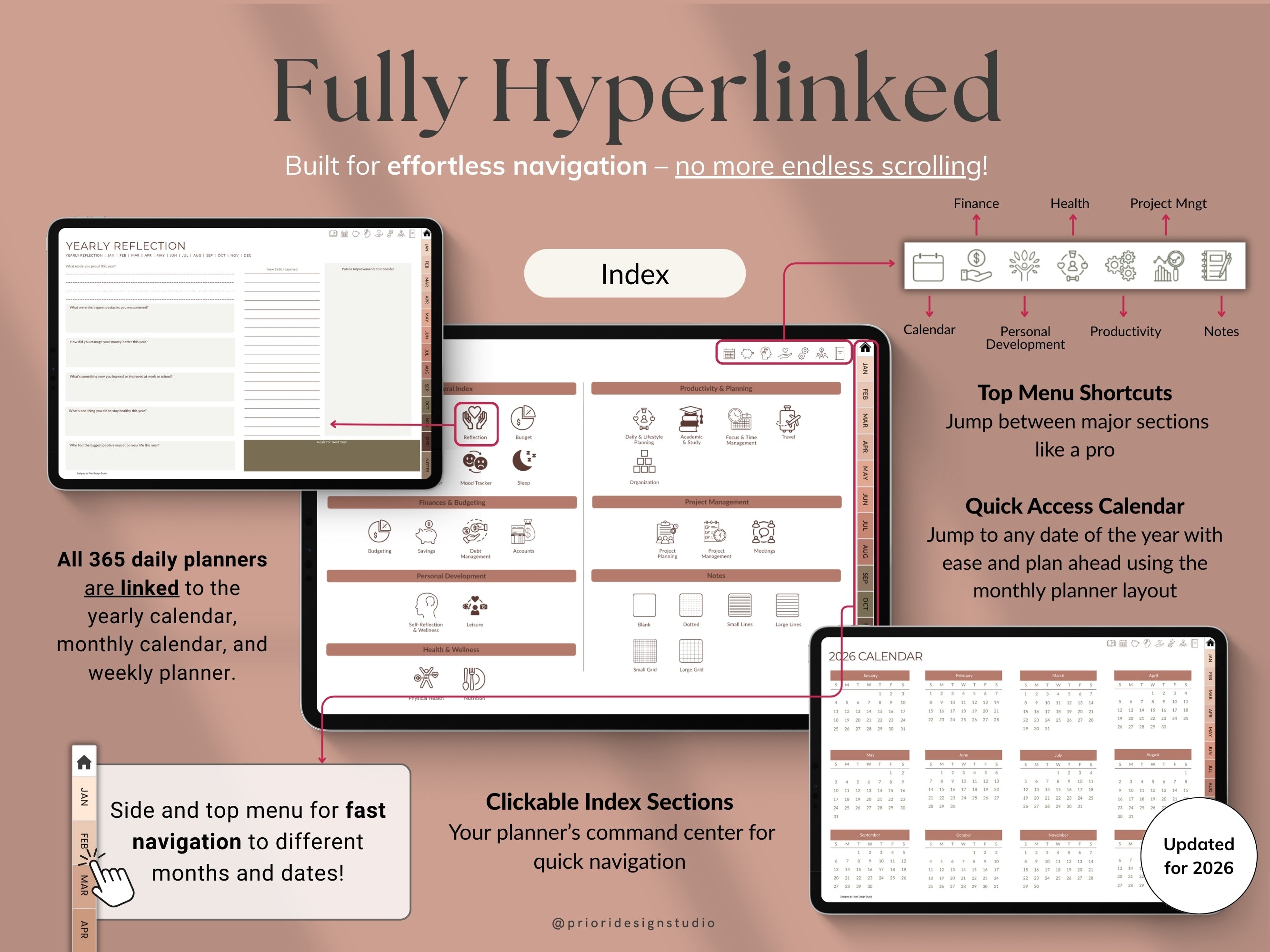
to support your well-being
to quickly view dates at a glance
to navigate between planner sections
to stay organized and focused
to jot down anything you need
FAQ
How to use Goodnotes/Notability
How to add text and customize pen colors?
For handwritten notes: Select the pen tool (an icon resembling a pen with an eraser, as shown in the source) from the top toolbar. The toolbar will turn blue, and a second bar will open with options. Tap on the pen style you want to open customization options, where you can choose your pen style, thickness, etc. On the right side of this second white bar, you can change the color and thickness.
For typed text: Tap the text tool (an icon resembling a 'Tt', as shown in the source), then tap anywhere on the page to insert a text box. You can then type with your keyboard, move the box, and resize it as needed.
How to navigate/use hyperlinks?
The optimal way to navigate this template is by using Navigation Mode. You are in Navigation Mode when the top menu bar appears white. In this mode, you can simply tap on hyperlinked menus, icons, or index pages to instantly jump to any section.
If you are in writing mode, you can still navigate the template, but only with your finger.
How to add/remove/duplicate pages?
Tap the four-square icon (as shown in the source) in the top left corner, then select the Thumbnails tab. This will display an overview of all the pages in your document.
Below each page, you’ll see a small downward arrow, tap it to open a menu with options such as duplicate, add, or delete pages. This feature is particularly useful for removing pages you don't need or duplicating weekly extra resources like the Habit Tracker or Mood Tracker.
How to rearrange pages?
Tap the four-square icon (as shown in the source) in the top left corner, then go to the Thumbnails tab. To rearrange pages, press and hold the page you want to move for a second or two. Once a shadow appears around it, simply drag it to your desired spot.
How to rename the document?
From the Goodnotes home screen, tap the planner’s title, then enter a new name to keep your files organized.
How to use the lasso?
Click on the pen tool (as shown in the source) from the top toolbar. The bar will become blue, and a second bar with all the options will open. Tap the lasso icon (an icon resembling a wavy circle, as shown in the source) and draw a circle around handwritten text, drawings, or stickers. After selecting, you can move, resize, copy, or delete the content.
For stickers: Simply tap once on the sticker to move, resize, rotate, or delete it. Tap again to bring up the full menu with additional options. If you plan to reuse a sticker frequently, tap "Add Element" (an icon resembling two stacked squares with a plus, as shown in the source) to save it to your Elements library for quick access.
How to bookmark a page?
While viewing a page, tap the bookmark icon (an icon resembling a red ribbon, as shown in the source) at the top right to mark it. Once a page is bookmarked, the icon will become red. Bookmarks appear in the thumbnail view for quick access.
To view your bookmarks, tap the four squares icon (as shown in the source), then on Bookmarks.
How to switch from horizontal to vertical scrolling?
Tap the 3 dots icon (as shown in the source) at the top right. A menu will appear; go to "Scrolling Direction" and select either Horizontal or Vertical, depending on how you prefer to flip through pages.
How to recover deleted pages, document, folder?
Deleted documents, folders, and pages remain in the Trash Bin until they are recovered, moved, or deleted permanently.
To recover them: From the Library view, tap the Gear icon (as shown in the source) at the top-right corner > Trash. Tap Select in the upper right. Tap the items you want to recover. Then, tap Recover to move the selected items back to their original locations.
Important: Avoid deleting navigation linked pages such as the Home, Monthly, or Index pages, as this can break the planner’s hyperlinks.
How to back up your library?
From the Library view, tap the Gear icon (as shown in the source) in the top-right corner > Cloud & Backup > Manual Backup > Back Up Now. Select a safe location for the backup .zip file. Please note that the app needs to stay open in the foreground to complete the backup process. If you close the app, the backup process will need to be restarted.
How to export my notebook as PDF?
The app allows you to easily export your notes as PDF files. Once you've created your notes, you can save them directly to your device and then upload them to your preferred cloud storage for secure backup.
To export a document as PDF: Locate the document in the Documents tab. Tap on the filename > Export as PDF.
Alternatively, open the desired document. Tap on the Share icon (an icon resembling an upward arrow coming out of a box, as shown in the source) on the upper right > Export as PDF.
Once the export is finished, a "Document was exported as PDF" message confirms that your file has been converted and is ready for use.
Typically, the exported PDF file is automatically saved in your designated Downloads folder. To print your notebook, simply locate the exported PDF file on your device, open it using a PDF viewer or your preferred software, and then navigate to the print option.
Tips for smoother use
Use bookmarks (an icon resembling a red ribbon, as shown in the source) for quick access to your most-used pages.
Create duplicate backups regularly by tapping the Share icon (an icon resembling an upward arrow coming out of a box, as shown in the source) > Export this document.
Practice zooming and writing on different sections to get comfortable with handwriting precision.
Goodnotes/Notability FAQ
How to import our template?
You can import the template from within the Goodnotes or Notability app, or from an external app.
From within Goodnotes:
- Tap the "New..." icon in the Documents tab of the Library View.
- Select "Import".
- Open the correct folder, choose the file(s), and tap "Open".
From within Notability:
- Tap the "+New..." icon in the All Notes tab.
- Once the document opens, click the "Import" button at the bottom of the page.
- Open the correct folder, choose the file(s), and tap "Open".
From an external app (e.g., Google Drive, Dropbox, OneDrive):
- Open the app where your document is located.
- Click the three dots icon to open the document options.
- Tap "Share", "Open In...", or "Send a copy".
- Choose "Open in Goodnotes" or "Open in Notability".
- Select "Import as New Document" in Goodnotes, or "Import" in Notability.
What are the specific features of our templates?
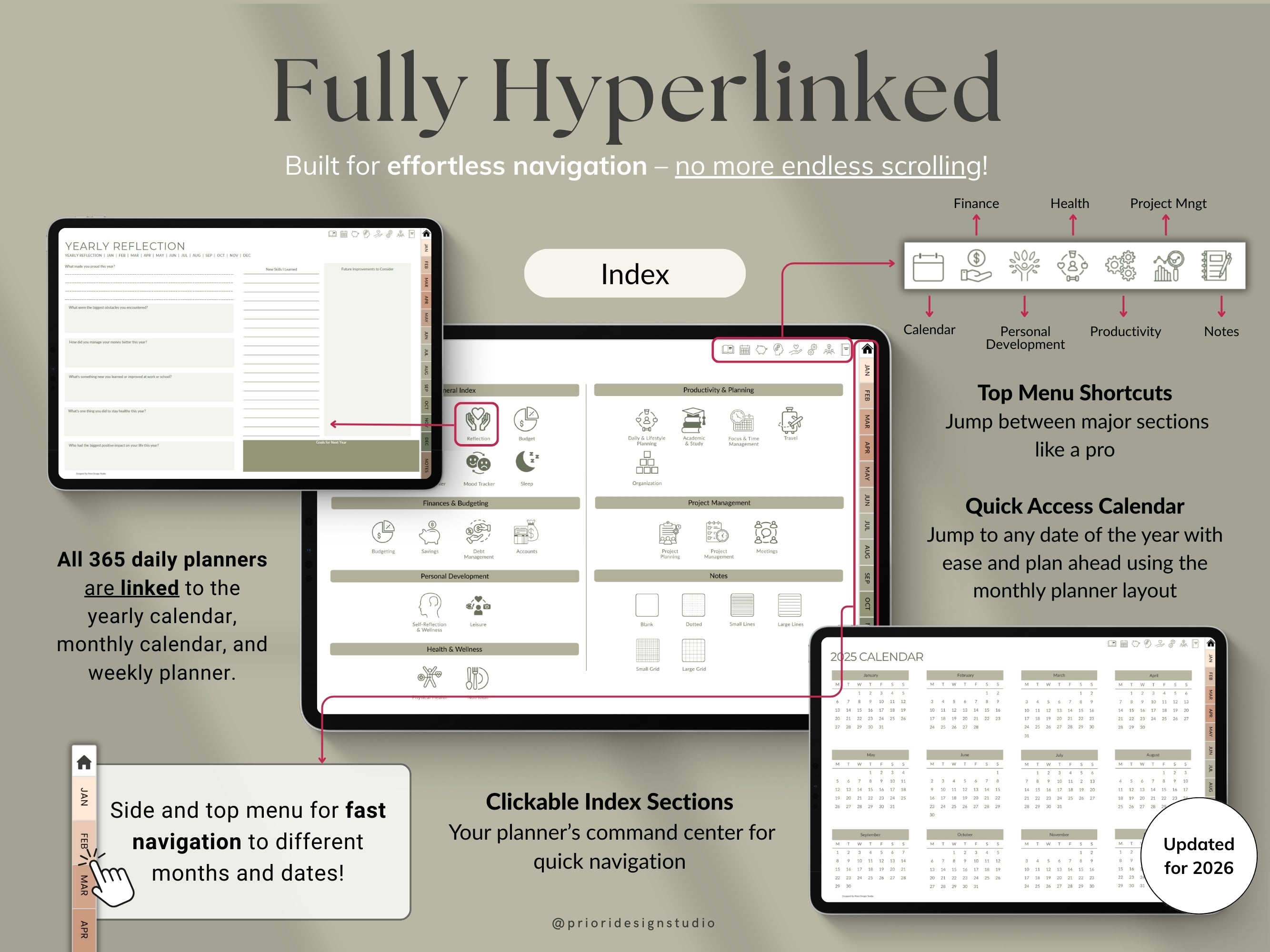
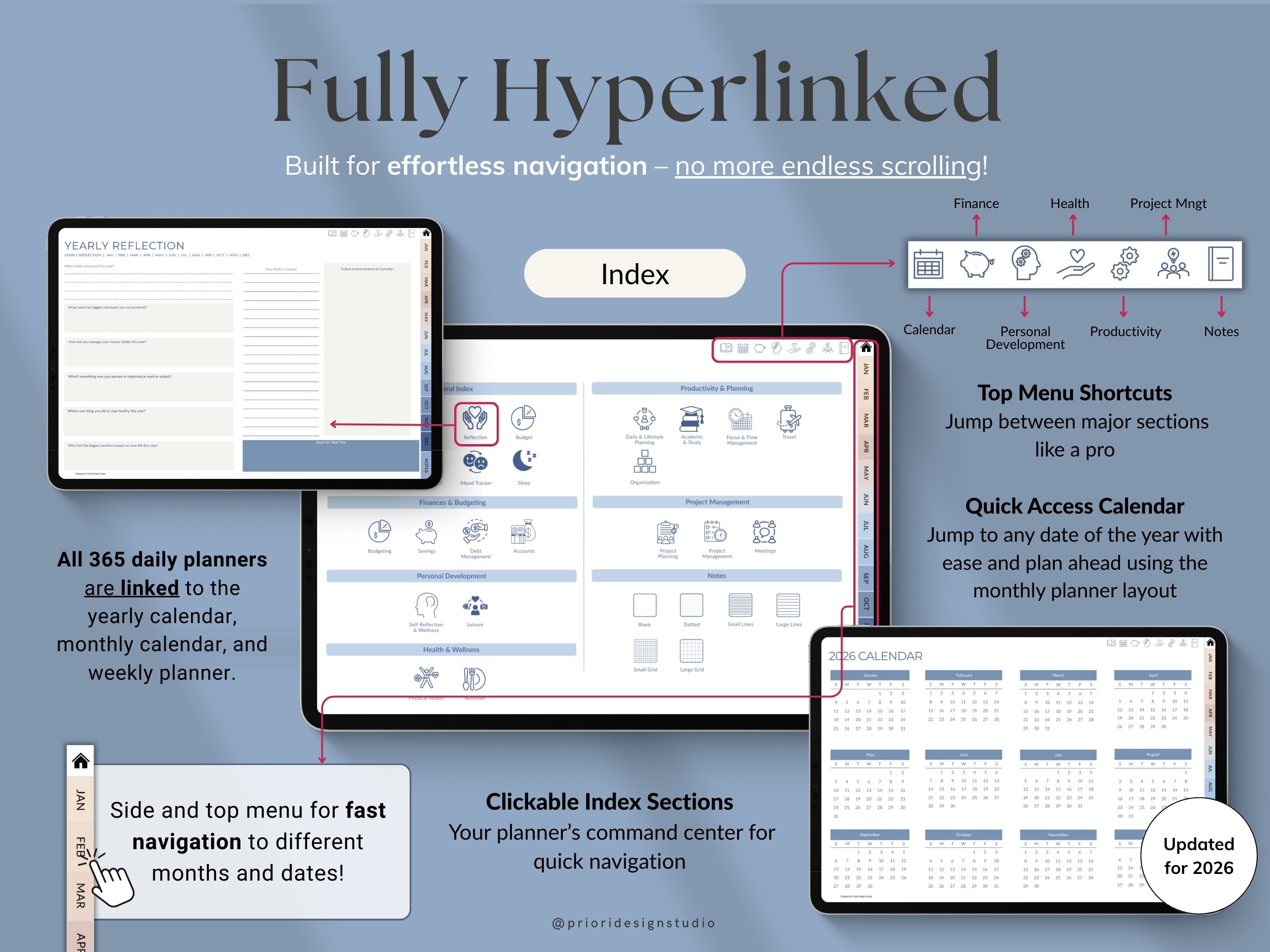
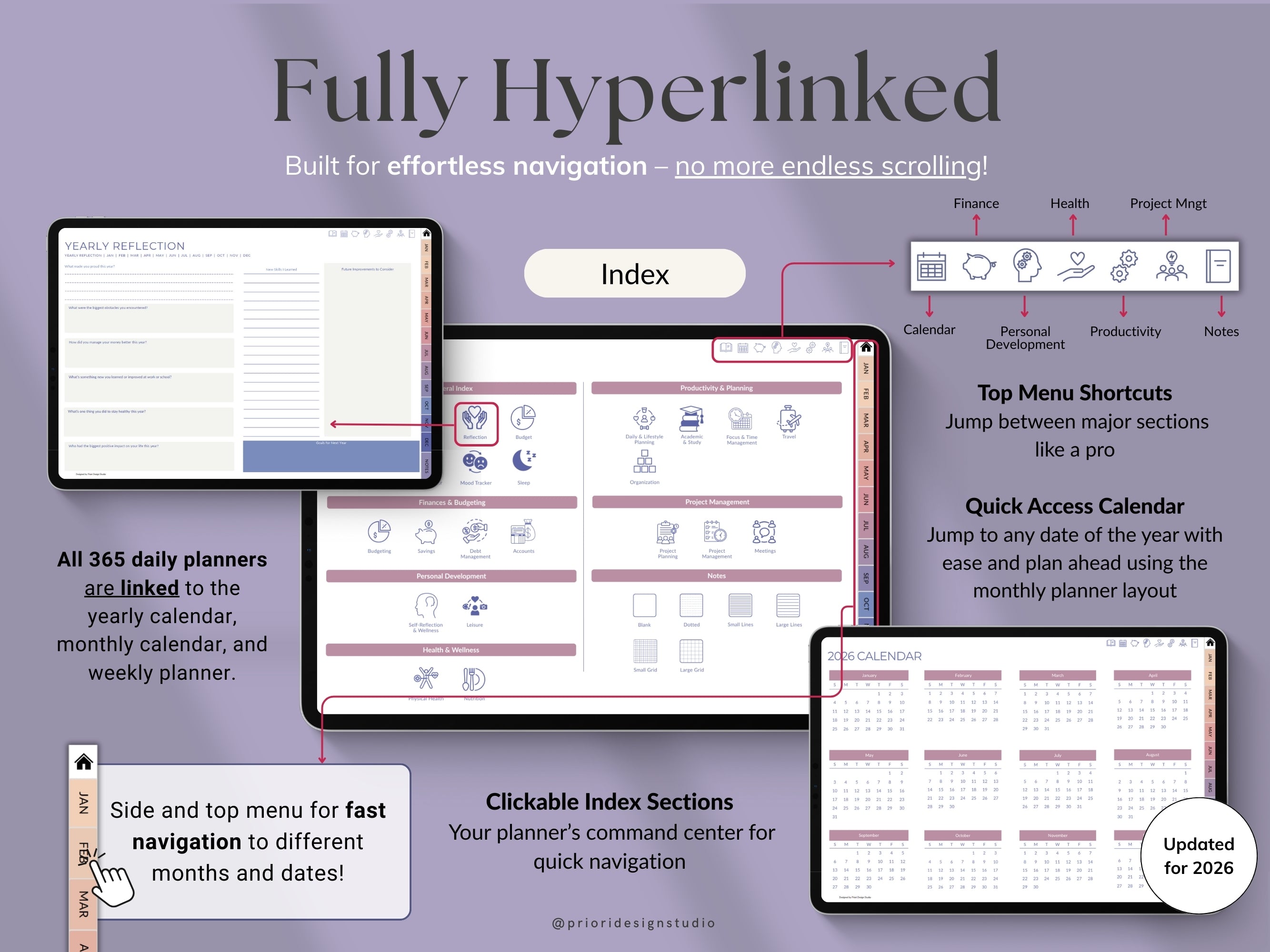
Our planners are designed for intuitive, hyperlink-based navigation to enhance productivity and organization.
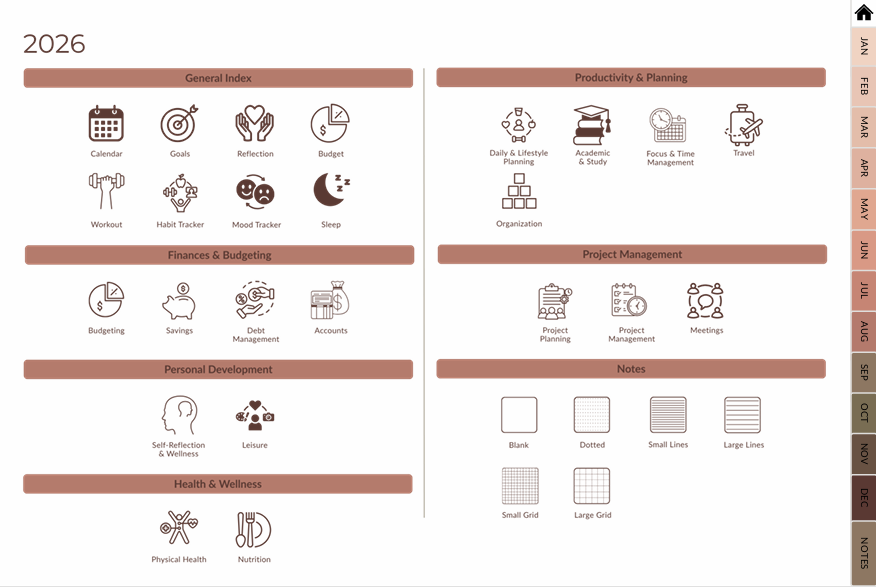
- Fully hyperlinked right-hand sidebar for easy access to Home, 12 Monthly Calendars, and Extra Resources.
- Top navigation bar with 7 icons: Calendar, Finance & Budgeting, Personal Development, Health & Wellness, Productivity & Planning, Project Management, and Notes.
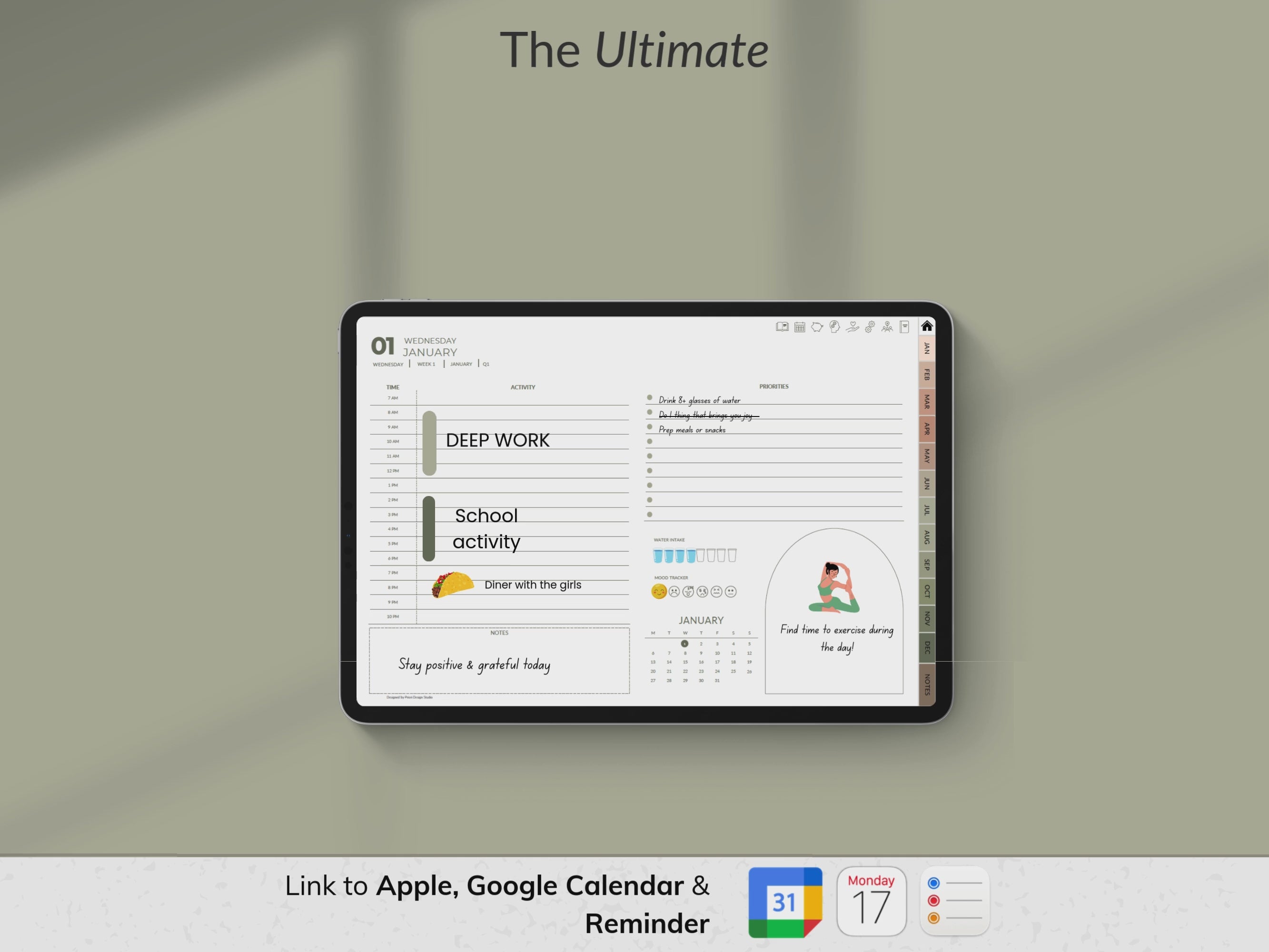
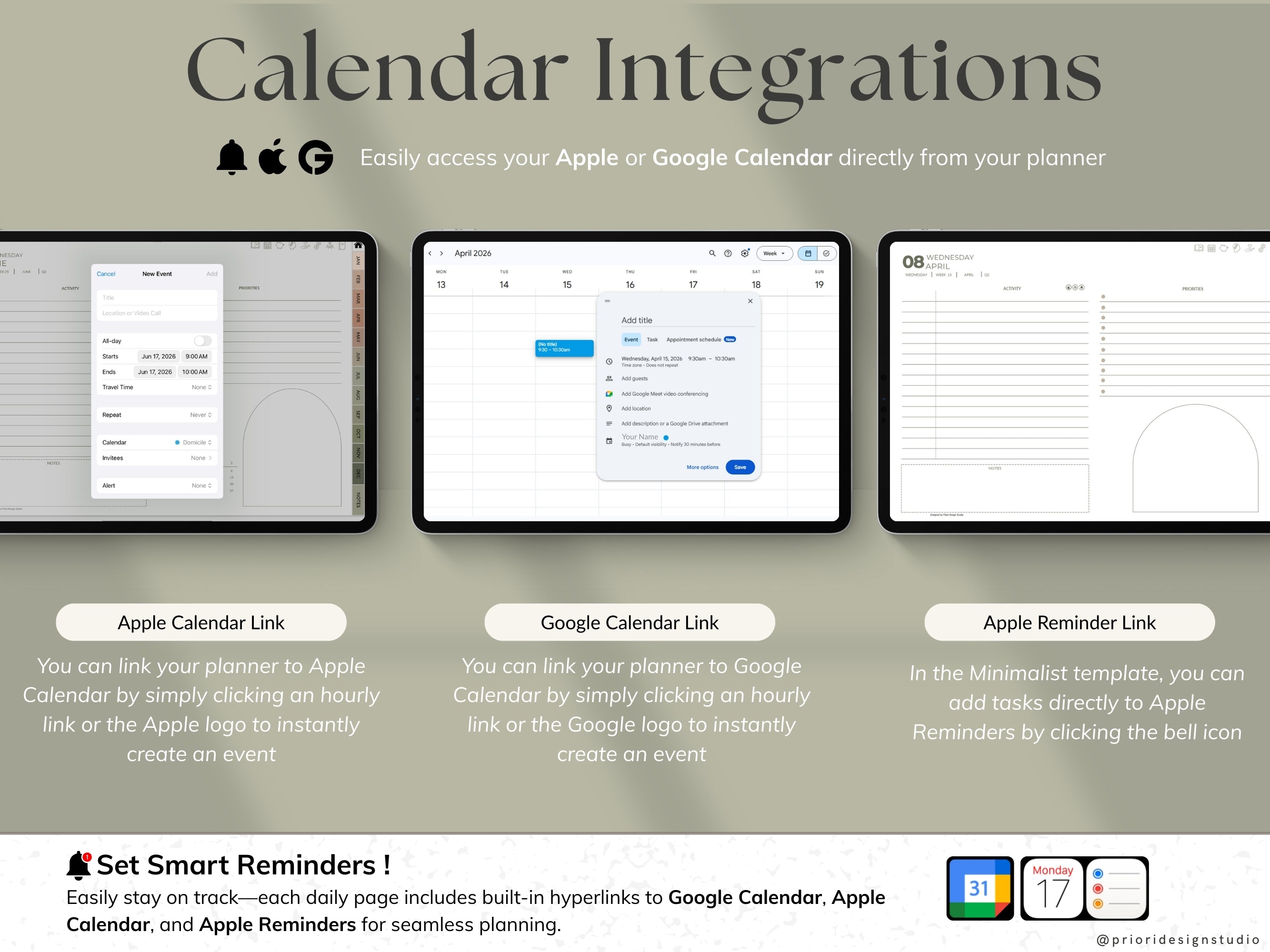
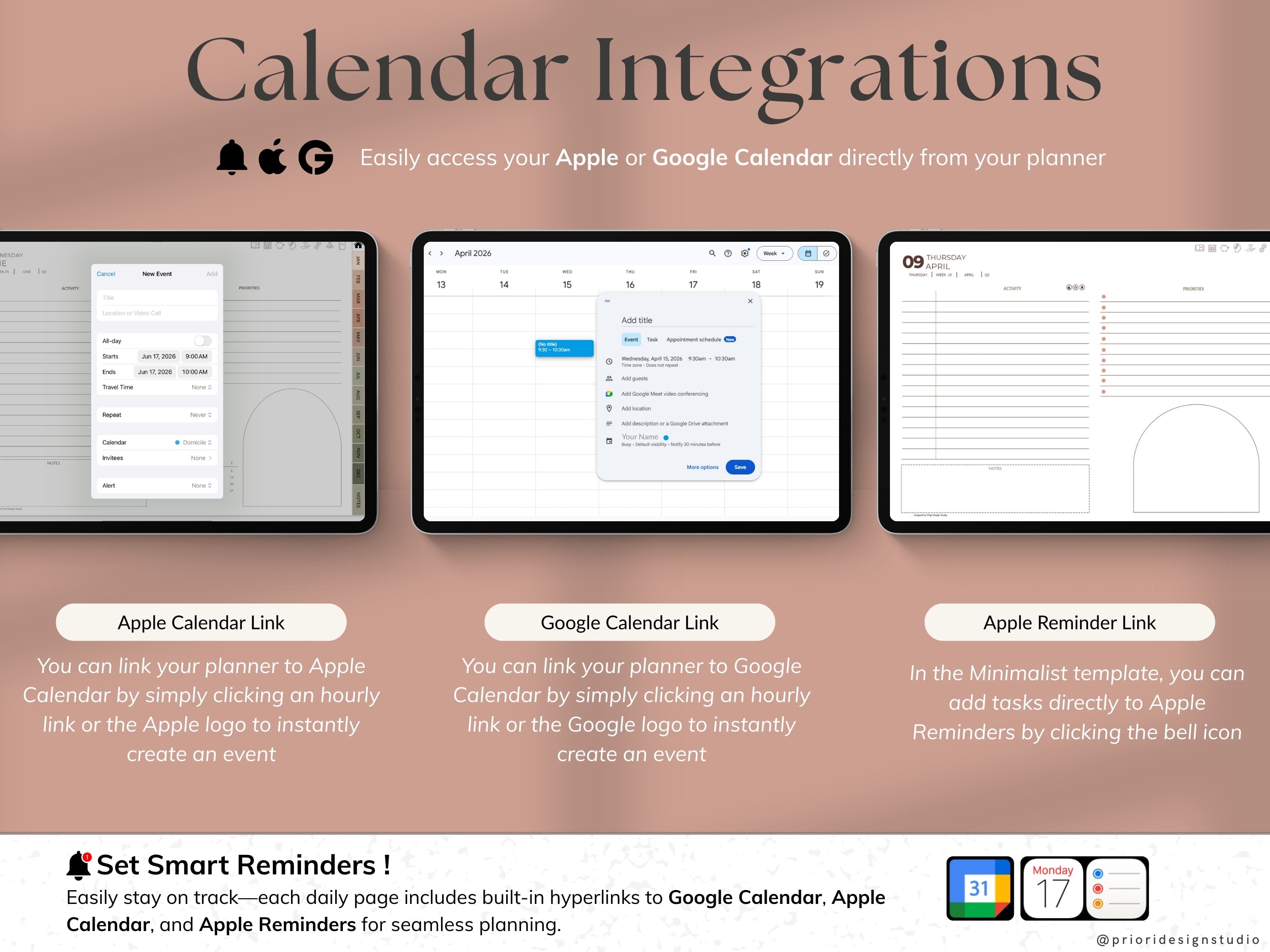
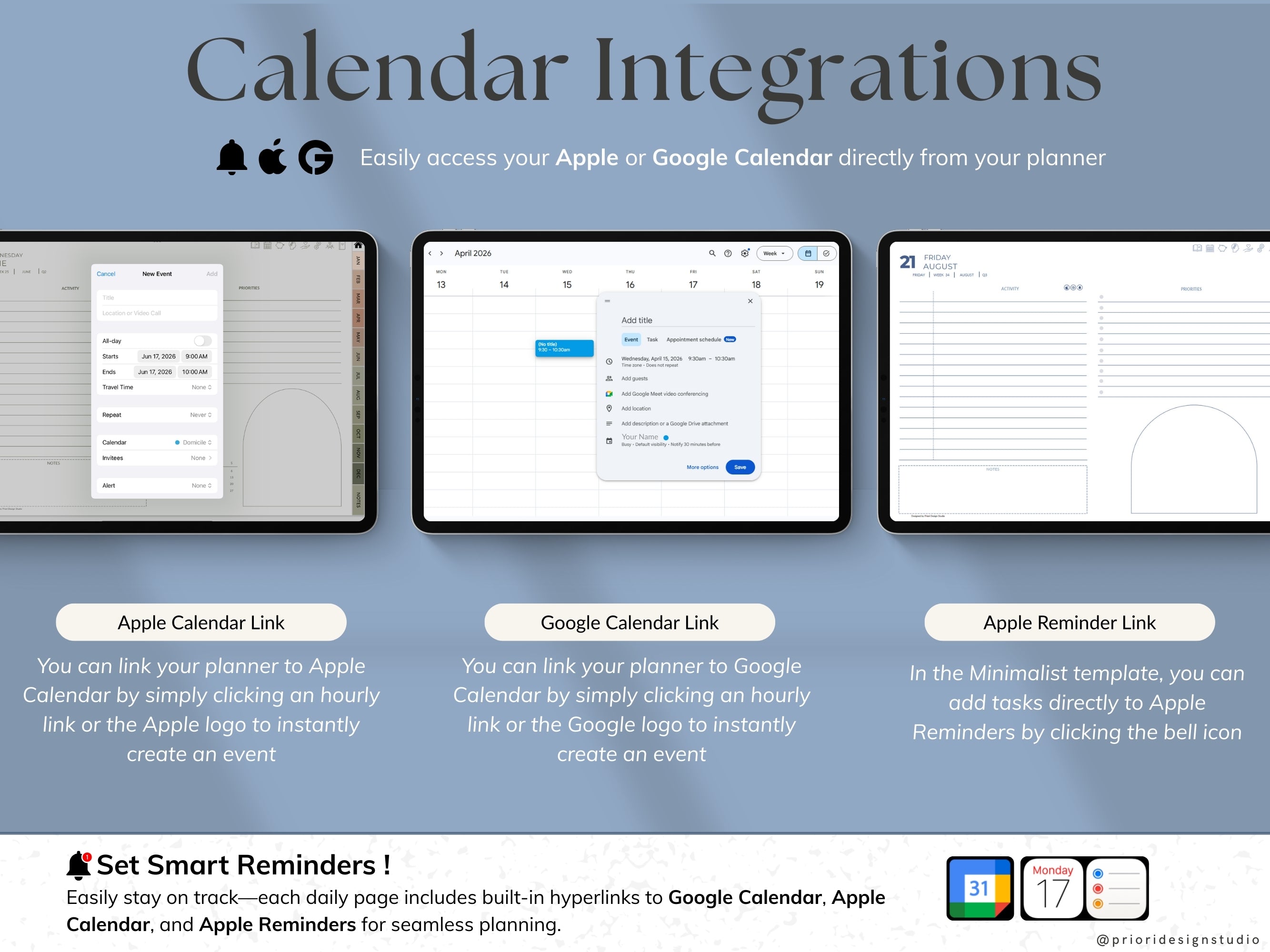
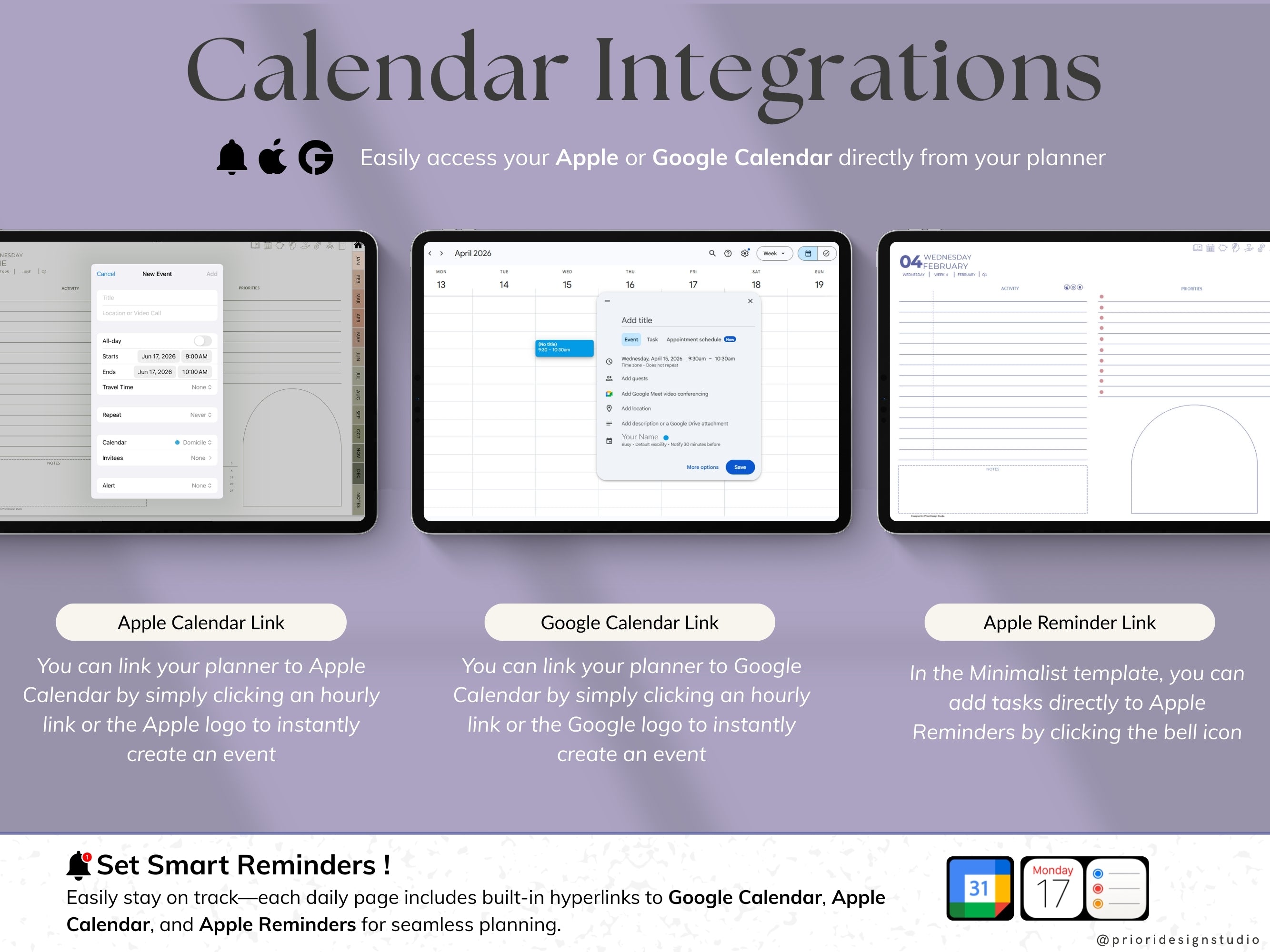
- Detailed version includes an hourly schedule with Google Calendar or Apple Calendar integration via tappable buttons and shortcuts.
- Minimalist version includes small icons for Apple Events, Google Events, or Apple Reminders, with required Apple
Shortcuts setup.
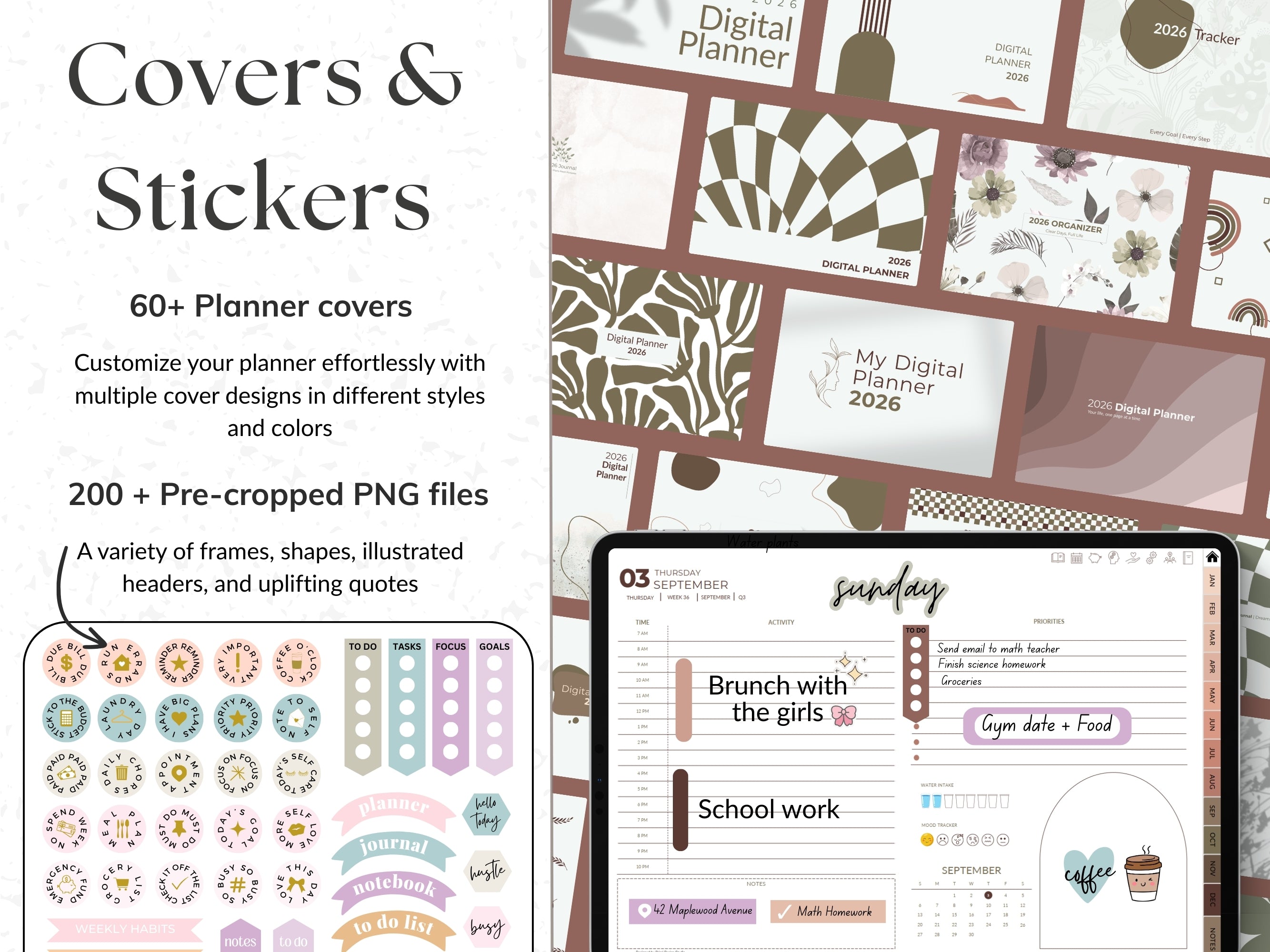
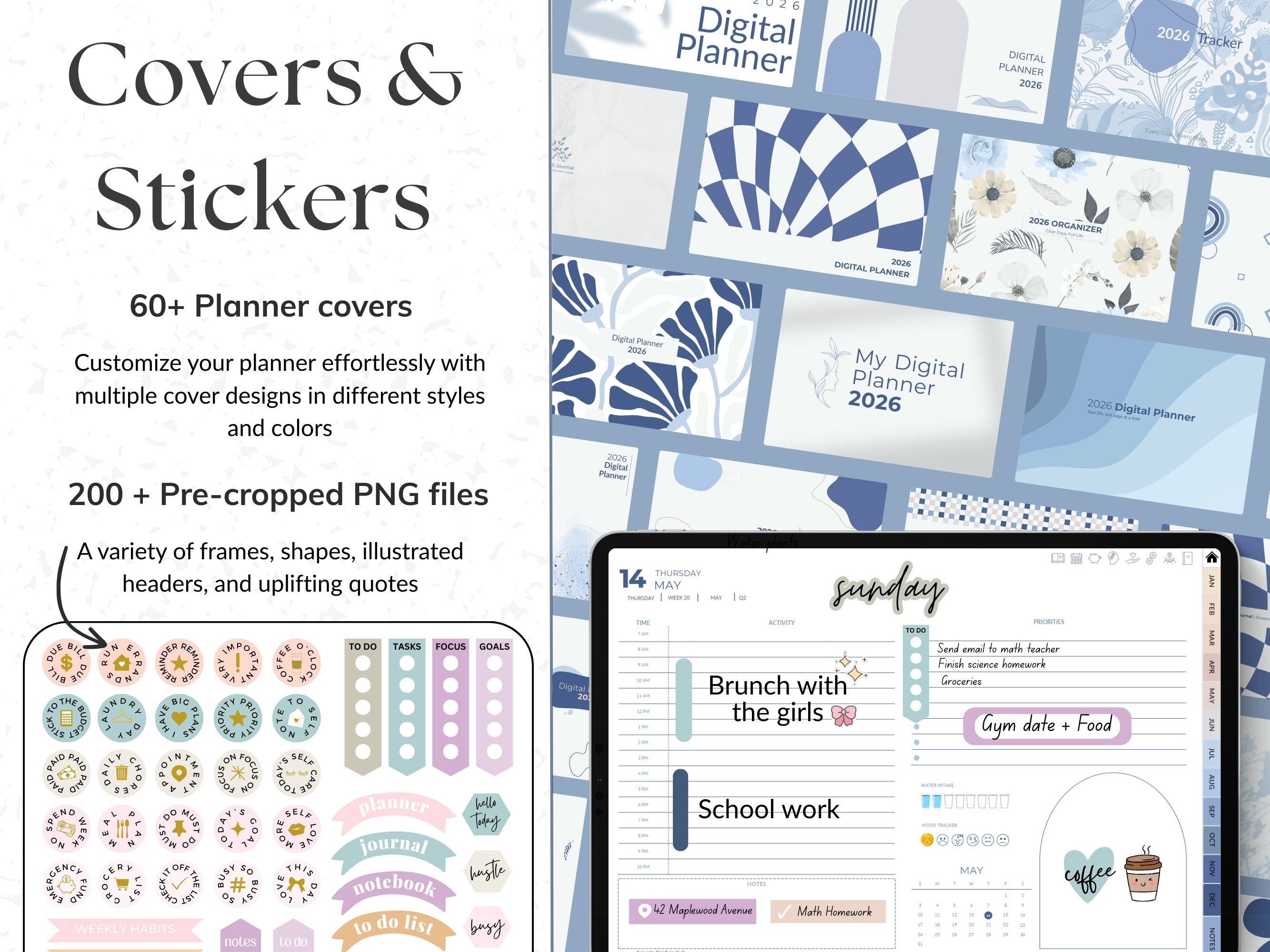
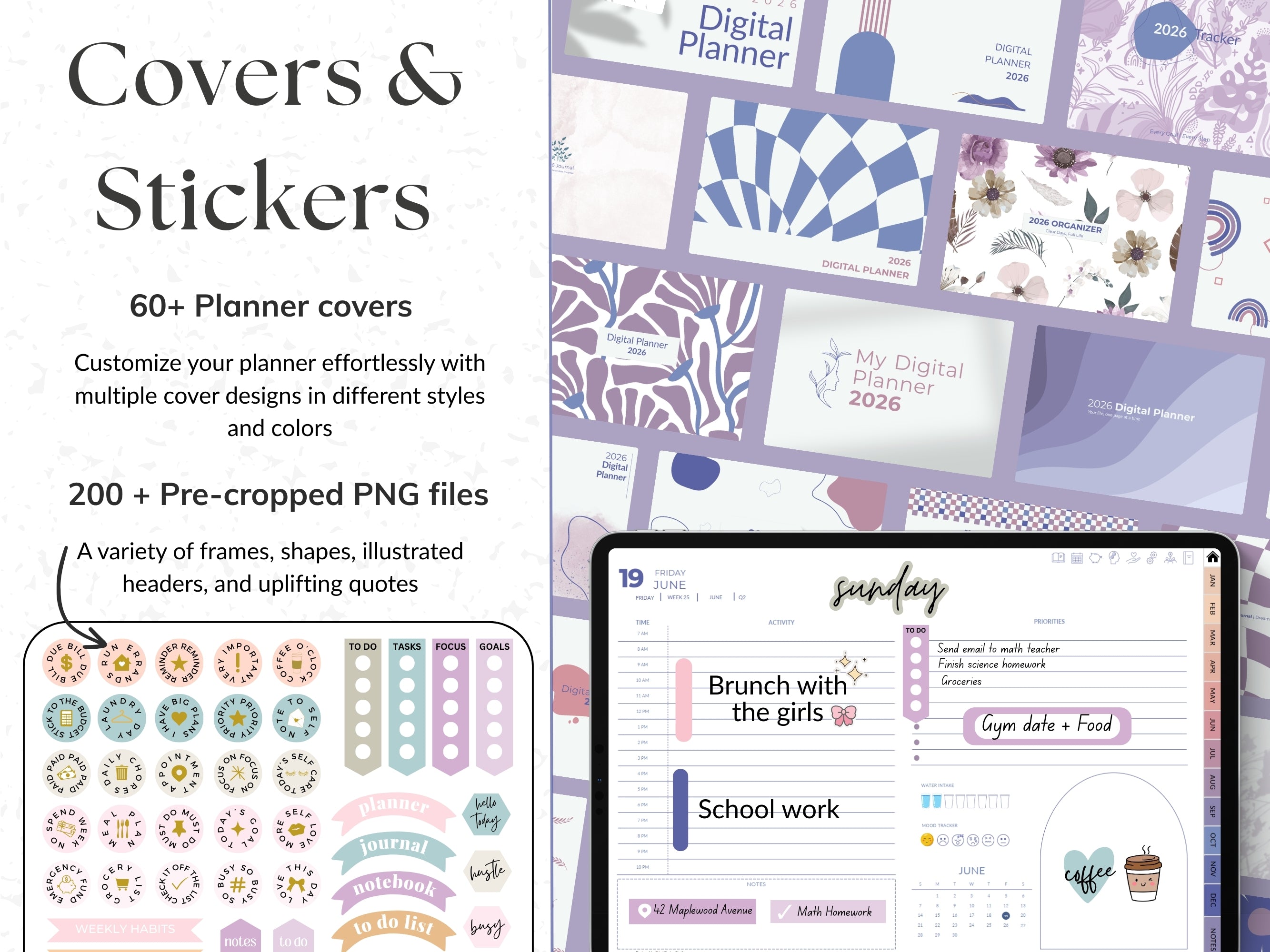
How to import stickers?
1. Download the Stickers:
- Tap the download button to open the sticker folder in Google Drive.
- Tap the three dots icon > "Download" > "Save to Files".
2. Unzip the File:
- Open the Files app and tap the ZIP file to unzip.
3. Import into Goodnotes or Notability:
- Split screen with Goodnotes/Notability and Files app.
- Drag and drop stickers into your planner.
4. Edit Stickers:
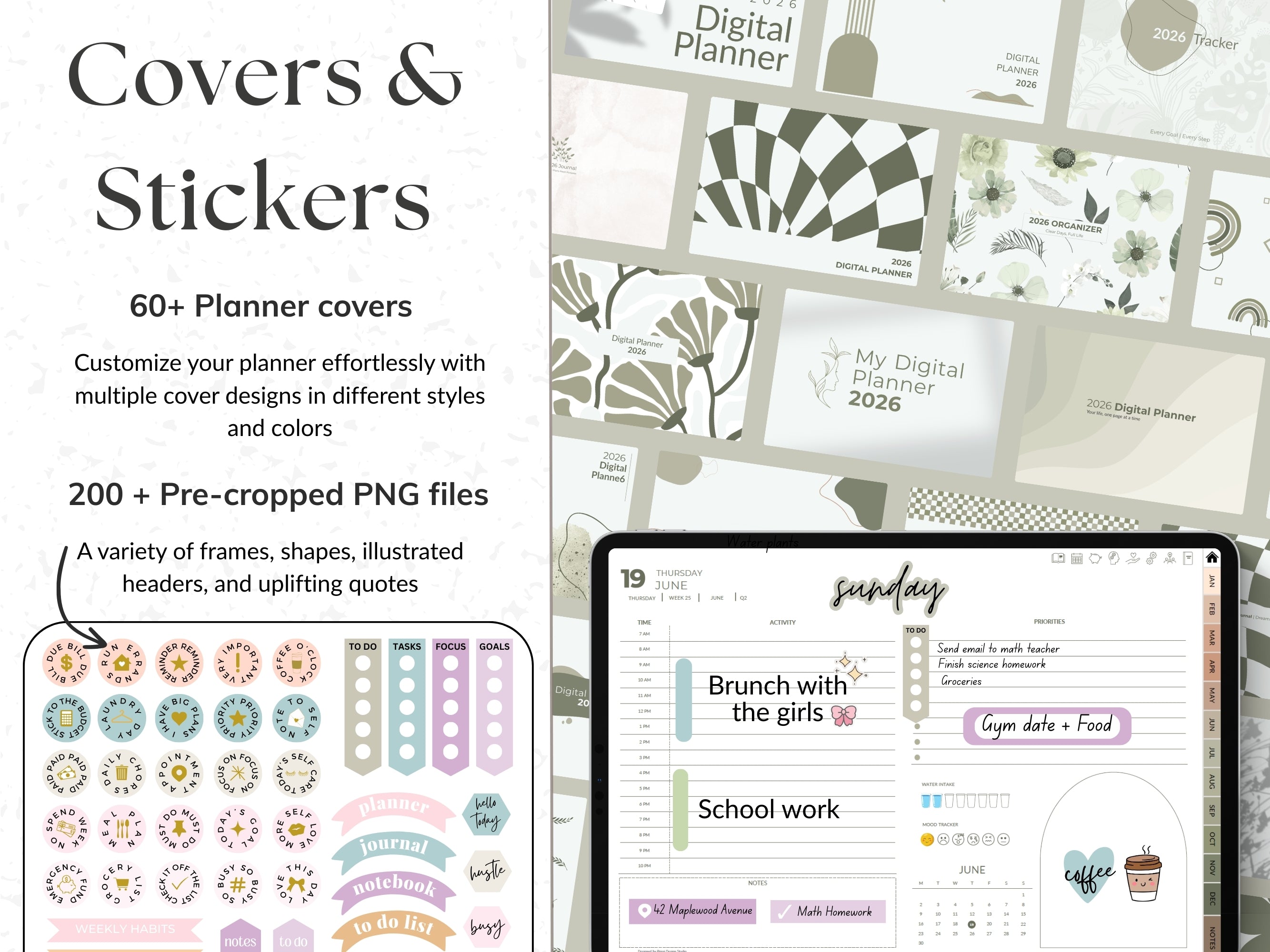
- In Goodnotes: Tap sticker once to move or resize, tap again for full options, or "Add Element" to save to your library.
- In Notability: Use the lasso tool to draw a circle around the sticker and access editing options.
How to change your cover?
1. Download the Cover PDF from Google Drive and save to Files.
2. Open in Goodnotes or Notability:
- Tap the PDF > Share > Open in respective app.
3. Copy and Paste the New Cover:
- In Goodnotes: Tap three dots > Copy Page > Go to planner front > Add Page > Paste Page > Delete old cover.
- In Notability: Open page sidebar > Select cover > Copy > Go to planner > Paste > Delete old cover.
Why might hyperlinks not be working?
- You may be in Writing Mode. Switch to Navigation Mode by deselecting the pen (Goodnotes) or enabling the hand icon
(Notability). - Apple links may fail unless the Shortcuts app is installed and running properly. Restart both apps.
- Reimport the planner if it was imported incorrectly (e.g., as image).
- Horizontal scrolling can interfere with navigation. Switch to vertical scrolling in view settings.
What are the device or version compatibility notes?
Our planner is optimized for Goodnotes 6 on iPad with Apple Pencil.
- Compatible with iPhone, Mac, or other stylus-capable tablets.
- Notability and Noteshelf support basic writing features, but may not fully support hyperlinks or tabs.
- For best results, use the latest Goodnotes version with hyperlink support enabled.